Automate template workflows with CE.SDK’s Android Engine API for batch processing, personalization, and headless design generation.
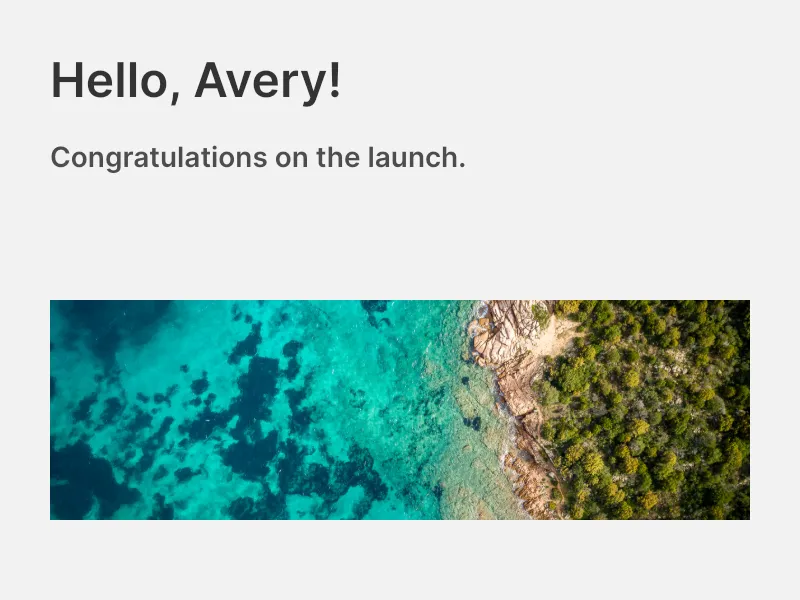
Templates are scenes with predefined structures that support dynamic content through variables and placeholders. This guide uses the Engine API directly, without opening the CE.SDK editor UI. You build a greeting card template from scratch, bind variables, mark swappable media, save it for reuse, batch-export personalized designs, and load an existing template.
Creating Templates from Scratch#
Build a template by creating a scene with engine.scene.create(...), then arranging blocks with engine.block.create(blockType=_) and engine.block.appendChild(parent=_, child=_).
val scene = engine.scene.create(designUnit = DesignUnit.PIXEL, fontSizeUnit = FontUnit.PIXEL)val page = engine.block.create(DesignBlockType.Page)engine.block.setWidth(page, value = 800F)engine.block.setHeight(page, value = 600F)engine.block.appendChild(parent = scene, child = page)
val pageFill = engine.block.createFill(FillType.Color)engine.block.setFill(block = page, fill = pageFill)engine.block.setFillSolidColor(    block = page,    color = Color.fromRGBA(r = 0.95F, g = 0.95F, b = 0.95F, a = 1F),)
engine.variable.set(key = "recipientName", value = "Template")engine.variable.set(key = "customMessage", value = "This is a template example.")
val titleBlock = engine.block.create(DesignBlockType.Text)engine.block.setName(titleBlock, name = "title")engine.block.replaceText(titleBlock, text = "Hello, {{recipientName}}!")engine.block.setTextFontSize(titleBlock, fontSize = 48F)engine.block.setTextColor(titleBlock, color = Color.fromHex("#333333"))engine.block.setPositionX(titleBlock, value = 50F)engine.block.setPositionY(titleBlock, value = 50F)engine.block.setWidth(titleBlock, value = 700F)engine.block.setHeight(titleBlock, value = 80F)engine.block.appendChild(parent = page, child = titleBlock)
val messageBlock = engine.block.create(DesignBlockType.Text)engine.block.setName(messageBlock, name = "message")engine.block.replaceText(messageBlock, text = "{{customMessage}}")engine.block.setTextFontSize(messageBlock, fontSize = 28F)engine.block.setTextColor(messageBlock, color = Color.fromHex("#4D4D4D"))engine.block.setPositionX(messageBlock, value = 50F)engine.block.setPositionY(messageBlock, value = 140F)engine.block.setWidth(messageBlock, value = 700F)engine.block.setHeight(messageBlock, value = 120F)engine.block.appendChild(parent = page, child = messageBlock)
The page uses a solid background fill. The title block contains Hello, {{recipientName}}! and the message block contains {{customMessage}}. These double-brace tokens define where text variables replace content at runtime.
Working with Placeholders#
Use placeholders for content areas that your app can replace programmatically or expose as editable template slots. The sample receives templateBaseUri from the host app so image URIs follow your bundled or self-hosted asset configuration. It then creates a named image block, assigns an image fill, enables placeholder behavior on the fill when supported, and marks the graphic block as a placeholder.
val imageBlock = engine.block.create(DesignBlockType.Graphic)engine.block.setName(imageBlock, name = "hero-image")engine.block.setShape(imageBlock, shape = engine.block.createShape(ShapeType.Rect))engine.block.setPositionX(imageBlock, value = 50F)engine.block.setPositionY(imageBlock, value = 300F)engine.block.setWidth(imageBlock, value = 700F)engine.block.setHeight(imageBlock, value = 220F)engine.block.setContentFillMode(imageBlock, mode = ContentFillMode.COVER)
val imageFill = engine.block.createFill(FillType.Image)val imageUri = templateBaseUri.buildUpon()    .appendPath("ly.img.image")    .appendPath("images")    .appendPath("sample_1.jpg")    .build()engine.block.setString(    block = imageFill,    property = "fill/image/imageFileURI",    value = imageUri.toString(),)engine.block.setFill(block = imageBlock, fill = imageFill)engine.block.appendChild(parent = page, child = imageBlock)
val placeholderFill = engine.block.getFill(imageBlock)if (engine.block.supportsPlaceholderBehavior(placeholderFill)) {    engine.block.setPlaceholderBehaviorEnabled(block = placeholderFill, enabled = true)}engine.block.setPlaceholderEnabled(block = imageBlock, enabled = true)val placeholderBlocks = engine.block.findAllPlaceholders()
engine.block.findAllPlaceholders() returns the placeholder blocks in the current scene. For named slots, use engine.block.findByName(name=_) and update the block or its fill.
Text Variables for Dynamic Content#
Variables drive text replacement throughout a template. Define them with engine.variable.set(key=_, value=_); any text containing the matching {{key}} updates automatically. Read a current value with engine.variable.get(key=_), list every key with engine.variable.findAll(), and check variable usage with engine.block.referencesAnyVariables(block=_).
val variableNames = engine.variable.findAll()val currentRecipientName = engine.variable.get(key = "recipientName")val titleUsesVariables = engine.block.referencesAnyVariables(titleBlock)Populating Template Content#
Updating a variable refreshes every text block that references it, so you do not need to find and edit individual text blocks. Map external data fields, such as JSON records or database rows, onto variable keys.
For media slots, find the named placeholder block, reuse its existing image fill when it has one, or attach a new image fill before setting the replacement URI.
val mediaPlaceholder = engine.block.findByName(name = "hero-image").first()val mediaFill = runCatching { engine.block.getFill(mediaPlaceholder) } .getOrNull() ?.takeIf { fill -> engine.block.getType(fill) == FillType.Image.key } ?: engine.block.createFill(FillType.Image).also { fill -> engine.block.setFill(block = mediaPlaceholder, fill = fill) }val replacementImageUri = templateBaseUri.buildUpon() .appendPath("ly.img.image") .appendPath("images") .appendPath("sample_2.jpg") .build()engine.block.setString( block = mediaFill, property = "fill/image/imageFileURI", value = replacementImageUri.toString(),)Saving Templates for Reuse#
Serialize a template to a portable string with engine.scene.saveToString(scene=_). To bundle the template with its loaded assets, call engine.scene.saveToArchive(scene=_).
engine.block.forceLoadResources(blocks = listOf(page))val templateString = engine.scene.saveToString(scene = scene)val templateArchive = engine.scene.saveToArchive(scene = scene)The serialized string contains the scene structure, block properties, and variable definitions. Store it in a database, write it to disk, or send it to another service that can load CE.SDK scenes.
Batch Processing with Templates#
Batch processing populates one template with many records. The sample updates variables for each recipient and exports the current page as a PNG.
val recipients = listOf(    "Avery" to "Congratulations on the launch.",    "Jordan" to "Thanks for your work this quarter.",)
for ((recipientName, customMessage) in recipients) {    engine.variable.set(key = "recipientName", value = recipientName)    engine.variable.set(key = "customMessage", value = customMessage)
    val cardData = engine.block.export(        block = page,        mimeType = MimeType.PNG,        options = ExportOptions(targetWidth = 800F, targetHeight = 600F),    )    personalizedCards += cardData}
ExportOptions(targetWidth=_, targetHeight=_) controls the output resolution. engine.block.export(block=_, mimeType=_, options=_) returns the rendered image data for storage, upload, or further processing.
Data-Driven Workflows#
When population changes state you do not want to carry between records, reload the saved template string before each record. Pass overrideEditorConfig = true so variables and other persisted editor configuration from the saved template replace the current values before you apply that record’s data and export.
val records = listOf(    "Riley" to "Welcome to the team.",    "Morgan" to "Great work on the campaign.",)
for ((recipientName, customMessage) in records) {    engine.scene.load(scene = templateString, overrideEditorConfig = true, waitForResources = true)    val recordPage = engine.scene.getPages().first()    engine.variable.set(key = "recipientName", value = recipientName)    engine.variable.set(key = "customMessage", value = customMessage)
    val recordData = engine.block.export(block = recordPage, mimeType = MimeType.PNG)    resetExports += recordData}
This pattern works for personalized certificates, greeting cards, and social media graphics generated from a single design.
Managing Variables#
Variable keys are case-sensitive and persist with the scene. Remove a key with engine.variable.remove(key=_) when it is no longer needed. Text that still references the key keeps the literal {{token}}.
engine.variable.remove(key = "customMessage")val variablesAfterRemoval = engine.variable.findAll()Loading Existing Templates#
Templates do not have to be built in code. Load a pre-built .scene template from a URI with engine.scene.load(sceneUri=_). This replaces the current scene content with the template’s pages and blocks. Pass overrideEditorConfig = true when the template’s saved variables and editor configuration should replace the current engine state.
val existingTemplateUri = templateBaseUri.buildUpon() .appendPath("ly.img.templates") .appendPath("templates") .appendPath("cesdk_business_card_1.scene") .build()engine.scene.load(sceneUri = existingTemplateUri, overrideEditorConfig = true, waitForResources = true)val loadedTemplatePageCount = engine.scene.getPages().sizeFor templates bundled with their assets, use engine.scene.load(sceneUri=_). To merge a .scene template into the current scene instead of replacing it, use engine.scene.applyTemplate(templateUri=_).
API Reference#
| Method | Description |
|---|---|
engine.scene.create(designUnit=_, fontSizeUnit=_) |
Create a blank scene to build a template. |
engine.scene.load(scene=_, overrideEditorConfig=_, waitForResources=_) |
Load a scene from a serialized template string, optionally restoring saved editor configuration such as variables. |
engine.scene.load(sceneUri=_, overrideEditorConfig=_, waitForResources=_) |
Load a scene or archive from a local or remote URI (content detected automatically) |
engine.scene.loadArchive(archiveUri=_) |
Load a scene archive from a URI |
engine.scene.applyTemplate(templateUri=_) |
Apply a .scene template to the current scene. |
engine.scene.getPages() |
Return the pages in the current scene. |
engine.scene.saveToString(scene=_) |
Serialize the scene to a portable string. |
engine.scene.saveToArchive(scene=_) |
Save the scene and loaded assets as an archive. |
engine.block.create(blockType=_) |
Create a new design block. |
engine.block.createFill(fillType=_) |
Create a fill block. |
engine.block.createShape(type=_) |
Create a shape block. |
engine.block.appendChild(parent=_, child=_) |
Add a block to the scene hierarchy. |
engine.block.setWidth(block=_, value=_) |
Set a block’s width. |
engine.block.setHeight(block=_, value=_) |
Set a block’s height. |
engine.block.setPositionX(block=_, value=_) |
Set a block’s horizontal position. |
engine.block.setPositionY(block=_, value=_) |
Set a block’s vertical position. |
engine.block.setName(block=_, name=_) |
Assign a stable name for later lookup. |
engine.block.findByName(name=_) |
Find named blocks such as template slots. |
engine.block.getType(block=_) |
Check the type of an existing block or fill. |
engine.block.replaceText(block=_, text=_) |
Set text content, including {{variable}} tokens. |
engine.block.setTextFontSize(block=_, fontSize=_) |
Set text size. |
engine.block.setTextColor(block=_, color=_) |
Set text color. |
engine.block.setFillSolidColor(block=_, color=_) |
Set a solid fill color. |
engine.block.setString(block=_, property="fill/image/imageFileURI", value=_) |
Set an image fill URI. |
engine.block.setShape(block=_, shape=_) |
Assign a shape to a graphic block. |
engine.block.setFill(block=_, fill=_) |
Assign a fill to a block. |
engine.block.getFill(block=_) |
Retrieve a block’s current fill. |
engine.block.setContentFillMode(block=_, mode=_) |
Control how media fills the graphic block. |
engine.block.setPlaceholderEnabled(block=_, enabled=_) |
Mark a block as a placeholder. |
engine.block.supportsPlaceholderBehavior(block=_) |
Check whether a block supports placeholder behavior. |
engine.block.setPlaceholderBehaviorEnabled(block=_, enabled=_) |
Enable placeholder replacement behavior. |
engine.block.findAllPlaceholders() |
Return all placeholder blocks in the current scene. |
engine.block.referencesAnyVariables(block=_) |
Check whether a block references variables. |
engine.block.forceLoadResources(blocks=_) |
Load referenced resources before archiving. |
engine.block.export(block=_, mimeType=_, options=_) |
Export a block to image data. |
engine.variable.set(key=_, value=_) |
Create or update a text variable. |
engine.variable.get(key=_) |
Read a variable’s current value. |
engine.variable.findAll() |
List every variable key in the scene. |
engine.variable.remove(key=_) |
Delete a variable from the scene. |
Troubleshooting#
Template loading failures: Verify scene strings are correctly encoded and URIs are reachable. Use try/catch around loading calls to handle network, file, or parsing errors.
Variables not replacing text: Variable keys inside {{}} must exactly match the keys passed to engine.variable.set(key=_, value=_). Keys are case-sensitive.
Placeholders not updating: Confirm the block is listed by engine.block.findAllPlaceholders() and check placeholder behavior support with engine.block.supportsPlaceholderBehavior(block=_).
Export issues: Confirm all required assets are reachable before exporting or archiving. Missing images or fonts can cause export failures. Check the block hierarchy; orphaned blocks that are not connected to the page tree do not appear in exports.
Next Steps#
- Create From Scratch — Build reusable template structures block by block.
- Text Variables — Define dynamic text elements populated at runtime.
- Placeholders — Mark editable image, video, and text areas in a locked layout.
- Data Merge — Generate personalized designs by merging external data into templates.