Curve a text block so its characters follow an SVG path — an arch, a full circle, or any custom curve — instead of a straight baseline.
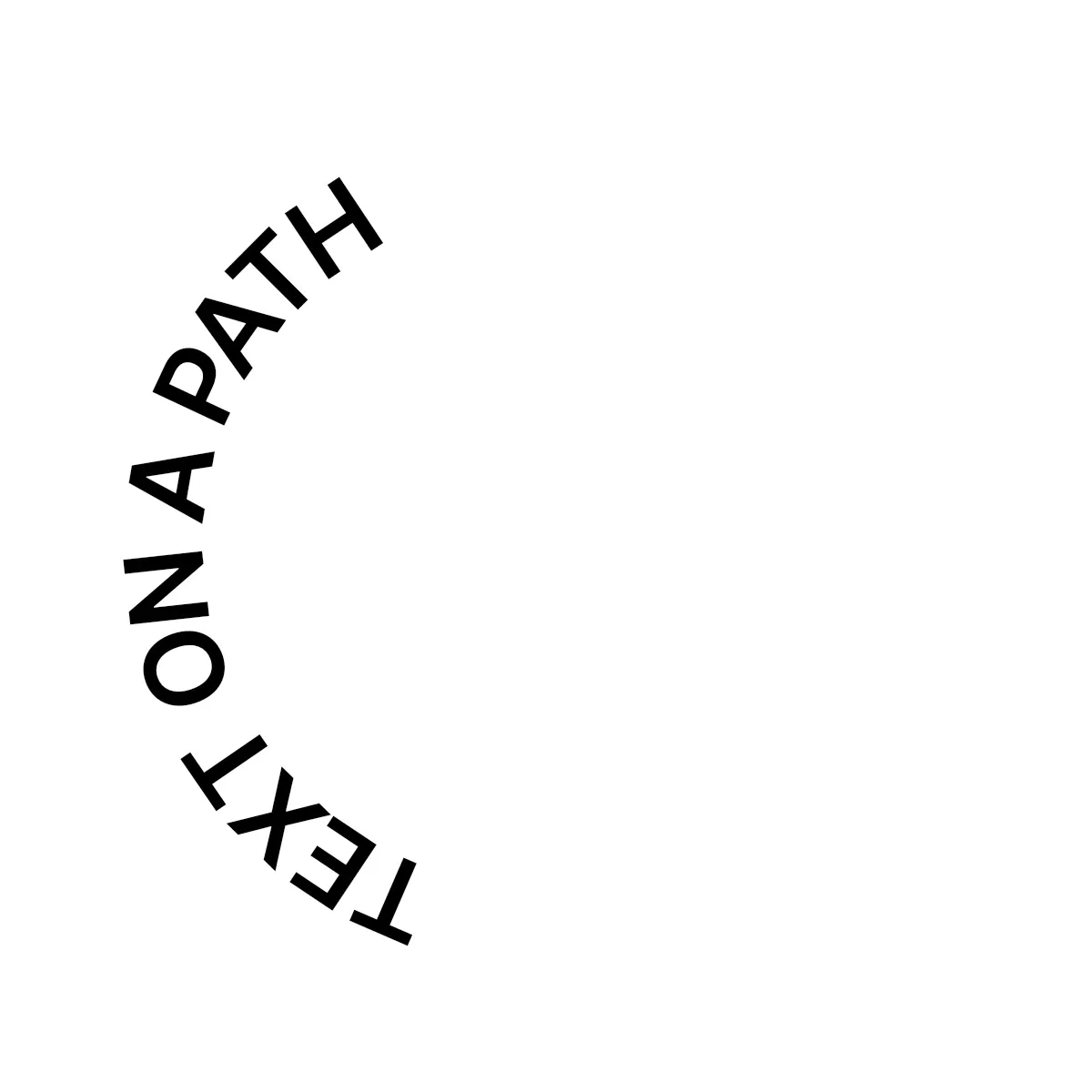
Text on a path makes a text block’s baseline follow an SVG curve instead of a straight line — useful for badges, circular seals, and arched headlines. It applies to text blocks only and disables word wrapping while a path is active: explicit line breaks in the text collapse to spaces. Setting a path resizes the block to match the path’s aspect ratio.
Using the Built-in Path UI#
The CE.SDK editor UI lets users curve text interactively: select a text block and tap Text on Path in the inspector bar. The None, Circle, Arch, Wave, and Elevate presets come from ly.img.text.curves, so you can customize the set. Applying one also replaces the horizontal and vertical alignment, direction, and offset with the preset values. The block keeps its text. A preset sets the text only when it makes a new block. The sheet exposes Path Position, Direction, and Offset for both preset and custom SVG paths.
The rest of this guide covers the Engine API behind that experience, which applies text on a path programmatically.
Applying Curved Text Presets from the Asset Library#
The same Curved Text presets also surface as a section of the asset library’s Text tab. Applying a preset from the library inserts a new text block with that curve already applied, ready for you to replace its placeholder copy.
Creating the Text Block#
We create a text block, give it a short headline, set a font size, and append it to a page. Creating and styling text in depth is covered in Add Text and Text Styling.
val text = engine.block.create(DesignBlockType.Text)engine.block.appendChild(parent = page, child = text)engine.block.replaceText(text, text = "TEXT ON A PATH")engine.block.setTextFontSize(text, fontSize = 48F)The block starts out with a normal, straight baseline.
Placing Text on the Path#
We curve the text onto a circle with engine.block.setTextOnPath(), passing an SVG path string in the block’s local coordinate space. The path must contain exactly one subpath (a single leading M); the block resizes to match the path’s aspect ratio and word wrapping turns off.
// The path must contain a single subpath; the block resizes to match the// path's aspect ratio and word wrapping is disabled.val circlePath = "M 60,119.5 A 59.5,59.5 0 1,1 60.01,119.5 Z"engine.block.setTextOnPath(text, svgPath = circlePath)The characters now follow the circle instead of a straight line.
Positioning the Text Vertically#
We set where the text sits relative to the path with the text/verticalAlignment enum — Top, Center, or Bottom — and read the current value back with engine.block.getEnum().
engine.block.setEnum(text, property = "text/verticalAlignment", value = "Center")val verticalAlignment = engine.block.getEnum(text, property = "text/verticalAlignment")Center runs the baseline through the middle of the glyphs, while Top and Bottom sit the text on the inner or outer edge of the curve.
Offsetting Along the Path#
We slide the text along the path with engine.block.setTextOnPathOffset(), a proportional value clamped to [-1, 1] and centered at zero, and read it back with engine.block.getTextOnPathOffset(). The same value is exposed as the text/pathOffset float property. Both ends of the range wrap back to the same position as 0, so 1 and -1 don’t move the text further than a value just short of them.
// The offset is a proportion of the path length, clamped to [-1, 1].engine.block.setTextOnPathOffset(text, offset = 0.05F)val offset = engine.block.getTextOnPathOffset(text)Positive values move the text forward along the path; negative values move it back.
Flipping the Direction#
We flip the text to the other side of the curve — reversing its direction — with engine.block.setTextOnPathFlipped(), and read whether it’s flipped back with engine.block.getTextOnPathFlipped().
engine.block.setTextOnPathFlipped(text, flipped = true)val isFlipped = engine.block.getTextOnPathFlipped(text)Flipping is what turns the bottom half of a circular badge right-side up.
Reading and Clearing the Path#
We read the block’s current path with engine.block.getTextOnPath(), which returns the SVG string or null. To remove the curve and restore a straight, auto-sized baseline, pass null to setTextOnPath().
val pathBeforeClear = engine.block.getTextOnPath(text)
// Passing null removes the curve and restores a straight, auto-sized baseline.engine.block.setTextOnPath(text, svgPath = null)val pathAfterClear = engine.block.getTextOnPath(text)
Clearing the path returns the block to a normal, straight text block with automatic sizing.
Configuring Availability#
The Text on Path button is a standard inspector bar component with the id ly.img.component.inspectorBar.button.textOnPath, created by InspectorBar.Button.rememberTextOnPath. To hide, reorder, or replace it, customize the inspector bar’s item list in your editor configuration — see Inspector Bar.
By default the button appears when the selected block is a text block and the block’s "text/character" scope is allowed, so the feature also disappears for text blocks whose editing scope is locked down.
Hiding the button doesn’t affect the other surfaces that list the same ly.img.text.curves presets — the Curved Text section of the asset library’s Text tab remains available unless you also customize the asset library.
Troubleshooting#
- The path string is rejected (
EngineExceptionwith codeBLOCK.TEXT_ON_PATH_INVALID_SVG_PATH): the value isn’t a valid SVG path — check thedattribute. - The path has multiple subpaths (
BLOCK.TEXT_ON_PATH_MULTIPLE_SUBPATHS): supply a single continuous contour with one leadingM. - The path has no measurable length (
BLOCK.TEXT_ON_PATH_NO_MEASURABLE_CONTOUR): a loneMhas zero length — give the path drawable length. - Text runs off the end of the path: the block isn’t grown to fit the text, so text longer than the path overflows. Shorten the text or enlarge the block.
- The Text on Path button doesn’t appear: the selection isn’t a text block, the block’s
"text/character"scope isn’t allowed, or the button was removed from the inspector bar. - The block background disappears: a text block on a path draws no block background, because the rectangle does not follow the curve. The setting stays, and the background draws again when the path is removed. Use the background color of the text runs instead.
API Reference#
| Method | Purpose |
|---|---|
engine.block.setTextOnPath(block=_, svgPath=_) |
Curve a text block along an SVG path (single subpath); pass null to clear. |
engine.block.getTextOnPath(block=_) |
Get the block’s current path SVG string, or null. |
engine.block.setTextOnPathOffset(block=_, offset=_) |
Set the proportional offset ([-1, 1]) of the text along the path. |
engine.block.getTextOnPathOffset(block=_) |
Get the current path offset. |
engine.block.setTextOnPathFlipped(block=_, flipped=_) |
Flip the text to the other side of the path (reverse direction). |
engine.block.getTextOnPathFlipped(block=_) |
Get whether the text is flipped. |
engine.block.setEnum(block=_, property="text/verticalAlignment", value=_) |
Set where the text sits relative to the path (Top/Center/Bottom). |
engine.block.getEnum(block=_, property="text/verticalAlignment") |
Read the current vertical alignment. |
engine.block.create(blockType=_) |
Create the text block to curve. |
engine.block.appendChild(parent=_, child=_) |
Attach the text block to a page. |
engine.block.replaceText(block=_, text=_) |
Set the block’s text content. |
engine.block.setTextFontSize(block=_, fontSize=_) |
Set the font size of the text. |
Properties Reference#
| Property | Type | Purpose |
|---|---|---|
text/verticalAlignment |
Enum (Top, Center, Bottom) |
Where the text sits relative to the path; defaults to Top. |
text/pathOffset |
Float | The proportional offset along the path — the same value as setTextOnPathOffset(). |
text/pathFlipped |
Boolean | Whether the text sits on the opposite side of the path — the same value as setTextOnPathFlipped(). |
Next Steps#
- Text Styling — fonts, sizing, color, and alignment for the curved text
- Text Effects — add shadows and effects to the text
- Inspector Bar — customize or hide the editor’s inspector bar controls