Configure emoji rendering in CE.SDK text blocks with a dedicated emoji font for consistent display across Android devices.
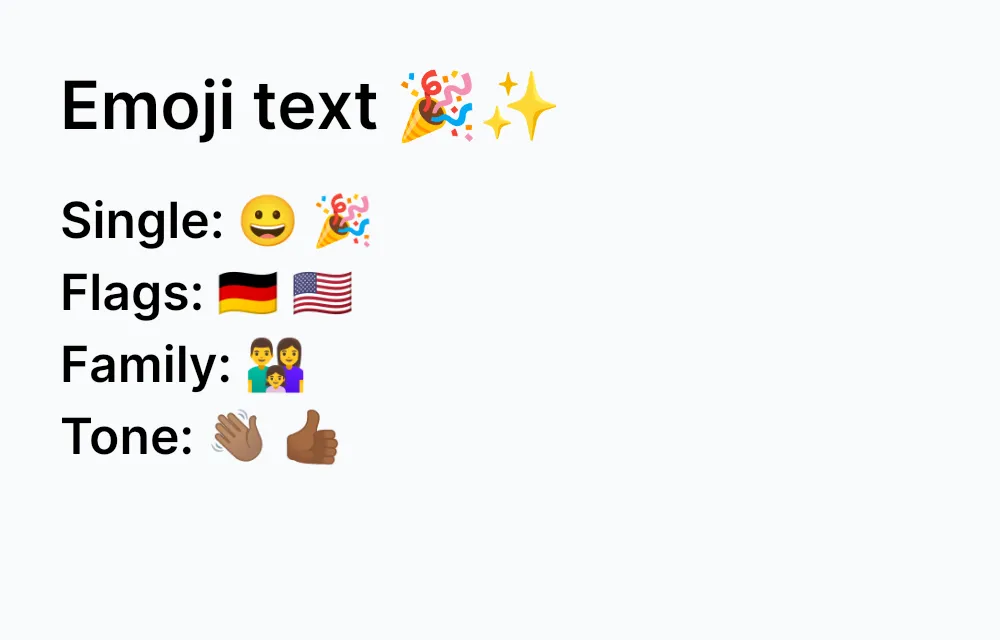
Emojis are Unicode characters that can be single code points, flag sequences, joined family symbols, or skin tone variants. CE.SDK renders them through the same text engine as other text content, with a configurable emoji font for consistent output.
This guide covers the default emoji font, how to set an emoji font URI, and how to add emoji text programmatically.
Default Emoji Font#
When defaultEmojiFontFileUri is empty, CE.SDK uses Noto Color Emoji from the active asset base URI at emoji/NotoColorEmoji.ttf. Android initializes basePath as file:///android_asset, so the default emoji font URI resolves to file:///android_asset/emoji/NotoColorEmoji.ttf unless your app changes basePath.
Read the configured override with getSettingString(). An empty string means CE.SDK falls back to the default font URI derived from the active asset base.
val configuredEmojiFontUri = engine.editor.getSettingString( keypath = "defaultEmojiFontFileUri",)val assetBaseUri = engine.editor .getSettingString(keypath = "basePath") .trimEnd('/')val defaultEmojiFontUri = "$assetBaseUri/emoji/NotoColorEmoji.ttf"Configuring the Emoji Font#
Set defaultEmojiFontFileUri when you want to use another emoji font or host the font from a specific location. The URI can point to a reader-owned CDN URL or an Android asset path such as file:///android_asset/emoji/CustomEmoji.ttf.
The sample function receives your app-owned asset base URI as appAssetBaseUri. Point that base URI at a bundled or self-hosted CE.SDK asset directory that contains emoji/NotoColorEmoji.ttf, then derive the font URI from that base:
val emojiFontUri = appAssetBaseUri    .buildUpon()    .appendPath("emoji")    .appendPath("NotoColorEmoji.ttf")    .build()    .toString()
engine.editor.setSettingString(    keypath = "defaultEmojiFontFileUri",    value = emojiFontUri,)
Adding Emojis to Text Blocks#
Create a text block with DesignBlockType.Text, attach it to the page, and use replaceText() to insert text that contains emoji characters.
val primaryText = "Emoji text 🎉✨"val emojiTextBlock = engine.block.create(DesignBlockType.Text)engine.block.appendChild(parent = page, child = emojiTextBlock)engine.block.replaceText(block = emojiTextBlock, text = primaryText)engine.block.setTextFontSize(block = emojiTextBlock, fontSize = 16F)engine.block.setWidth(block = emojiTextBlock, value = 880F)engine.block.setWidthMode(block = emojiTextBlock, mode = SizeMode.ABSOLUTE)engine.block.setHeightMode(block = emojiTextBlock, mode = SizeMode.AUTO)engine.block.setPositionX(block = emojiTextBlock, value = 60F)engine.block.setPositionY(block = emojiTextBlock, value = 64F)CE.SDK handles common emoji forms automatically, including single code points, flag sequences, zero-width-joiner sequences, and skin tone modifiers.
val emojiExamples = listOf( "Single: 😀 🎉", "Flags: 🇩🇪 🇺🇸", "Family: 👨👩👧", "Tone: 👋🏽 👍🏾",)
emojiExamples.forEachIndexed { index, text -> val textBlock = engine.block.create(DesignBlockType.Text) engine.block.appendChild(parent = page, child = textBlock) engine.block.replaceText(block = textBlock, text = text) engine.block.setTextFontSize(block = textBlock, fontSize = 12F) engine.block.setWidthMode(block = textBlock, mode = SizeMode.AUTO) engine.block.setHeightMode(block = textBlock, mode = SizeMode.AUTO) engine.block.setPositionX(block = textBlock, value = 60F) engine.block.setPositionY(block = textBlock, value = 190F + index * 72F)}The forceSystemEmojis Setting#
forceSystemEmojis defaults to true. With this setting enabled, CE.SDK uses the configured emoji font for emoji graphemes even when the current text font contains an emoji glyph. When disabled, CE.SDK only falls back to the emoji font if the active text font cannot render the emoji.
engine.editor.setSettingBoolean( keypath = "forceSystemEmojis", value = true,)val forceSystemEmojis = engine.editor.getSettingBoolean( keypath = "forceSystemEmojis",)Troubleshooting#
Emojis look different than expected: CE.SDK uses Noto Color Emoji by default. Set defaultEmojiFontFileUri to a different emoji font if your design needs another emoji style.
Missing emojis: Verify that the configured font supports the Unicode emoji sequences your content uses.
Font download is large: The default Noto Color Emoji file is about 9.9 MB. Host it with the rest of your CE.SDK assets or bundle it with your app when startup network cost matters.
Emoji font does not load: Check that the URI is reachable from the Android device and that remote hosts allow font downloads.
API Reference#
| API | Category | Purpose |
|---|---|---|
engine.editor.getSettingString(keypath="basePath") |
Editor | Read the active asset base URI used to derive the standard emoji font URI. |
engine.editor.getSettingString(keypath="defaultEmojiFontFileUri") |
Editor | Read the configured emoji font URI override. |
engine.editor.setSettingString(keypath="defaultEmojiFontFileUri", value=_) |
Editor | Set the emoji font URI override. |
engine.editor.getSettingBoolean(keypath="forceSystemEmojis") |
Editor | Read whether CE.SDK forces emoji graphemes to use the emoji font. |
engine.editor.setSettingBoolean(keypath="forceSystemEmojis", value=_) |
Editor | Configure whether CE.SDK always uses the emoji font for emoji graphemes. |
engine.block.create(blockType=_) |
Block | Create a text block with DesignBlockType.Text. |
engine.block.appendChild(parent=_, child=_) |
Block | Attach the text block to the scene hierarchy. |
engine.block.replaceText(block=_, text=_) |
Text | Set text content, including Unicode emoji characters. |
engine.block.setTextFontSize(block=_, fontSize=_) |
Text | Set the font size for the text block. |
engine.block.setWidth(block=_, value=_) |
Layout | Set an explicit text block width. |
engine.block.setWidthMode(block=_, mode=_) |
Layout | Configure how CE.SDK resolves the block width. |
engine.block.setHeightMode(block=_, mode=_) |
Layout | Configure how CE.SDK resolves the block height. |
engine.block.setPositionX(block=_, value=_) |
Layout | Set the block’s horizontal position. |
engine.block.setPositionY(block=_, value=_) |
Layout | Set the block’s vertical position. |
Next Steps#
- Text Overview - Learn about text editing capabilities in CE.SDK.
- Add Text - Insert text blocks into your CE.SDK scene.
- Customize Fonts — Load and manage custom fonts to match brand guidelines or user preferences.