Load custom typefaces into CE.SDK and apply them through the Android editor UI or the CreativeEngine Block API.
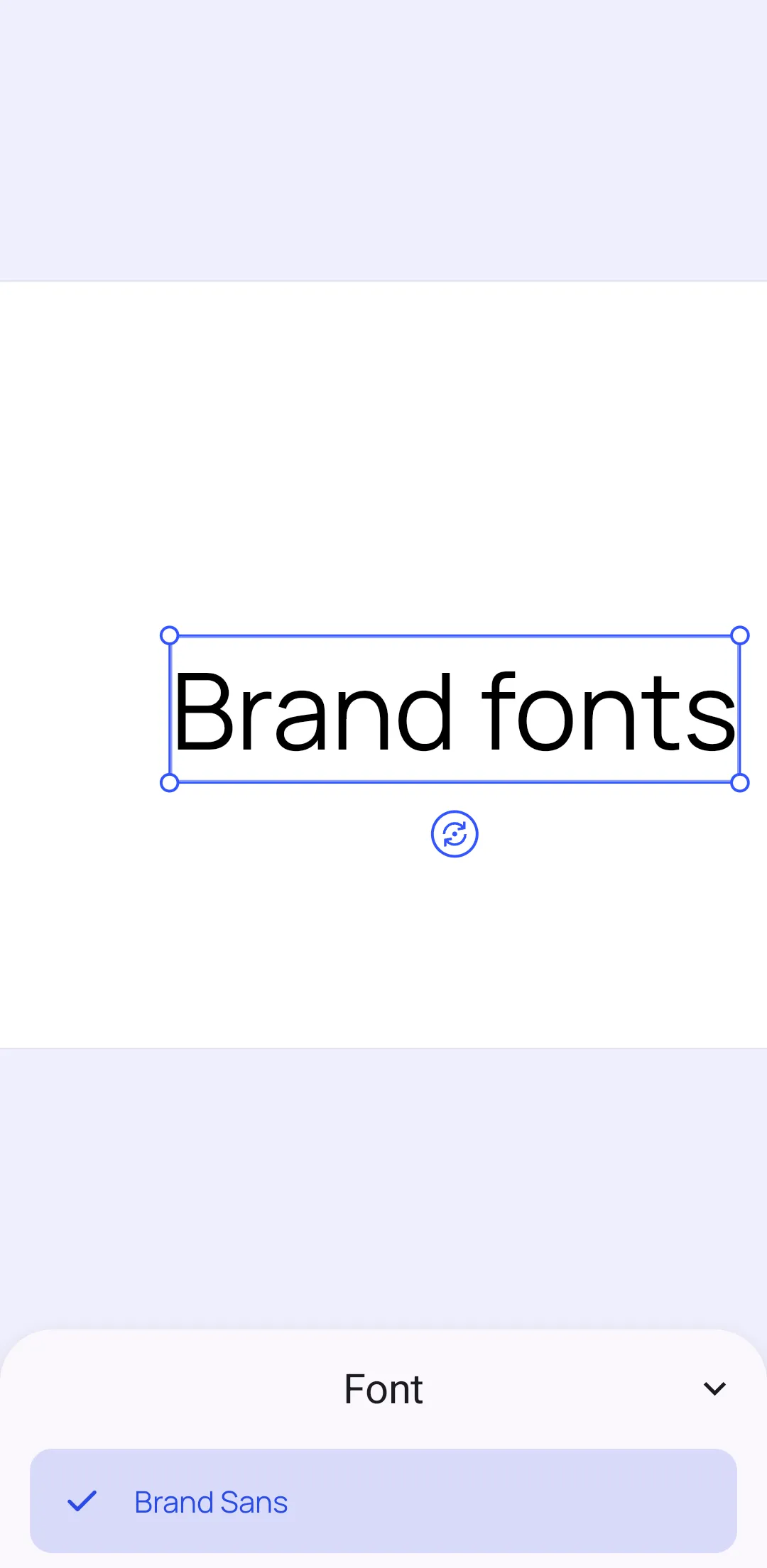
CE.SDK ships with default typefaces, but you can replace or extend them with font files from your own app bundle, CDN, or asset host. On Android, typefaces are regular asset payloads: define the font family, register it in an asset source, then pass the typeface asset IDs to the editor font sheet or query them from your own code.
This guide shows how to define a two-weight typeface, register it as an Android asset source, expose it to the CE.SDK editor UI, and apply it to a text block programmatically.
Typeface and Font Structure#
A Typeface represents one font family. Its fonts list contains the concrete variants that CE.SDK can choose from when text is regular, bold, italic, or another supported weight.
Each Font needs:
uri- a reachable font file, such as a bundled asset or HTTPS URLsubFamily- the display name of the variant, such asRegularorBoldweight- one of the AndroidFontWeightenum valuesstyle-FontStyle.NORMALorFontStyle.ITALIC
private const val CUSTOM_TYPEFACE_SOURCE_ID = "my-custom-typefaces"private const val BRAND_TYPEFACE_ASSET_ID = "ly.img.typeface.brand_sans"private const val BRAND_SANS_REGULAR_FILE = "BrandSans-Regular.ttf"private const val BRAND_SANS_BOLD_FILE = "BrandSans-Bold.ttf"
private fun brandFontUri(fileName: String): Uri = "file:///android_asset"    .let(Uri::parse)    .buildUpon()    .appendEncodedPath("custom-fonts")    .appendEncodedPath(fileName)    .build()
private fun brandTypeface(): Typeface = Typeface(    name = "Brand Sans",    fonts = listOf(        Font(            uri = brandFontUri(BRAND_SANS_REGULAR_FILE),            subFamily = "Regular",            weight = FontWeight.NORMAL,            style = FontStyle.NORMAL,        ),        Font(            uri = brandFontUri(BRAND_SANS_BOLD_FILE),            subFamily = "Bold",            weight = FontWeight.BOLD,            style = FontStyle.NORMAL,        ),    ),)
The sample uses neutral BrandSans demo assets bundled with the Android example. Replace those asset URIs with font files your app owns.
Create a Custom Typeface Asset Source#
Add the typeface to the asset system with engine.asset.addLocalSource() and engine.asset.addAsset(). The important part is the AssetPayload(typeface = ...) value, which marks the asset as a typeface asset.
private fun brandTypefaceAsset() = AssetDefinition( id = BRAND_TYPEFACE_ASSET_ID, label = mapOf("en" to "Brand Sans"), tags = mapOf("en" to listOf("brand", "sans", "headline")), payload = AssetPayload( typeface = brandTypeface(), ),)Register the source and notify CE.SDK that its contents changed:
private fun createCustomTypefaceSource( engine: Engine, sourceId: String = CUSTOM_TYPEFACE_SOURCE_ID,) { if (sourceId in engine.asset.findAllSources()) { engine.asset.removeSource(sourceId = sourceId) } engine.asset.addLocalSource( sourceId = sourceId, supportedMimeTypes = emptyList(), ) engine.asset.addAsset( sourceId = sourceId, asset = brandTypefaceAsset(), ) engine.asset.assetSourceContentsChanged(sourceId = sourceId)}The sample removes an existing source with the same ID before adding it again so repeated editor launches stay deterministic.
Update the Typeface Source#
The Android editor font sheet resolves typeface assets from AssetSourceType.Typeface.sourceId. Register your curated typeface asset under that source ID when you want the standard font sheet to be able to load it.
private fun replaceEditorTypefaceSource(engine: Engine) { createCustomTypefaceSource( engine = engine, sourceId = AssetSourceType.Typeface.sourceId, )}This source registration does not change which rows the built-in sheet shows. When you open SheetType.Font, pass the custom asset IDs through fontFamilies; otherwise the sheet uses its default fixed font-family filter and hides custom typefaces that are not in that list.
@OptIn(UnstableEditorApi::class)private fun EditorScope.openBrandTypefaceSheet(text: DesignBlock) { editorContext.eventHandler.send( EditorEvent.Sheet.Open( SheetType.Font( designBlock = text, fontFamilies = listOf(BRAND_TYPEFACE_ASSET_ID), ), ), )}To extend the default typefaces, add your assets to the existing AssetSourceType.Typeface.sourceId source without removing it first and include both default and custom asset IDs in fontFamilies. If you only apply fonts programmatically, use any source ID and query that source directly.
Set Up the Editor#
Wire the typeface source update into the editor configuration before the sample scene is created. The same runnable setup creates a text block in onCreate, selects it after loading, and opens the font sheet with the custom typeface ID in fontFamilies.
@Composablefun CustomFontsEditorSolution(    license: String,    onClose: (Throwable?) -> Unit,) {    Editor(        license = license,        configuration = {            EditorConfiguration.remember {                onCreate = {                    val engine = editorContext.engine                    replaceEditorTypefaceSource(                        engine = engine,                    )                    val typeface = brandTypeface()                    val scene = engine.scene.create()                    val page = engine.block.create(blockType = DesignBlockType.Page)                    engine.block.setWidth(block = page, value = 1080F)                    engine.block.setHeight(block = page, value = 1080F)                    engine.block.appendChild(parent = scene, child = page)
                    val text = engine.block.create(blockType = DesignBlockType.Text)                    engine.block.replaceText(block = text, text = "Brand fonts")                    engine.block.setWidthMode(block = text, mode = SizeMode.AUTO)                    engine.block.setHeightMode(block = text, mode = SizeMode.AUTO)                    engine.block.setTextFontSize(block = text, fontSize = 36F)                    engine.block.setPositionX(block = text, value = 240F)                    engine.block.setPositionY(block = text, value = 500F)                    engine.block.appendChild(parent = page, child = text)
                    applyBrandTypefaceToText(                        engine = engine,                        text = text,                        typeface = typeface,                    )                    engine.block.setSelected(block = text, selected = true)                    engine.scene.zoomToBlock(                        block = page,                        paddingLeft = 80F,                        paddingTop = 80F,                        paddingRight = 80F,                        paddingBottom = 80F,                    )                }                onLoaded = {                    val text = editorContext.engine.block.findByType(DesignBlockType.Text).firstOrNull()                    if (text != null) {                        editorContext.engine.block.setSelected(block = text, selected = true)                        // Let the editor publish the new selection before opening the contextual font sheet.                        delay(500)                        openBrandTypefaceSheet(text = text)                    }                }            }        },        onClose = onClose,    )}
Apply Fonts Programmatically#
Use engine.block.setFont() when you want to set the font file for the whole text block and reset existing text formatting. Use engine.block.setTypeface() when you want CE.SDK to preserve the current formatting as far as the new family supports it.
private fun applyBrandTypefaceToText(    engine: Engine,    text: DesignBlock,    typeface: Typeface,) {    val regularFont = typeface.fonts.firstOrNull {        it.subFamily == "Regular" &&            it.weight == FontWeight.NORMAL &&            it.style == FontStyle.NORMAL    } ?: error("Brand Sans Regular font is missing.")
    engine.block.setFont(        block = text,        fontFileUri = regularFont.uri,        typeface = typeface,    )    engine.block.setTypeface(        block = text,        typeface = typeface,        from = 0,        to = 5,    )
    val currentTypeface = engine.block.getTypeface(block = text)    val rangeTypefaces = engine.block.getTypefaces(block = text, from = 0, to = 5)
    check(currentTypeface.name == typeface.name)    check(rangeTypefaces.any { it.name == typeface.name })}
The from and to parameters use UTF-16 code unit offsets. In the sample, 0 to 5 covers the word Brand in Brand fonts.
Troubleshooting#
- The font is not visible in the editor UI: Register the asset under
AssetSourceType.Typeface.sourceId, callengine.asset.assetSourceContentsChanged(), and openSheetType.FontwithfontFamiliescontaining your custom typeface asset ID. - The font file does not load: Check that the URI is reachable from the device and points to a valid TTF, OTF, WOFF, or WOFF2 file.
- Bold or italic is unavailable: Add a
Fontentry with the matchingFontWeightandFontStyle. getTypeface()fails on a new text block: Apply a font first withsetFont()orsetTypeface()so the block has an explicit typeface.
API Reference#
| Method | Purpose |
|---|---|
engine.asset.findAllSources() |
Check whether a typeface source is already registered |
engine.asset.removeSource(sourceId=_) |
Remove an existing source before replacing the typeface library |
engine.asset.addLocalSource(sourceId=_, supportedMimeTypes=_) |
Create a local source for custom typeface assets |
engine.asset.addAsset(sourceId=_, asset=_) |
Add the typeface asset definition to a local source |
engine.asset.assetSourceContentsChanged(sourceId=_) |
Notify CE.SDK after changing the local source contents |
engine.asset.findAssets(sourceId=_, query=_) |
Query typeface assets from a source |
editorContext.eventHandler.send(event=_) |
Dispatch editor UI events from an editor configuration callback or component |
EditorEvent.Sheet.Open(type=_) |
Open a bottom sheet in the CE.SDK editor UI |
SheetType.Font(designBlock=_, fontFamilies=_) |
Configure the font sheet for a text block and filter it to custom typeface asset IDs |
engine.scene.create() |
Create a scene for the sample editor setup |
engine.block.create(blockType=_) |
Create the page and text blocks used by the sample scene |
engine.block.setWidth(block=_, value=_) |
Set the sample page width |
engine.block.setHeight(block=_, value=_) |
Set the sample page height |
engine.block.appendChild(parent=_, child=_) |
Add the page to the scene and the text block to the page |
engine.block.replaceText(block=_, text=_) |
Set the text block contents |
engine.block.setWidthMode(block=_, mode=_) |
Let the text block fit its content width |
engine.block.setHeightMode(block=_, mode=_) |
Let the text block fit its content height |
engine.block.setTextFontSize(block=_, fontSize=_) |
Set the text size in the sample scene |
engine.block.setPositionX(block=_, value=_) |
Position the text block on the x-axis |
engine.block.setPositionY(block=_, value=_) |
Position the text block on the y-axis |
engine.block.findByType(type=_) |
Find the text block whose font sheet should open |
engine.block.setSelected(block=_, selected=_) |
Select the text block before opening the contextual font sheet |
engine.block.setFont(block=_, fontFileUri=_, typeface=_) |
Set a font file for the entire text block and reset formatting |
engine.block.setTypeface(block=_, typeface=_, from=_, to=_) |
Apply a typeface while preserving compatible text formatting |
engine.block.getTypeface(block=_) |
Read the base typeface of a text block |
engine.block.getTypefaces(block=_, from=_, to=_) |
Read unique typefaces in a text range |
Next Steps#
- Text Styling — Apply fonts, colors, alignment, and other styling options to customize text appearance.
- Add Text — Insert text blocks into your CE.SDK scene.
- Text Decorations — Add underline, strikethrough, and overline decorations to text with customizable styles, colors, and thickness.