Edit stickers after they have been placed in a scene by swapping their source image, transforming the block, changing appearance, and duplicating the configured sticker.
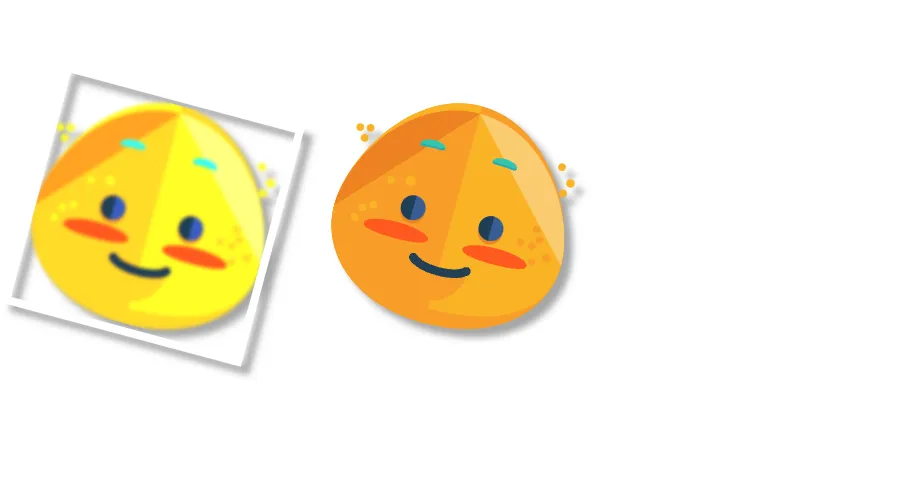
Stickers are graphic blocks with image fills and the "sticker" kind tag. After a sticker exists in a scene, use block APIs for transforms, opacity, shadows, strokes, blur, effects, and duplication. Use the sticker’s image fill when you need to replace the source artwork.
Replacing the Sticker Image#
Swap the artwork by reading the sticker’s fill with getFill() and writing a new URI to fill/image/imageFileURI. The block keeps its size, transform, appearance, and "sticker" kind.
val fill = engine.block.getFill(block = sticker)val replacementUri = Uri.parse( "file:///android_asset/imgly-assets/" + "ly.img.sticker/images/emoticons/imgly_sticker_emoticons_blush.svg",)engine.block.setUri( block = fill, property = "fill/image/imageFileURI", value = replacementUri,)val currentImageUri = engine.block.getUri( block = fill, property = "fill/image/imageFileURI",)Set the URI on the fill returned by getFill(), not on the sticker block itself. The property belongs to the image fill.
Transforming Stickers#
Move, resize, rotate, and flip the sticker through the same transform setters used by other graphic blocks. Position and size use design units, and rotation uses radians.
engine.block.setWidth(block = sticker, value = 120F)engine.block.setHeight(block = sticker, value = 120F)engine.block.setFlipHorizontal(block = sticker, flip = true)engine.block.setRotation(block = sticker, radians = (PI / 12).toFloat())engine.block.setPositionX(block = sticker, value = 150F)engine.block.setPositionY(block = sticker, value = 65F)
val positionX = engine.block.getPositionX(block = sticker)val positionY = engine.block.getPositionY(block = sticker)val width = engine.block.getWidth(block = sticker)val height = engine.block.getHeight(block = sticker)val rotation = engine.block.getRotation(block = sticker)val isFlippedHorizontally = engine.block.isFlipHorizontal(block = sticker)
setRotation() affects the rotated bounds. When you need exact final placement, apply the rotation before setting the final setPositionX() and setPositionY() values. The sample mirrors the sticker with setFlipHorizontal() and reads the state with isFlipHorizontal(). Use setFlipVertical() and isFlipVertical() for vertical mirroring.
Changing the Content Fill Mode#
ContentFillMode controls how the image fits inside the sticker bounds. CONTAIN keeps the full sticker image visible, COVER fills the frame and may crop, and CROP enables manual crop positioning.
if (engine.block.supportsContentFillMode(block = sticker)) { engine.block.setContentFillMode(block = sticker, mode = ContentFillMode.COVER)}val coverMode = engine.block.getContentFillMode(block = sticker)Check supportsContentFillMode() before setting the mode because the property only exists on content-bearing blocks.
Adjusting Opacity#
Opacity changes the whole sticker block, including its image fill and appearance effects. Use values from 0F for fully transparent to 1F for fully opaque.
require(engine.block.supportsOpacity(block = sticker)) { "Sticker graphic blocks must support opacity."}engine.block.setOpacity(block = sticker, value = 0.88F)val opacity = engine.block.getOpacity(block = sticker)Adding a Drop Shadow#
Drop shadows are block appearance properties, not fill properties. Enable the shadow, then set its color, offset, and blur radius.
require(engine.block.supportsDropShadow(block = sticker)) {    "Sticker graphic blocks must support drop shadows."}engine.block.setDropShadowEnabled(block = sticker, enabled = true)engine.block.setDropShadowColor(    block = sticker,    color = Color.fromRGBA(r = 0F, g = 0F, b = 0F, a = 0.4F),)engine.block.setDropShadowOffsetX(block = sticker, offsetX = 4F)engine.block.setDropShadowOffsetY(block = sticker, offsetY = 4F)engine.block.setDropShadowBlurRadiusX(block = sticker, blurRadiusX = 6F)engine.block.setDropShadowBlurRadiusY(block = sticker, blurRadiusY = 6F)
val dropShadowEnabled = engine.block.isDropShadowEnabled(block = sticker)val dropShadowColor = engine.block.getDropShadowColor(block = sticker)val dropShadowOffsetX = engine.block.getDropShadowOffsetX(block = sticker)val dropShadowOffsetY = engine.block.getDropShadowOffsetY(block = sticker)val dropShadowBlurRadiusX = engine.block.getDropShadowBlurRadiusX(block = sticker)val dropShadowBlurRadiusY = engine.block.getDropShadowBlurRadiusY(block = sticker)
Duplicating Stickers#
duplicate() creates an independent copy with the same image fill, transform, kind, and appearance configuration. Move the copy afterward when only its placement should change.
val copy = engine.block.duplicate(block = sticker)engine.block.setPositionX(block = copy, value = 300F)engine.block.setPositionY(block = copy, value = 65F)
val duplicateKind = engine.block.getKind(block = copy)val duplicatePositionX = engine.block.getPositionX(block = copy)val duplicatePositionY = engine.block.getPositionY(block = copy)
Adding a Stroke#
Strokes draw around the sticker block bounds. Enable the stroke, then set the color and width.
require(engine.block.supportsStroke(block = sticker)) {    "Sticker graphic blocks must support strokes."}engine.block.setStrokeEnabled(block = sticker, enabled = true)engine.block.setStrokeColor(    block = sticker,    color = Color.fromRGBA(r = 1F, g = 1F, b = 1F, a = 1F),)engine.block.setStrokeWidth(block = sticker, width = 4F)
val strokeEnabled = engine.block.isStrokeEnabled(block = sticker)val strokeColor = engine.block.getStrokeColor(block = sticker)val strokeWidth = engine.block.getStrokeWidth(block = sticker)
The stroke follows the rectangular bounds of the graphic block. For stickers with transparent edges or irregular silhouettes, a drop shadow often looks more natural than an outline.
Applying Blur#
Create a blur block, attach it to the sticker, and enable it. Disabling blur later keeps the blur block attached so you can re-enable the same configuration.
require(engine.block.supportsBlur(block = sticker)) { "Sticker graphic blocks must support blur."}val blur = engine.block.createBlur(type = BlurType.Uniform)engine.block.setBlur(block = sticker, blurBlock = blur)engine.block.setBlurEnabled(block = sticker, enabled = true)val blurEnabled = engine.block.isBlurEnabled(block = sticker)Applying Effects#
Effects attach to the sticker with appendEffect(). Multiple effects stack in the order you append them.
require(engine.block.supportsEffects(block = sticker)) { "Sticker graphic blocks must support effects."}val glow = engine.block.createEffect(type = EffectType.Glow)engine.block.appendEffect(block = sticker, effectBlock = glow)val effects = engine.block.getEffects(block = sticker)val effectEnabled = engine.block.isEffectEnabled(effectBlock = glow)Use typed Android effect constants such as EffectType.TiltShift, EffectType.Glow, EffectType.Pixelize, or EffectType.Posterize instead of raw type strings.
Limitations#
Stickers preserve the colors of their source image. This means:
- Recoloring is not supported. Sticker fills are image fills, not solid color fills.
- Boolean operations are not supported. Combining blocks works on vector path geometry, not image fills.
If you need recolorable or combinable artwork, use shapes instead. See Edit Shapes.
Troubleshooting#
Sticker Image Did Not Change#
Verify that the new URI points to a supported image format and that setUri() runs on the fill returned by getFill(). Writing fill/image/imageFileURI on the sticker block does not update the image fill.
Sticker Appears Cropped or Padded#
Use ContentFillMode.CONTAIN to keep the whole image visible. Use ContentFillMode.COVER when the image should fill the frame and cropping is acceptable.
Drop Shadow or Stroke Is Not Visible#
Check that the feature is enabled and that the alpha, stroke width, and shadow blur radius are greater than zero.
Sticker Cannot Be Recolored#
This is expected. Stickers use image fills that preserve source colors. Use a shape with a color or gradient fill when your users need recoloring.
API Reference#
| Method | Description |
|---|---|
engine.block.getFill(block=_) |
Get the image fill attached to a sticker |
engine.block.setUri(block=_, property="fill/image/imageFileURI", value=_) |
Set the sticker image URI on the fill |
engine.block.getUri(block=_, property="fill/image/imageFileURI") |
Read the current sticker image URI from the fill |
engine.block.supportsContentFillMode(block=_) |
Check whether the block supports content fill modes |
engine.block.setContentFillMode(block=_, mode=_) |
Switch between CONTAIN, COVER, and CROP |
engine.block.getContentFillMode(block=_) |
Read the current content fill mode |
engine.block.setPositionX(block=_, value=_) |
Set the sticker’s x position |
engine.block.getPositionX(block=_) |
Read the sticker’s x position |
engine.block.setPositionY(block=_, value=_) |
Set the sticker’s y position |
engine.block.getPositionY(block=_) |
Read the sticker’s y position |
engine.block.setWidth(block=_, value=_) |
Set the sticker width |
engine.block.getWidth(block=_) |
Read the sticker width |
engine.block.setHeight(block=_, value=_) |
Set the sticker height |
engine.block.getHeight(block=_) |
Read the sticker height |
engine.block.setRotation(block=_, radians=_) |
Rotate the sticker around its center |
engine.block.getRotation(block=_) |
Read the sticker rotation in radians |
engine.block.setFlipHorizontal(block=_, flip=_) |
Mirror the sticker horizontally |
engine.block.isFlipHorizontal(block=_) |
Read the horizontal flip state |
engine.block.setFlipVertical(block=_, flip=_) |
Mirror the sticker vertically |
engine.block.isFlipVertical(block=_) |
Read the vertical flip state |
engine.block.supportsOpacity(block=_) |
Check whether the block supports opacity |
engine.block.setOpacity(block=_, value=_) |
Set the sticker opacity |
engine.block.getOpacity(block=_) |
Read the sticker opacity |
engine.block.supportsDropShadow(block=_) |
Check whether the block supports drop shadows |
engine.block.setDropShadowEnabled(block=_, enabled=_) |
Toggle the drop shadow |
engine.block.isDropShadowEnabled(block=_) |
Read the drop shadow state |
engine.block.setDropShadowColor(block=_, color=_) |
Set the drop shadow color |
engine.block.getDropShadowColor(block=_) |
Read the drop shadow color |
engine.block.setDropShadowOffsetX(block=_, offsetX=_) |
Set the drop shadow x offset |
engine.block.getDropShadowOffsetX(block=_) |
Read the drop shadow x offset |
engine.block.setDropShadowOffsetY(block=_, offsetY=_) |
Set the drop shadow y offset |
engine.block.getDropShadowOffsetY(block=_) |
Read the drop shadow y offset |
engine.block.setDropShadowBlurRadiusX(block=_, blurRadiusX=_) |
Set the drop shadow x blur radius |
engine.block.getDropShadowBlurRadiusX(block=_) |
Read the drop shadow x blur radius |
engine.block.setDropShadowBlurRadiusY(block=_, blurRadiusY=_) |
Set the drop shadow y blur radius |
engine.block.getDropShadowBlurRadiusY(block=_) |
Read the drop shadow y blur radius |
engine.block.duplicate(block=_) |
Duplicate the sticker and attach the copy to the same parent |
engine.block.getKind(block=_) |
Read the "sticker" kind from the duplicate |
engine.block.supportsStroke(block=_) |
Check whether the block supports strokes |
engine.block.setStrokeEnabled(block=_, enabled=_) |
Toggle the stroke |
engine.block.isStrokeEnabled(block=_) |
Read the stroke state |
engine.block.setStrokeColor(block=_, color=_) |
Set the stroke color |
engine.block.getStrokeColor(block=_) |
Read the stroke color |
engine.block.setStrokeWidth(block=_, width=_) |
Set the stroke width |
engine.block.getStrokeWidth(block=_) |
Read the stroke width |
engine.block.supportsBlur(block=_) |
Check whether the block supports blur |
engine.block.createBlur(type=BlurType.Uniform) |
Create a uniform blur block |
engine.block.setBlur(block=_, blurBlock=_) |
Attach a blur block to the sticker |
engine.block.getBlur(block=_) |
Read the attached blur block |
engine.block.setBlurEnabled(block=_, enabled=_) |
Toggle the attached blur |
engine.block.isBlurEnabled(block=_) |
Read the blur state |
engine.block.supportsEffects(block=_) |
Check whether the block supports effects |
engine.block.createEffect(type=EffectType.Glow) |
Create a typed effect block |
engine.block.appendEffect(block=_, effectBlock=_) |
Attach an effect block to the sticker |
engine.block.getEffects(block=_) |
Read the attached effect blocks |
engine.block.isEffectEnabled(effectBlock=_) |
Read whether an effect block is enabled |
Next Steps#
- Create Stickers - Build stickers programmatically from image URLs.
- Edit Shapes - Modify recolorable, combinable shapes with the same transform APIs.
- Combine Shapes - Use boolean operations to merge vector shapes.