Create stickers from images for use in your designs, including icons, logos, emoji, and detailed multi-color graphics that keep their original appearance.
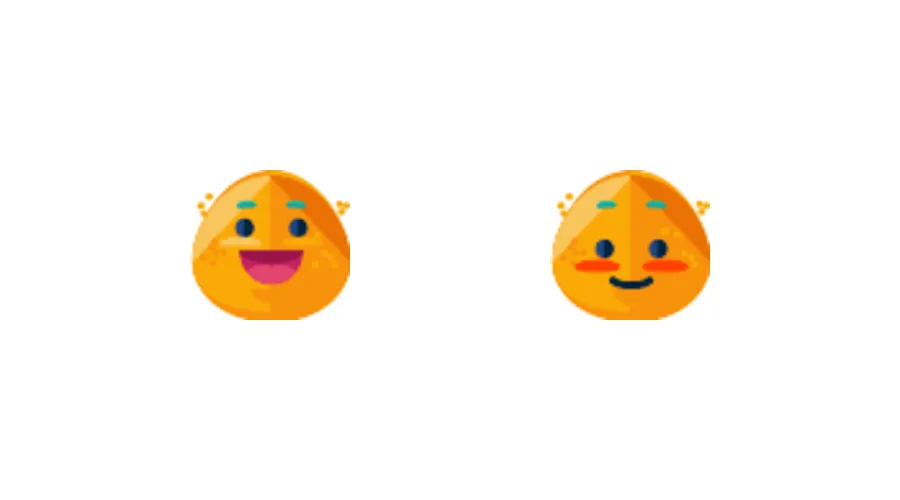
Stickers are graphic blocks with image fills. They work well when the source image should stay intact, such as emoji, brand marks, or detailed artwork. Unlike shapes, stickers are not meant to be recolored or combined with vector boolean operations.
Creating Stickers From Images#
The Android Engine API creates sticker blocks by combining a graphic block, a rectangular shape, and an image fill. The helper below accepts an image Uri, assigns the image fill, sizes and positions the block, sets ContentFillMode.CONTAIN, and marks the block with the Android sticker kind.
fun createStickerFromImage(    engine: Engine,    parent: DesignBlock,    imageUri: Uri,    x: Float,    y: Float,    size: Float,): DesignBlock {    val sticker = engine.block.create(DesignBlockType.Graphic)    engine.block.setShape(sticker, shape = engine.block.createShape(ShapeType.Rect))
    val imageFill = engine.block.createFill(FillType.Image)    engine.block.setUri(        block = imageFill,        property = "fill/image/imageFileURI",        value = imageUri,    )    engine.block.setFill(sticker, fill = imageFill)
    engine.block.setWidth(sticker, value = size)    engine.block.setHeight(sticker, value = size)    engine.block.setPositionX(sticker, value = x)    engine.block.setPositionY(sticker, value = y)
    if (engine.block.supportsContentFillMode(sticker)) {        engine.block.setContentFillMode(sticker, mode = ContentFillMode.CONTAIN)    }    engine.block.setKind(sticker, kind = "sticker")    engine.block.appendChild(parent = parent, child = sticker)
    return sticker}
ContentFillMode.CONTAIN keeps the whole image visible inside the frame. The sticker kind lets the editor UI treat the block as a sticker instead of as a generic image block.
Adding Multiple Stickers#
Use the same helper for every sticker image you want to add to the page. The sample loads two SVG stickers from the bundled Android asset directory and places them on a 450 by 250 pixel page with the same size and y-position.
val firstStickerUri = Uri.parse(    "file:///android_asset/imgly-assets/" +        "ly.img.sticker/images/emoticons/imgly_sticker_emoticons_grin.svg",)val secondStickerUri = Uri.parse(    "file:///android_asset/imgly-assets/" +        "ly.img.sticker/images/emoticons/imgly_sticker_emoticons_blush.svg",)
val firstSticker = createStickerFromImage(    engine = engine,    parent = page,    imageUri = firstStickerUri,    x = 95F,    y = 85F,    size = 80F,)
val secondSticker = createStickerFromImage(    engine = engine,    parent = page,    imageUri = secondStickerUri,    x = 275F,    y = 85F,    size = 80F,)
SVG stickers scale cleanly and preserve multiple paths, gradients, and colors. Raster stickers such as PNG or JPG also work, but their source resolution should be high enough for the displayed size.
Sticker vs Shape Decision#
Choose between stickers and shapes based on the artwork and editing behavior your app needs:
| Requirement | Use Stickers | Use Shapes |
|---|---|---|
| Multi-color graphics | Yes | No, shapes use a single fill |
| Recolorable artwork | No | Yes |
| Preserve original artwork | Yes | Not applicable |
| Boolean operations | No | Yes |
| Complex paths or gradients | Yes | Limited |
| Icons, logos, emoji | Preferred | Only for simple vector artwork |
Troubleshooting#
Sticker Not Appearing#
Verify that the image URI returns a supported image, the block was appended to the page, and the sticker has non-zero width and height.
Manually Created Sticker Is Blank#
Graphic blocks need a shape before a fill can render. Create a rectangle with engine.block.createShape(type=ShapeType.Rect) and assign it with engine.block.setShape(block=_, shape=_) before applying the image fill.
Sticker Appears Blurry#
Use SVG for scalable artwork. For raster stickers, make sure the source image resolution is at least as large as the displayed sticker frame.
Sticker Appears Cropped#
Check engine.block.supportsContentFillMode(block=_) and set engine.block.setContentFillMode(block=_, mode=ContentFillMode.CONTAIN) so the full image stays visible.
Sticker Cannot Be Recolored#
This is expected. Stickers preserve their source colors. Use shapes when users need to recolor simple vector artwork.
Wrong Editor Behavior#
Set the block kind to sticker with engine.block.setKind(block=_, kind="sticker"). Android editor UI components use this kind to classify the block as a sticker.
API Reference#
| Method | Purpose |
|---|---|
engine.block.create(blockType=DesignBlockType.Graphic) |
Create the graphic block that holds the sticker. |
engine.block.createShape(type=ShapeType.Rect) |
Create the rectangular shape required for the graphic block to render. |
engine.block.setShape(block=_, shape=_) |
Assign the shape to the graphic block. |
engine.block.createFill(fillType=FillType.Image) |
Create an image fill for the sticker artwork. |
engine.block.setUri(block=_, property="fill/image/imageFileURI", value=_) |
Set the image URI on the image fill. |
engine.block.setFill(block=_, fill=_) |
Apply the image fill to the graphic block. |
engine.block.setWidth(block=_, value=_) |
Set the sticker frame width. |
engine.block.setHeight(block=_, value=_) |
Set the sticker frame height. |
engine.block.setPositionX(block=_, value=_) |
Set the sticker’s horizontal position. |
engine.block.setPositionY(block=_, value=_) |
Set the sticker’s vertical position. |
engine.block.supportsContentFillMode(block=_) |
Check whether the block supports content fill modes. |
engine.block.setContentFillMode(block=_, mode=ContentFillMode.CONTAIN) |
Keep the whole image visible inside the sticker frame. |
engine.block.setKind(block=_, kind="sticker") |
Mark the block as a sticker for editor UI behavior. |
engine.block.appendChild(parent=_, child=_) |
Add the sticker to the page. |
Next Steps#
- Insert Shapes or Stickers - Learn how users can add shapes and stickers in the editor.
- Create Shapes - Create recolorable vector shapes.
- Fills - Learn how fills control the visible content of design blocks.