Create cutout paths for cutting printers to produce die-cut stickers, iron-on decals, and custom-shaped prints programmatically.
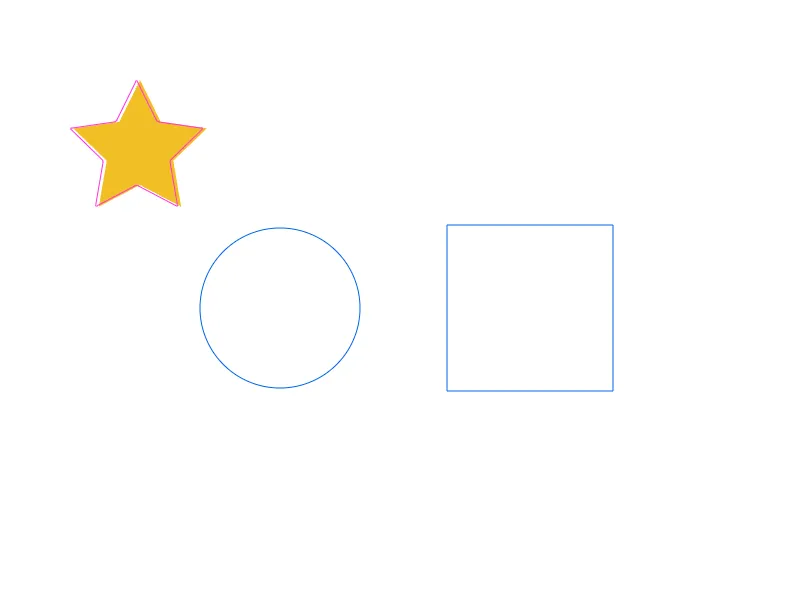
Cutouts define outline paths that cutting printers cut with a blade rather than print with ink. CE.SDK supports creating cutouts from SVG paths, generating them from block contours, and combining them with boolean operations.
This guide covers creating cutouts programmatically, configuring cutout types, offset, and smoothing, combining cutouts with boolean operations, customizing spot colors for printer compatibility, and exporting print-ready PDFs.
Understanding Cutouts#
Cutouts are //ly.img.ubq/cutout blocks that contain SVG paths interpreted by cutting printers as cut lines. Printers recognize cutouts through specially named spot colors: CutContour for solid continuous cuts and PerfCutContour for dashed perforated cuts.
A spot color’s RGB value affects only on-screen rendering, not printer behavior. Spot colors have no built-in RGB approximation, so a cutout whose spot color you haven’t defined renders with a generic magenta fallback. Use engine.editor.setSpotColor() to give a spot color an on-screen color.
Creating Cutouts from SVG Paths#
Create cutouts using engine.block.createCutoutFromPath(path) with standard SVG path syntax. The path coordinates define the cutout dimensions.
val circle = engine.block.createCutoutFromPath( "M 0,75 a 75,75 0 1,1 150,0 a 75,75 0 1,1 -150,0 Z",)engine.block.appendChild(parent = page, child = circle)engine.block.setPositionX(circle, value = 200F)engine.block.setPositionY(circle, value = 225F)The method accepts standard SVG path commands: M (move), L (line), H (horizontal), V (vertical), C (cubic curve), Q (quadratic curve), A (arc), and Z (close path).
Creating Cutouts from Blocks#
Generate a cutout from existing block contours with engine.block.createCutoutFromBlocks(). CE.SDK can reuse vector information from shapes, SVG-based text, and stickers, or vectorize raster content when needed.
val blockCutout = engine.block.createCutoutFromBlocks( blocks = listOf(sourceShape), vectorizeDistanceThreshold = 2F, simplifyDistanceThreshold = 4F, useExistingShapeInformation = true,)engine.block.appendChild(parent = page, child = blockCutout)engine.block.setPositionX(blockCutout, value = 70F)engine.block.setPositionY(blockCutout, value = 80F)vectorizeDistanceThreshold controls how closely the generated path follows raster contours. simplifyDistanceThreshold reduces path complexity, and useExistingShapeInformation lets CE.SDK reuse an existing vector path when one is available.
Configuring Cutout Type#
Set the cutout type using engine.block.setEnum() to control whether the printer creates a continuous or perforated cut line.
engine.block.setEnum( block = circle, property = "cutout/type", value = CutoutType.DASHED.key,)Solid creates a continuous cutting line, while Dashed creates a perforated cutting line for tear-away edges.
Configuring Cutout Offset and Smoothing#
Adjust the distance between the cutout line and the source path using engine.block.setFloat() with the cutout/offset property. Use cutout/smoothing to round sharp corners in generated or hand-authored paths.
engine.block.setFloat(block = circle, property = "cutout/offset", value = 5F)engine.block.setFloat(block = blockCutout, property = "cutout/smoothing", value = 2F)Positive offset values expand the cutout outward from the path. Use offset to add bleed or margin around designs for cleaner cuts.
Creating Multiple Cutouts#
Create additional cutouts with different properties to demonstrate various shapes and configurations.
val square = engine.block.createCutoutFromPath("M 0,0 H 150 V 150 H 0 Z")engine.block.appendChild(parent = page, child = square)engine.block.setPositionX(square, value = 450F)engine.block.setPositionY(square, value = 225F)engine.block.setFloat(block = square, property = "cutout/offset", value = 8F)Each cutout can have independent type, offset, and smoothing settings based on your production requirements.
Combining Cutouts with Boolean Operations#
Combine multiple cutouts into compound shapes using engine.block.createCutoutFromOperation(blocks, op). Available operations are UNION, DIFFERENCE, INTERSECTION, and XOR.
val combined = engine.block.createCutoutFromOperation(    blocks = listOf(circle, square),    op = CutoutOperation.UNION,)engine.block.appendChild(parent = page, child = combined)
engine.block.destroy(circle)engine.block.destroy(square)
The combined cutout inherits the type from the first cutout in the array and has an offset of 0. Destroy the original cutouts after combining to avoid duplicate cuts.
Customizing Spot Colors#
Assign a custom spot color name to each cutout type with engine.block.setSpotColorForCutoutType(). Then use engine.editor.setSpotColor() to define how that custom spot color renders on screen.
engine.block.setSpotColorForCutoutType( type = CutoutType.DASHED, name = "KissCutContour",)engine.editor.setSpotColor( name = "KissCutContour", color = Color.fromRGBA(r = 0F, g = 0.4F, b = 0.9F, a = 1F),)Spot color names, such as CutContour, PerfCutContour, or printer-specific names like KissCutContour, are what printers recognize. Use the name required by your printer, and treat the RGB color as an on-screen approximation.
Exporting Cutouts#
Export the design with cutouts to PDF format to preserve spot color information for cutting printers.
val pdfData = engine.block.export(block = page, mimeType = MimeType.PDF)The PDF output contains spot colors that cutting printers read to identify cut paths. Persist the returned data with your app’s storage layer when you need to hand the file to a print workflow.
Troubleshooting#
Cutout Not Visible#
Cutouts render using their spot color’s on-screen RGB approximation. Spot colors have no built-in approximation, so an undefined one falls back to magenta — which means a cutout is normally visible even before you call engine.editor.setSpotColor(). If a cutout isn’t visible, verify it’s appended to the page hierarchy and positioned within the visible canvas area, and confirm its spot color approximation isn’t set to a color that blends into the background.
Printer Not Cutting#
Check that spot color names match your printer’s requirements. Some printers need specific names like CutContour or Thru-cut. Consult your printer documentation.
Combined Cutout Has Wrong Type#
Combined cutouts inherit the type from the first cutout in the array. Reorder the array or set the type explicitly after combination.
Cutout Path Too Complex#
Increase simplifyDistanceThreshold when generating cutouts from complex blocks to reduce path complexity. For authored SVG paths, simplify the source path before creating the cutout.
API Reference#
| Method | Category | Purpose |
|---|---|---|
engine.block.createCutoutFromPath(path=_) |
Cutout | Create cutout from SVG path string |
engine.block.createCutoutFromBlocks(blocks=_, vectorizeDistanceThreshold=_, simplifyDistanceThreshold=_, useExistingShapeInformation=_) |
Cutout | Create cutout from block contours |
engine.block.createCutoutFromOperation(blocks=_, op=_) |
Cutout | Combine cutouts with boolean operation |
engine.block.setSpotColorForCutoutType(type=_, name=_) |
Cutout | Assign a spot color name to a cutout type |
engine.block.getSpotColorForCutoutType(type=_) |
Cutout | Read the spot color name for a cutout type |
engine.block.setEnum(block=_, property="cutout/type", value=_) |
Property | Set cutout type |
engine.block.getEnum(block=_, property="cutout/type") |
Property | Read cutout type |
engine.block.setFloat(block=_, property="cutout/offset", value=_) |
Property | Set cutout offset distance |
engine.block.setFloat(block=_, property="cutout/smoothing", value=_) |
Property | Set corner smoothing threshold |
engine.block.getFloat(block=_, property="cutout/offset") |
Property | Read cutout offset distance |
engine.block.getFloat(block=_, property="cutout/smoothing") |
Property | Read corner smoothing threshold |
engine.block.appendChild(parent=_, child=_) |
Hierarchy | Add cutout to scene |
engine.block.setPositionX(block=_, value=_) |
Transform | Position cutout on the x-axis |
engine.block.setPositionY(block=_, value=_) |
Transform | Position cutout on the y-axis |
engine.block.destroy(block=_) |
Lifecycle | Remove cutout from scene |
engine.block.export(block=_, mimeType=_) |
Export | Export page with cutouts to PDF |
engine.editor.setSpotColor(name=_, color=_) |
Editor | Customize spot color rendering |
Next Steps#
- Combine Shapes - Boolean operations on graphic blocks
- Create Shapes - Create geometric shapes programmatically
- Export for Printing - Export designs from CE.SDK as print-ready PDFs with professional output options including high compatibility mode, underlayers for special media, and scene DPI configuration.