Package repeatable editor behavior in a custom Android plugin that can be chained onto an existing editor configuration.
When to Use Plugins#
You usually do not need a plugin for the first version of an editor customization. Start by changing the editor configuration inline where the editor is created. Inline configuration is easier to read, debug, and adapt when the behavior belongs to one editor entry point.
If you want a complete editor surface, start from a Starter Kit. Bring the Starter Kit into your project, then adapt its configuration inline until the product behavior is clear.
Create a custom plugin when the same configuration needs to be reused across multiple editors, products, or situations. A plugin is useful when callbacks, component changes, feature flags, assets, and shared state should travel together as one scaffolded unit instead of being copied into every editor setup.
What the Example Does#
CustomFeaturePlugin starts from the Design Editor Starter Kit
configuration and adds a reusable feature layer on top:
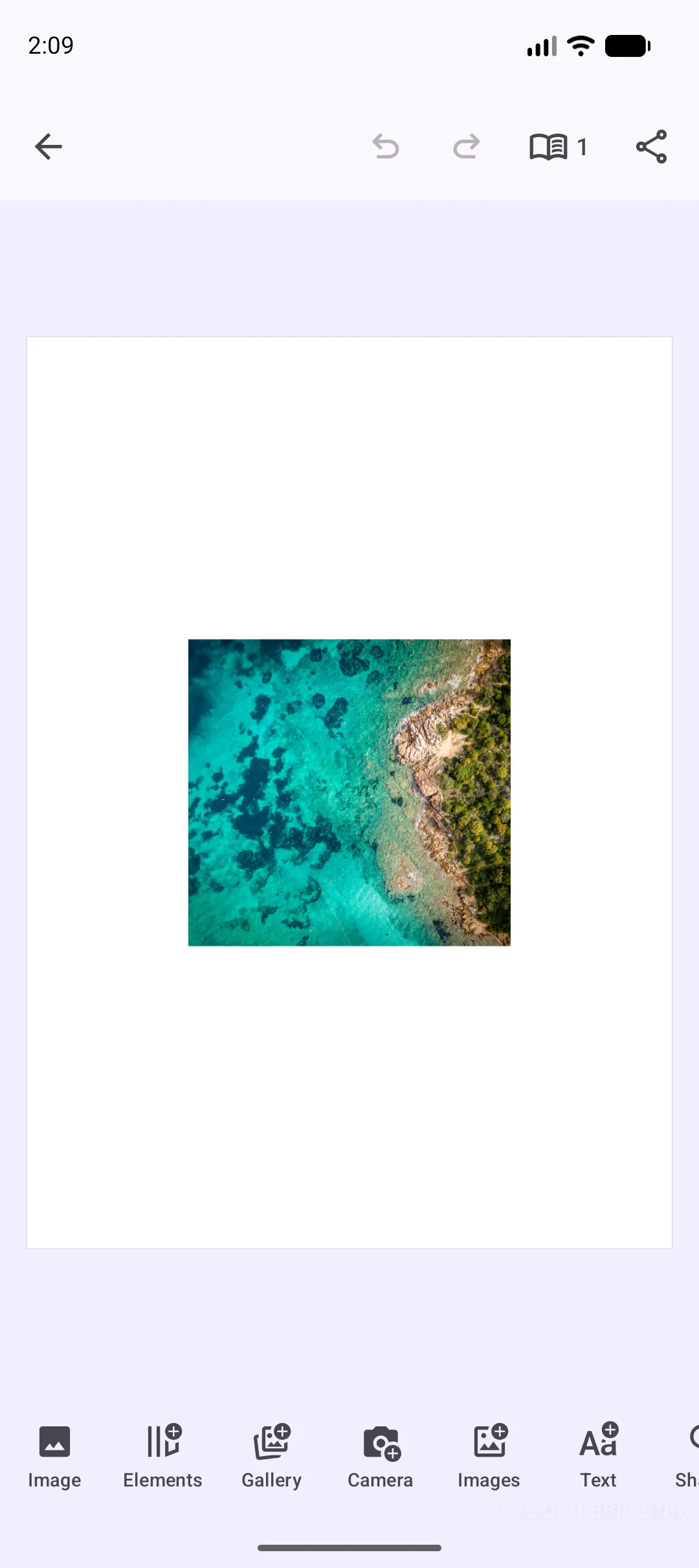
- It prepends one custom image button to the inherited dock.
- It hides the canvas menu completely.
- It leaves the navigation bar and inspector bar unchanged.
- It exposes
randomImageUrias a plugin property. - It reuses the Starter Kit loading state with
BasicConfigurationBuilder.KEY_STATE_SHOW_LOADING. - It replaces
onCreateandonExportwhile preserving the Design Starter Kit scene setup.
Create the Plugin#
On Android, a custom editor plugin is a class that inherits from
EditorConfigurationBuilder.
open class CustomFeaturePlugin : EditorConfigurationBuilder()Builder properties let the plugin configure callbacks, state, and editor components in one place.
Apply the Plugin#
Apply the plugin after the base configuration. The builder block passed to
then(::CustomFeaturePlugin) configures plugin-specific properties for this
editor entry point.
Editor( license = license, configuration = { EditorConfiguration .remember(::DesignConfigurationBuilder) .then(::CustomFeaturePlugin) { randomImageUri = "https://img.ly/static/ubq_samples/sample_1.jpg".toUri() } }, onClose = onClose,)The chain order matters: the Design Starter Kit creates the parent
configuration, then CustomFeaturePlugin extends or replaces selected parts of
that parent configuration.
Custom Properties#
Use builder properties to expose the values that should change between editor
entry points. This plugin exposes randomImageUri for the dock button and
reuses the Design Starter Kit loading state so long-running work shows the
existing loading overlay.
var randomImageUri: Uri by editorContext.mutableStateOf(    key = "com.example.editor.customFeature.randomImageUri",    initial = Uri.parse("https://img.ly/static/ubq_samples/sample_1.jpg"),)
private var isLoading: Boolean by editorContext.mutableStateOf(    key = BasicConfigurationBuilder.KEY_STATE_SHOW_LOADING,    initial = false,)
The randomImageUri property belongs to the plugin and uses
editorContext.mutableStateOf so it survives recompositions and configuration changes while the editor is
open. The isLoading property uses BasicConfigurationBuilder.KEY_STATE_SHOW_LOADING
so the plugin writes to the same state key as the Starter Kit loading overlay.
Extend Startup#
onCreate owns scene creation or loading. This plugin replaces onCreate, but
it still delegates to parentConfiguration?.onCreate so the Design Starter Kit
can create the scene.
override var onCreate: (suspend EditorScope.() -> Unit)? = { try { isLoading = true val editorScope = this coroutineScope { launch { parentConfiguration?.onCreate?.invoke(editorScope) // The parent Design configuration hides loading after scene setup. isLoading = true } launch { Log.d(TAG, "CustomFeaturePlugin setup started.") delay(3_000) Log.d(TAG, "CustomFeaturePlugin setup finished.") } } } finally { isLoading = false }}The two launched coroutines run in parallel. One runs the parent startup
callback, while the other logs a custom setup operation and waits for three
seconds to imitate asynchronous plugin work. The loading state is shown for the
whole combined operation and hidden in finally.
Override Export#
The plugin fully replaces export behavior by setting onExport and not calling
the parent export callback. That makes the plugin responsible for the complete
export workflow.
override var onExport: (suspend EditorScope.() -> Unit)? = { try { isLoading = true val scene = requireNotNull(editorContext.engine.scene.get()) { "A scene is required before exporting." } val archive = editorContext.engine.scene.saveToArchive(scene = scene) val file = writeArchiveToTempFile(archive) Toast.makeText(editorContext.activity, "Saved scene archive to ${file.name}", Toast.LENGTH_SHORT).show() Log.d(TAG, "Saved scene archive to ${file.absolutePath}") } finally { isLoading = false }}This example saves the active scene as an archive and writes the returned
ByteBuffer to a temporary .scene.zip file.
private suspend fun writeArchiveToTempFile(archive: ByteBuffer): File = withContext(Dispatchers.IO) { File.createTempFile("custom-feature-${UUID.randomUUID()}", ".imgly").apply { outputStream().channel.use { channel -> channel.write(archive) } }}Use this replacement style when your plugin owns validation, upload, handoff, or
storage. If you only need to add behavior around the existing export, delegate
to parentConfiguration?.onExport instead.
Extend the Dock#
Components follow the same extension-or-replacement rule as callbacks. To add a
dock item, read the inherited Dock, modify its list builder, and copy the dock
with the updated builder.
override var dock: ScopedProperty<EditorScope, EditorComponent<*>?>? = dockComponent@{ val sourceDock = parentConfiguration?.dock as? Dock ?: return@dockComponent null val updatedListBuilder = sourceDock.listBuilder.modify { addFirst { Dock.Button.remember { id = { EditorComponentId("com.example.component.dock.button.customFeature") } vectorIcon = { IconPack.Image } textString = { "Image" } contentDescription = { "Add image" } onClick = { addImageBlockFromPlugin() } } } } remember(sourceDock, updatedListBuilder) { sourceDock.copy(listBuilder = updatedListBuilder) }}The custom button creates an image block from randomImageUri. The block is
added at half the current page width with SizeMode.PERCENT, centered on the
current page with the block alignment APIs, and set to ContentFillMode.COVER
so the image fills the rectangle.
private fun EditorScope.addImageBlockFromPlugin() {    val engine = editorContext.engine    val page = requireNotNull(engine.scene.getCurrentPage()) {        "A current page is required before adding an image block."    }    val imageBlock = engine.block.create(DesignBlockType.Graphic)    val shape = engine.block.createShape(ShapeType.Rect)    val fill = engine.block.createFill(FillType.Image)
    engine.block.setShape(block = imageBlock, shape = shape)    engine.block.setUri(        block = fill,        property = "fill/image/imageFileURI",        value = randomImageUri,    )    engine.block.setFill(block = imageBlock, fill = fill)    engine.block.setContentFillMode(block = imageBlock, mode = ContentFillMode.COVER)    engine.block.setWidthMode(block = imageBlock, mode = SizeMode.PERCENT)    engine.block.setWidth(block = imageBlock, value = 0.5F)    engine.block.appendChild(parent = page, child = imageBlock)    if (engine.block.isAlignable(listOf(imageBlock))) {        engine.block.alignHorizontally(listOf(imageBlock), alignment = HorizontalBlockAlignment.CENTER)        engine.block.alignVertically(listOf(imageBlock), alignment = VerticalBlockAlignment.CENTER)    }    engine.block.setSelected(block = imageBlock, selected = true)}
The block uses a rect shape, an image fill, and the fill/image/imageFileURI
URI property, then appends itself to the current page.
Hide the Canvas Menu#
When the plugin should own a component region completely, replace it instead of
modifying the parent component. Returning null removes the inherited canvas
menu.
override var canvasMenu: ScopedProperty<EditorScope, EditorComponent<*>?>? = { null}This plugin does not touch the navigation bar or inspector bar, so both continue to come from the Design Starter Kit parent configuration.
API Reference#
| API | Purpose |
|---|---|
EditorConfigurationBuilder |
Base class for reusable Android editor configuration plugins. |
EditorConfiguration.remember(builderFactory=_) |
Creates the base editor configuration. |
EditorConfiguration.then(builderFactory=_, builder=_) |
Chains a plugin or additional builder onto an existing configuration. |
EditorConfigurationBuilder.parentConfiguration |
Gives the plugin access to callbacks and components from the previous configuration. |
EditorConfigurationBuilder.onCreate |
Creates or loads the scene during editor startup. |
EditorConfigurationBuilder.onExport |
Handles export requests from the editor UI. |
EditorConfigurationBuilder.dock |
Configures or extends the dock component. |
EditorConfigurationBuilder.canvasMenu |
Configures, replaces, or removes the canvas menu. |
editorContext.mutableStateOf(key=_, initial=_) |
Stores plugin-owned state for the editor session. |
editorContext.stateOf<T>(key=_) |
Reads state that has already been declared by another configuration layer. |
Dock.ListBuilder.modify(builder=_) |
Adds, removes, or reorders dock items without replacing the whole dock. |
engine.scene.saveToArchive(scene=_) |
Saves a scene and its referenced assets into an archive. |
engine.block.create(blockType=DesignBlockType.Graphic) |
Creates the graphic block used for the custom image button. |
engine.block.createFill(fillType=FillType.Image) |
Creates the image fill for the inserted graphic block. |
engine.block.setWidthMode(block=_, mode=SizeMode.PERCENT) |
Sizes the inserted block relative to its parent page. |
engine.block.setHeightMode(block=_, mode=SizeMode.AUTO) |
Lets the inserted block derive its height automatically. |
engine.block.setContentFillMode(block=_, mode=ContentFillMode.CONTAIN) |
Preserves the image aspect ratio inside the block. |
engine.block.alignHorizontally(blocks=_, alignment=HorizontalBlockAlignment.CENTER) |
Centers the inserted block horizontally on the page. |
engine.block.alignVertically(blocks=_, alignment=VerticalBlockAlignment.CENTER) |
Centers the inserted block vertically on the page. |
Troubleshooting#
| Problem | Cause | Fix |
|---|---|---|
| The editor opens without the expected scene | The plugin replaced onCreate and skipped the parent setup |
Call parentConfiguration?.onCreate?.invoke(this) or create/load a scene inside the plugin. |
| Loading never appears | The plugin reads a state key before the parent configuration declares it | Chain the plugin after DesignConfigurationBuilder. |
| The canvas menu still appears | Another later configuration layer replaces canvasMenu again |
Apply CustomFeaturePlugin after that layer or hide the menu in the final configuration. |
| Export behavior runs twice | The plugin calls the parent export callback and also performs a full export | Choose either extension or replacement for onExport. |
Next Steps#
- Design Editor Starter Kit - Start from a complete design editor surface.
- Rearrange Buttons - Reorder editor UI components.