Enable Android gallery access through the CE.SDK editor Gallery surface, either with the system photo picker or in-app device gallery browsing.
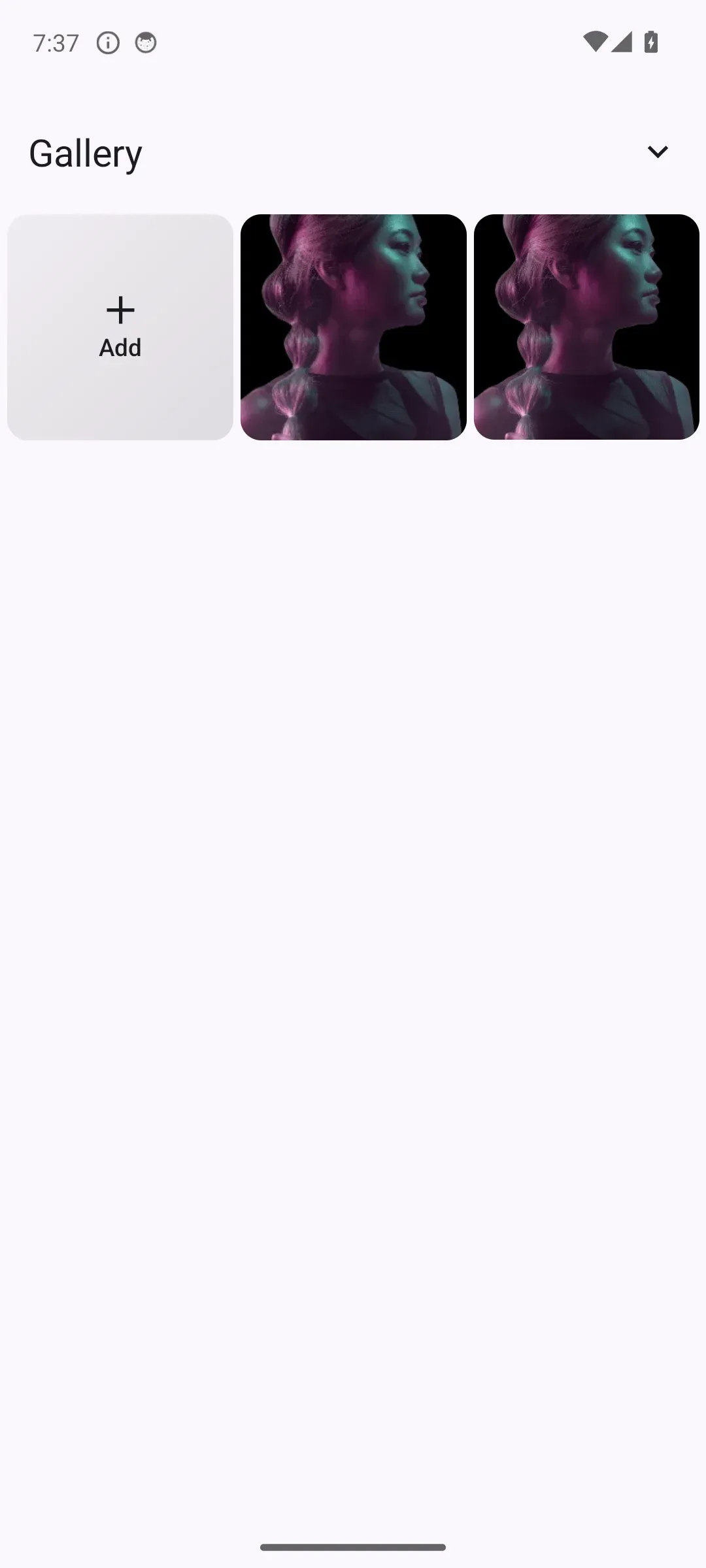
We integrate Android gallery access through SystemGalleryAssetSource and the
editor’s Gallery button. SystemGalleryConfiguration.Disabled keeps
MediaStore indexing disabled and uses the system photo picker, while
SystemGalleryConfiguration.Enabled lets the editor browse images and videos
after the app receives full media read access.
Understanding Photo Roll Integration#
On Android, Photo Roll integration maps to the device Gallery. The editor uses these four pieces together:
| Piece | Role |
|---|---|
SystemGalleryAssetSource |
Reads selected media and, when enabled, matching MediaStore items. |
AssetSourceType.GalleryImage, GalleryVideo, and GalleryAllVisuals |
Define which gallery media a library section should show. |
Dock.Button.rememberSystemGallery |
Opens the editor Gallery surface from the dock. |
SystemGalleryPermission.setMode(...) |
Chooses the manual picker flow or full gallery indexing. |
The Starter Kits use manual picker mode by default. In that mode, the Gallery surface only lists media that the user adds through the system picker or camera.
Register Gallery Sources#
Register one SystemGalleryAssetSource for every Gallery source type your asset
library uses. The manual-picker configuration below runs the registration from
onLoaded, after the default editor scene loads, and explicitly selects
SystemGalleryConfiguration.Disabled.
EditorConfiguration.remember { onLoaded = { registerGallerySources( engine = editorContext.engine, context = editorContext.activity, ) @OptIn(UnstableEditorApi::class) SystemGalleryPermission.setMode(SystemGalleryConfiguration.Disabled) }}The callback invokes this helper to add the image, video, and combined visual sources only when they are not registered already:
fun registerGallerySources( engine: Engine, context: Context,) { val existingSourceIds = engine.asset.findAllSources().toSet() listOf( AssetSourceType.GalleryImage, AssetSourceType.GalleryVideo, AssetSourceType.GalleryAllVisuals, ).forEach { sourceType -> if (sourceType.sourceId !in existingSourceIds) { engine.asset.addSource(SystemGalleryAssetSource(context, sourceType)) } }}Show the Gallery Button#
Add Dock.Button.rememberSystemGallery when your editor configuration replaces
or customizes the default dock. The button opens the configured Gallery category
from the asset library.
dock = { Dock.remember { listBuilder = { Dock.ListBuilder.remember { add { Dock.Button.rememberSystemGallery() } } } }}This focused sample creates a fresh Dock.ListBuilder.remember, which defines
the complete dock and therefore produces a Gallery-only dock. Add every other
required button to the same builder, or modify the inherited list when your
configuration extends an existing dock.
The sample uses AssetLibrary.getDefault(includeAVResources = true) so the
Gallery category can show both images and videos. Compose remember retains the
library instance across configuration recompositions. Use the default image-only
asset library when your editor should import photos only.
assetLibrary = { remember { AssetLibrary.getDefault(includeAVResources = true) }}Enable Full Gallery Access#
Call SystemGalleryPermission.setMode(SystemGalleryConfiguration.Enabled) when
you want CE.SDK to query the device MediaStore after the user grants Android
media permissions. SystemGalleryPermission.setMode is marked with
@UnstableEditorApi. The sample applies @OptIn locally at the setMode call
inside onLoaded, immediately after registering the Gallery asset sources.
EditorConfiguration.remember { onLoaded = { registerGallerySources( engine = editorContext.engine, context = editorContext.activity, ) @OptIn(UnstableEditorApi::class) SystemGalleryPermission.setMode(SystemGalleryConfiguration.Enabled) }}To use manual picker mode in a custom Base Editor configuration, pass
SystemGalleryConfiguration.Disabled to SystemGalleryPermission.setMode
instead. The Gallery surface still works, but it only lists media the user adds
through the available selection flows.
Configure Permissions for Full Gallery Access#
SystemGalleryConfiguration.Disabled launches
ActivityResultContracts.PickVisualMedia and requires no media read
permissions. Declare the permissions below only when you enable MediaStore
indexing with SystemGalleryConfiguration.Enabled.
For the sample’s GalleryAllVisuals setup, and for the current built-in Gallery
permission helper even when an image-only or video-only Gallery source is opened,
Android 13 and later requests both image and video media permissions. The Android
14 request set also includes READ_MEDIA_VISUAL_USER_SELECTED, but a fresh
limited-access grant does not populate CE.SDK’s process-local selected-URI list.
The current Gallery source therefore cannot enumerate those OS-selected items
from that grant alone. Use full media access for in-editor MediaStore browsing,
or keep SystemGalleryConfiguration.Disabled and use the explicit system picker.
Declare the media permissions in your app manifest. Cap the legacy storage permission at API 32 so Android 13 and later use the granular media permissions:
<uses-permission android:name="android.permission.READ_EXTERNAL_STORAGE" android:maxSdkVersion="32" /><uses-permission android:name="android.permission.READ_MEDIA_IMAGES" /><uses-permission android:name="android.permission.READ_MEDIA_VIDEO" /><uses-permission android:name="android.permission.READ_MEDIA_VISUAL_USER_SELECTED" />| Permission | When to use it |
|---|---|
READ_MEDIA_IMAGES |
Enables image indexing on Android 13 and later. |
READ_MEDIA_VIDEO |
Enables video indexing on Android 13 and later. |
READ_MEDIA_VISUAL_USER_SELECTED |
Included in the Android 14 request set; a fresh limited grant alone does not enable Gallery enumeration in the current implementation. |
READ_EXTERNAL_STORAGE |
Enables gallery indexing on Android 12 and lower; declare it with android:maxSdkVersion="32". |
The CE.SDK Android libraries do not add these permissions to your app manifest.
When full gallery indexing is enabled, the built-in Gallery UI requests the
permission set returned by SystemGalleryPermission.requiredPermission(...) for
the Gallery source the user opens.
Persist Media With the Upload Flow#
The built-in SystemGalleryAssetSource path applies selected assets directly to
the scene. It does not call EditorConfiguration.onUpload, so this Gallery flow
does not expose an interception point for copying the selected content URI.
When imported media must live in app-owned storage or a backend, use the
From User Upload flow instead. That flow adds files
through an UploadAssetSourceType and calls onUpload, where your app can
replace the temporary URI before CE.SDK registers and applies the asset.
API Reference#
| API | Purpose |
|---|---|
EditorConfiguration.remember(builder=_) |
Builds and remembers the editor configuration. |
EditorConfigurationBuilder.onLoaded |
Runs gallery source registration after the editor scene loads. |
editorContext.engine |
Provides the editor-owned engine inside configuration callbacks. |
editorContext.activity |
Provides the Android context used by the gallery asset source. |
engine.asset.findAllSources() |
Reads registered asset source IDs before adding gallery sources. |
engine.asset.addSource(source=_) |
Registers a SystemGalleryAssetSource with the engine. |
AssetSourceType.sourceId |
Provides the source ID used to avoid duplicate registrations. |
SystemGalleryAssetSource(context=_, type=_) |
Creates an asset source for Android device gallery media. |
Dock.remember(builder=_) |
Creates the dock component. |
Dock.ListBuilder.remember(builder=_) |
Defines the complete ordered list of dock items. |
Dock.ListBuilder.add(block=_) |
Adds a dock item to the list. |
Dock.Button.rememberSystemGallery() |
Adds a dock button that opens the editor Gallery surface. |
remember(calculation=_) |
Retains the asset library instance across recompositions. |
AssetLibrary.getDefault(includeAVResources=_) |
Builds the default asset library with image-only or audiovisual Gallery content. |
SystemGalleryPermission.setMode(configuration=_) |
Enables or disables full MediaStore gallery indexing. |
SystemGalleryPermission.requiredPermission(mimeTypes=_) |
Returns no permissions in manual mode or the Android permissions requested for enabled MediaStore access. |
Related types:
| Type | Role |
|---|---|
AssetSourceType.GalleryImage |
Gallery source type for images. |
AssetSourceType.GalleryVideo |
Gallery source type for videos. |
AssetSourceType.GalleryAllVisuals |
Gallery source type for combined image and video browsing. |
SystemGalleryConfiguration.Enabled |
Enables full Gallery asset-source access. |
SystemGalleryConfiguration.Disabled |
Disables MediaStore indexing and uses the manual picker flow. |
UnstableEditorApi |
Required opt-in for changing gallery permission mode. |
Troubleshooting#
- The Gallery button is missing: Add
Dock.Button.rememberSystemGallery()when your dock configuration replaces the default dock items. - The Gallery surface is empty: Register the matching
SystemGalleryAssetSourcevalues and verify the user added matching media through the explicit picker or granted full media access. A fresh Android 14 limited grant alone does not enable enumeration. - The permission prompt does not appear: Check that your manifest declares the required media permissions and that full gallery indexing is enabled.
- Imported assets need app-owned persistence: Use the
From User Upload flow and persist the file inside
onUploadbefore CE.SDK registers it.
Next Steps#
- From User Upload - enable file picker uploads from end users for use in the editor.
- Capture From Camera - capture photos or videos directly from a connected camera for immediate use in your design.
- Import From Remote Source - connect CE.SDK to external sources like servers or third-party platforms to import assets remotely.