Apply uniform solid colors to shapes, text, and design blocks with CE.SDK’s color fill system.
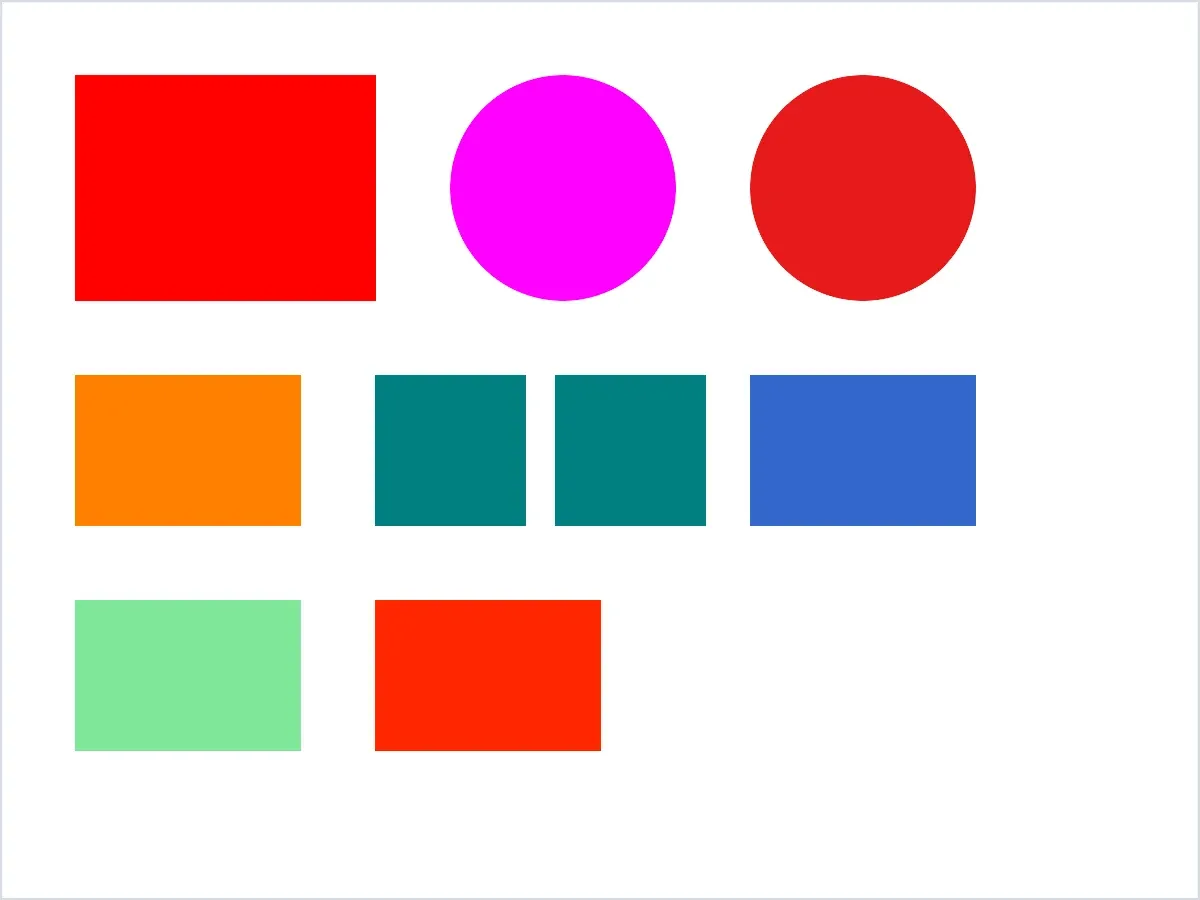
Color fills are one of the fundamental fill types in CE.SDK. They paint a block with one solid color instead of a gradient, image, or video. On Android, create a color fill with FillType.Color, set its fill/color/value property with a Color value, and attach the fill to any block that supports fills.
This guide demonstrates how to create, apply, and modify color fills, work with sRGB, CMYK, and Spot Color values, and manage fill state for design blocks.
Understanding Color Fills#
What is a Color Fill?#
A color fill is a fill object identified by FillType.Color, whose engine type is "//ly.img.ubq/fill/color". It contains the fill/color/value property that stores the actual color value.
Color fills differ from other fill types available in CE.SDK:
- Color fills: Solid, uniform color across the entire block
- Gradient fills: Color transitions such as linear, radial, and conical gradients
- Image fills: Photo or raster content
- Video fills: Animated video content
- Pixel stream fills: Live camera or stream content
Supported Color Spaces#
CE.SDK’s color fill system supports the same Android Color values used by other color properties:
- sRGB: Red, green, blue, and alpha values for screen display through
Color.fromRGBA(),Color.fromHex(),Color.fromColor(), orColor.fromResource() - CMYK: Cyan, magenta, yellow, key, and tint values for print workflows through
Color.fromCMYK() - Spot Color: Named colors registered with
engine.editor.setSpotColor(name=_, color=_)and referenced from fills throughColor.fromSpotColor()
Use sRGB for digital designs, CMYK for print-ready content, and Spot Colors when you need a named brand or production color.
Checking Color Fill Support#
Verifying Block Compatibility#
Before applying a color fill, verify that the target block supports fills. Graphic blocks, shapes, and text blocks typically support fills; scene blocks do not.
if (!engine.block.supportsFill(block)) { error("Block does not support fills.")}Branch on supportsFill() before calling fill APIs on arbitrary blocks. This avoids runtime errors when a selected block cannot render fill content.
Creating Color Fills#
Creating a New Color Fill#
Create a color fill with engine.block.createFill(FillType.Color):
val colorFill = engine.block.createFill(FillType.Color)The method returns a fill block handle. The fill exists independently until you attach it to a block with engine.block.setFill(). If you create a fill and discard it before assigning it, clean up the unused fill with engine.block.destroy(block=_).
Default Color Fill Properties#
New color fills start with opaque black (Color.fromRGBA(r = 0F, g = 0F, b = 0F, a = 1F)) by default. Use findAllProperties() to inspect the properties available on a color fill, then set fill/color/value explicitly before relying on the rendered color:
val allFillProperties = engine.block.findAllProperties(colorFill)Log.i(TAG, "Color fill properties: $allFillProperties")The returned list includes fill/color/value, which is the property used with engine.block.setColor() and engine.block.getColor() throughout this guide.
Applying Color Fills#
Setting a Fill on a Block#
Attach the fill to a supported block with setFill():
engine.block.setFill(block = block, fill = colorFill)The block now renders with the fill’s current color. Assigning a new fill does not automatically destroy the previous fill, so clean up replaced fills that are no longer needed.
Getting the Current Fill#
Use getFill() to retrieve the fill attached to a block, then inspect its type with getType():
val currentFill = engine.block.getFill(block)val fillType = engine.block.getType(currentFill)Log.i(TAG, "Fill type: $fillType")For a color fill, getType() returns the engine type behind FillType.Color.
Modifying Color Fill Properties#
Setting RGB Colors#
Set the fill color with engine.block.setColor(). sRGB values use normalized floats from 0.0 to 1.0, and a controls opacity.
val red = Color.fromRGBA(r = 1F, g = 0F, b = 0F, a = 1F)engine.block.setColor(colorFill, property = "fill/color/value", value = red)Use engine.block.setFillSolidColor() when you only need to set an RGBA fill directly on a block. This shortcut accepts RGBAColor only; use engine.block.setColor() on fill/color/value for CMYKColor or SpotColor values.
An alpha value of 1.0 is fully opaque, and 0.0 is fully transparent.
Setting CMYK Colors#
For print workflows, create a CMYKColor with normalized c, m, y, k, and tint values:
val magenta = Color.fromCMYK(c = 0F, m = 1F, y = 0F, k = 0F, tint = 1F)engine.block.setColor(cmykFill, property = "fill/color/value", value = magenta)Tint lets you apply a lighter version of the CMYK color without changing the base components.
Setting Spot Colors#
Register a spot color before you use it in a fill. The registered approximation lets CE.SDK preview the spot color on screen.
engine.editor.setSpotColor( name = "BrandRed", color = Color.fromRGBA(r = 0.9F, g = 0.1F, b = 0.1F, a = 1F),)val brandRed = Color.fromSpotColor( name = "BrandRed", tint = 1F, externalReference = "BrandBook",)engine.block.setColor(spotFill, property = "fill/color/value", value = brandRed)The externalReference value can store the name of an external system or color book. Omit it when you only need the spot color name.
For PDF export workflows, engine.block.setFillOverprint() marks a block’s spot-color fill as overprint. Process-color fills ignore the overprint flag.
Getting Current Color Value#
Read a color fill value with getColor(). The returned Color subtype preserves the original color space.
val currentColor = engine.block.getColor(colorFill, property = "fill/color/value")when (currentColor) { is RGBAColor -> Log.i(TAG, "sRGB: r=${currentColor.r}, g=${currentColor.g}, b=${currentColor.b}") is CMYKColor -> Log.i(TAG, "CMYK: c=${currentColor.c}, m=${currentColor.m}, y=${currentColor.y}") is SpotColor -> Log.i(TAG, "Spot: name=${currentColor.name}, tint=${currentColor.tint}")}Use when on RGBAColor, CMYKColor, and SpotColor when your app needs to branch by color space.
Enabling and Disabling Color Fills#
Toggle Fill Visibility#
Disable a fill without removing it from the block by changing the block’s fill-enabled state:
val isEnabled = engine.block.isFillEnabled(toggleBlock)Log.i(TAG, "Fill enabled: $isEnabled")
engine.block.setFillEnabled(toggleBlock, enabled = !isEnabled)
Disabling a fill preserves its properties. This is useful for stroke-only designs or temporary UI states where the fill should be hidden and restored later.
Additional Techniques#
Sharing Color Fills#
You can assign the same fill object to multiple blocks. Changing the shared fill updates every block that references it.
val sharedFill = engine.block.createFill(FillType.Color)engine.block.setColor(    sharedFill,    property = "fill/color/value",    value = Color.fromRGBA(r = 0.5F, g = 0F, b = 0.5F, a = 1F),)
engine.block.setFill(block1, fill = sharedFill)engine.block.setFill(block2, fill = sharedFill)
engine.block.setColor(    sharedFill,    property = "fill/color/value",    value = Color.fromRGBA(r = 0F, g = 0.5F, b = 0.5F, a = 1F),)
Shared fills are useful for synchronized brand elements. Keep ownership clear in your app code so you only destroy the shared fill after no block needs it.
Color Space Conversion#
Convert color values to sRGB or CMYK with convertColorToColorSpace():
engine.editor.loadCMYKProfile()val rgbColor = Color.fromRGBA(r = 1F, g = 0F, b = 0F, a = 1F)val cmykColor = engine.editor.convertColorToColorSpace( color = rgbColor, colorSpace = ColorSpace.CMYK,) as CMYKColorLog.i(TAG, "Converted CMYK color: $cmykColor")Use conversion when you need a screen preview for print colors or a CMYK value for print output. Spot Color values are valid source colors, but ColorSpace.SPOT_COLOR is not a conversion target.
Common Use Cases#
Brand Color Application#
Define a brand color as a Spot Color, then reference that name from a color fill:
engine.editor.setSpotColor(    name = "PrimaryBrand",    color = Color.fromRGBA(r = 0.2F, g = 0.4F, b = 0.8F, a = 1F),)
val brandFill = engine.block.createFill(FillType.Color)engine.block.setFill(brandBlock, fill = brandFill)engine.block.setColor(    brandFill,    property = "fill/color/value",    value = Color.fromSpotColor(name = "PrimaryBrand"),)
This example registers PrimaryBrand once and applies it by name. To change that brand color later, call engine.editor.setSpotColor() again with the same name; fills referencing that name use the updated definition.
Transparency Effects#
Create semi-transparent overlays by lowering the sRGB alpha value:
val transparentGreen = Color.fromRGBA(r = 0F, g = 0.8F, b = 0.2F, a = 0.5F)engine.block.setColor(transparentFill, property = "fill/color/value", value = transparentGreen)Use this for overlays, highlights, or layered compositions where content below the block should remain visible.
Print-Ready Colors#
Use CMYK values when a design is intended for print production:
val printColor = Color.fromCMYK(c = 0F, m = 0.85F, y = 1F, k = 0F, tint = 1F)engine.block.setColor(printFill, property = "fill/color/value", value = printColor)CMYK values can be assigned to the same fill/color/value property as sRGB and Spot Color values.
Troubleshooting#
Fill Not Visible#
If your fill does not appear:
- Check that
engine.block.isFillEnabled(block=_)returnstrue - Verify that an sRGB color has an alpha value above
0.0 - Ensure the block has dimensions greater than
0 - Confirm the block is part of the scene hierarchy
Color Looks Different Than Expected#
If colors do not match expectations:
- Verify the color space you assign:
RGBAColor,CMYKColor, orSpotColor - Register a spot color before referencing it from
Color.fromSpotColor() - Review tint values, which should be between
0.0and1.0 - Convert values with
engine.editor.convertColorToColorSpace()when comparing screen and print colors
Memory Leaks#
To avoid leaking fill blocks, apply the same block-lifecycle cleanup pattern when your code discards or replaces fill objects:
- Destroy fills that you create but never assign
- Destroy replaced fills when no block still references them
- Keep shared-fill ownership explicit when multiple blocks reuse the same fill
Cannot Apply Color to Block#
If a color fill cannot be applied:
- Verify the block supports fills with
engine.block.supportsFill(block=_) - Ensure the block has a compatible shape or text surface
- Check that the fill object is still valid and was not destroyed earlier
API Reference#
| Method | Description |
|---|---|
engine.block.supportsFill(block=_) |
Check whether a block supports fill APIs. |
engine.block.createFill(fillType=FillType.Color) |
Create a new color fill object. |
engine.block.findAllProperties(block=_) |
List properties available on a block or fill. |
engine.block.setFill(block=_, fill=_) |
Assign a fill object to a block. |
engine.block.getFill(block=_) |
Get the fill object currently assigned to a block. |
engine.block.getType(block=_) |
Read the engine type of a block or fill. |
engine.block.destroy(block=_) |
Destroy an unneeded block or fill object. |
engine.block.setColor(block=_, property="fill/color/value", value=_) |
Set an RGBAColor, CMYKColor, or SpotColor value on a color fill. |
engine.block.getColor(block=_, property="fill/color/value") |
Read the color value from a color fill. |
engine.block.setFillSolidColor(block=_, color=_) |
Set an RGBAColor fill directly on a block; use setColor() for CMYK or Spot Color fills. |
engine.block.getFillSolidColor(block=_) |
Read a block’s fill color as RGBA. |
engine.block.isFillEnabled(block=_) |
Check whether the block’s fill is visible. |
engine.block.setFillEnabled(block=_, enabled=_) |
Enable or disable fill rendering for a block. |
engine.block.setFillOverprint(block=_, overprint=_) |
Mark a spot-color fill as overprint for PDF export. |
engine.block.getFillOverprint(block=_) |
Check whether a block’s fill is marked for PDF overprint. |
engine.editor.setSpotColor(name=_, color=_) |
Define or update a spot color with an sRGB or CMYK approximation. |
engine.editor.findAllSpotColors() |
List the names of registered spot colors. |
engine.editor.getSpotColorRGB(name=_) |
Read the sRGB representation for a spot color name. |
engine.editor.getSpotColorCMYK(name=_) |
Read the CMYK representation for a spot color name. |
engine.editor.removeSpotColor(name=_) |
Remove a spot color registration. |
engine.editor.convertColorToColorSpace(color=_, colorSpace=_) |
Convert a color value to sRGB or CMYK. |
Color.fromRGBA(r=_, g=_, b=_, a=_) |
Create an RGBAColor from normalized float or 0-255 integer components. |
Color.fromColor(color=_) |
Create an RGBAColor from an Android @ColorInt. |
Color.fromResource(colorResource=_, context=_) |
Create an RGBAColor from an Android @ColorRes; context is optional. |
Color.fromHex(colorString=_) |
Create an RGBAColor from a hex string such as "#FFFFFFFF". |
Color.fromCMYK(c=_, m=_, y=_, k=_, tint=1F) |
Create a CMYKColor with normalized CMYK components and optional tint. |
Color.fromSpotColor(name=_, tint=1F, externalReference=null) |
Create a SpotColor reference to a registered spot color name. |
Related Types#
| Type | Description |
|---|---|
FillType.Color |
Type-safe Android constant for "//ly.img.ubq/fill/color". |
RGBAColor |
sRGB color with r, g, b, and a components from 0.0 to 1.0. |
CMYKColor |
CMYK color with c, m, y, k, and tint components from 0.0 to 1.0. |
SpotColor |
Named spot color reference with name, tint, and optional externalReference. |
ColorSpace |
Enum cases are ColorSpace.SRGB, ColorSpace.CMYK, and ColorSpace.SPOT_COLOR. Pass only ColorSpace.SRGB or ColorSpace.CMYK as targets to convertColorToColorSpace(). |
Next Steps#
Now that you understand color fills, explore other fill types and color management features:
- Fills Overview - Understand the comprehensive fill system and all available fill types
- Apply Colors - Learn about color management across fills, strokes, and shadows
- Gradient Fills — Create color transitions with linear, radial, and conical gradients
- Image Fills — Display photo and raster content in design blocks