Video cropping is essential for Android video editing apps, enabling users to focus on important content and optimize videos for different platforms. The CreativeEditor SDK provides both intuitive crop interfaces and powerful Kotlin APIs for video manipulation. Whether you’re targeting TikTok, Instagram, or YouTube formats, this guide covers all video cropping scenarios for your Android application.
Interactive video crop tools#
The SDK includes specialized video crop controls designed for Android touch interfaces. These components handle real-time video preview, aspect ratio selection, and provide smooth crop adjustments that maintain video quality during editing.
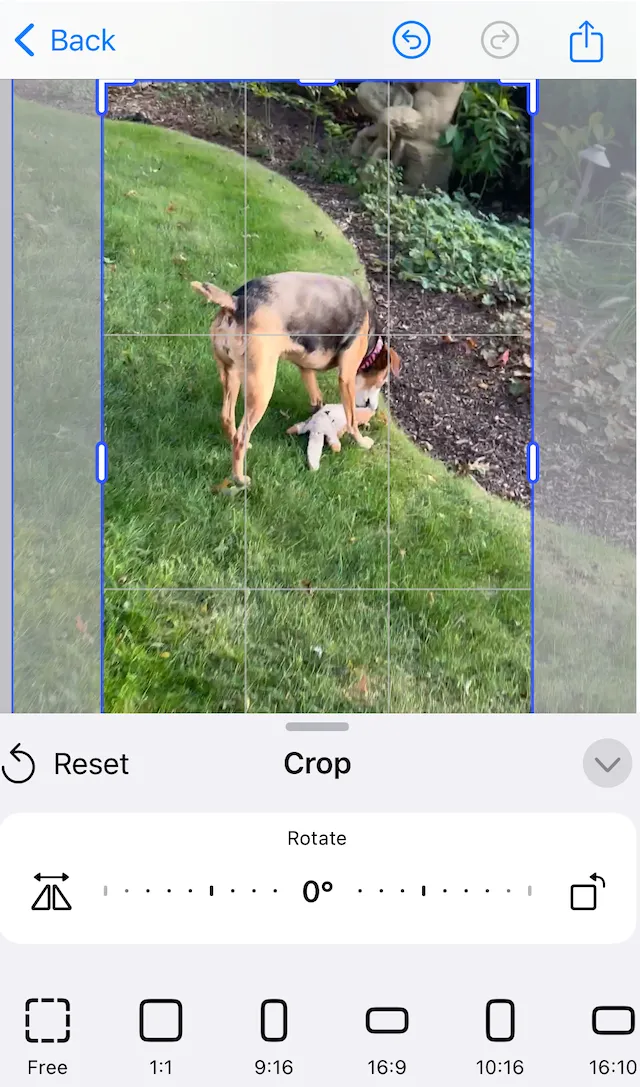
User interaction workflow#
- Select the video you want to crop.
- Tap the crop icon in the editor toolbar.
- Adjust the crop area by dragging the corners or edges or using two-finger gestures.
- Use the tools to modify the crop flip, rotation and angle or to reset the crop.
- Close the Sheet to finalize the crop.
The cropped video appears in your project, but the underlying original video and crop values are preserved even when you rotate or resize the cropped video.
Enable and configure crop tool#
The default UI allows cropping. When you are creating your own UI or custom toolbars you can configure editing behavior. To ensure the crop tool is available in the UI, make sure it’s included in your dock configuration or quick actions.
engine.editor.setSettingBoolean("doubleClickToCropEnabled", true)engine.editor.setSettingBoolean("controlGizmo/showCropHandles", true)engine.editor.setSettingBoolean("controlGizmo/showCropScaleHandles", true)The cropping handles are only available when a selected block has a fill of type FillType.Video. Otherwise setting the edit mode of the engine.editor to crop has no effect.
Programmatic Cropping#
Programmatic cropping gives you complete control over video block boundaries, dimensions, and integration with other transformations like rotation or flipping. This is useful for automation, predefined layouts, or server-synced workflows. When you initially create a fill to insert a video into a block, the engine centers the video in the block and crops any dimension that doesn’t match. For example: when a block with dimensions of 400.0 × 400.0 is filled with a video that is 600.0 × 500.0, there will be horizontal cropping.
When working with cropping using code, it’s important to remember that you are modifying the scale, translation, rotation, etc. of the underlying video. The examples below always adjust the x and y values equally. This is not required, but adjusting them unequally can distort the video, which might be just what you want.
Reset Crop#
When a video is initially placed into a block it will get crop scale and crop translation values. Resetting the crop will return the video to the original values.
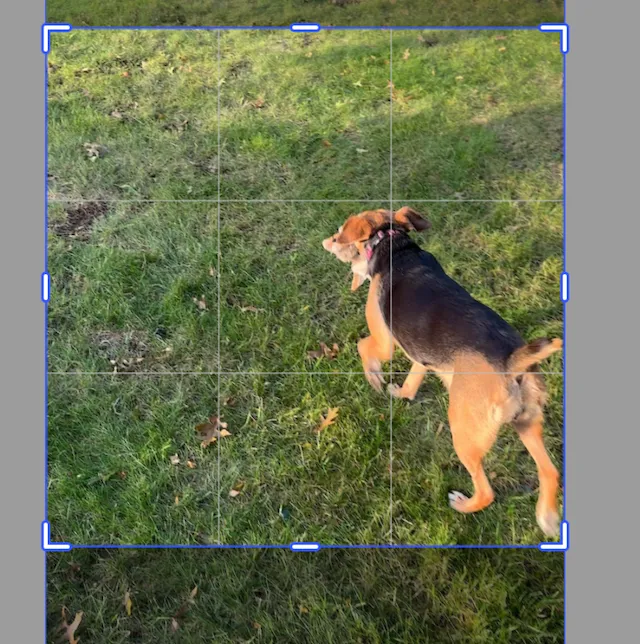
This is a block (called videoBlock in the example code) with dimensions of 400 × 400 filled with a video that has dimensions of 720 × 1280. The video has slight scaling and translation applied so that it fills the block evenly. At any time, the code can execute the reset crop command to return it to this stage.
engine.block.resetCrop(videoBlock)Crop Translation#
The translation values adjust the placement of the origin point of a video. You can read and change the values. They are not pixel units or centimeters, they are scaled percentages. A video that has its origin point at the origin point of the crop block will have translation value of 0.0 for x and y.
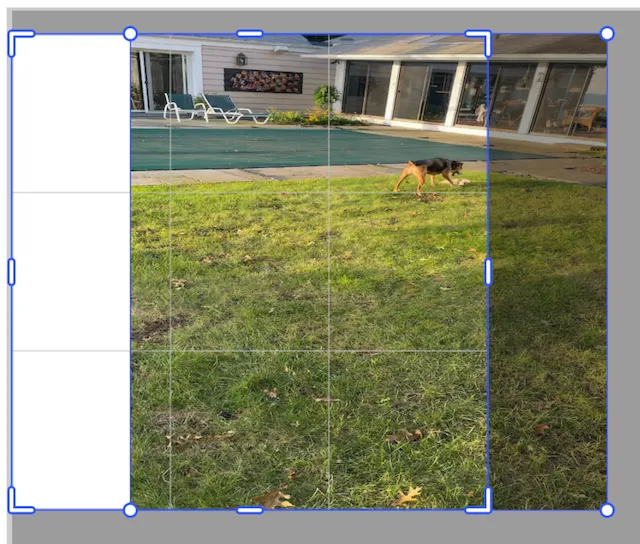
engine.block.setCropTranslationX(videoBlock, 0.25f)This video has had its translation in the x direction set to 0.25. That moved the video one quarter of its width to the right. Setting the value to -0.25 would change the offset of the origin to the left.
These are absolute values. Setting the x value to 0.25 and then setting it to -0.25 does not move the video to an offset of 0.0.
There is a setCropTranslationY(block: DesignBlock, translationY: Float) function to adjust the translation of the video in the vertical direction. Negative values move the video up and positive values move the video down.
To read the current crop translation values you can use the convenience getters for the x and y values.
val currentX = engine.block.getCropTranslationX(videoBlock)val currentY = engine.block.getCropTranslationY(videoBlock)Crop scale#
The scale values adjust the height and width of the underlying video. Values larger than 1.0 will make the video larger while values less than 1.0 make the video smaller. Unless the video also has offsetting translation applied, the center of the video will move.
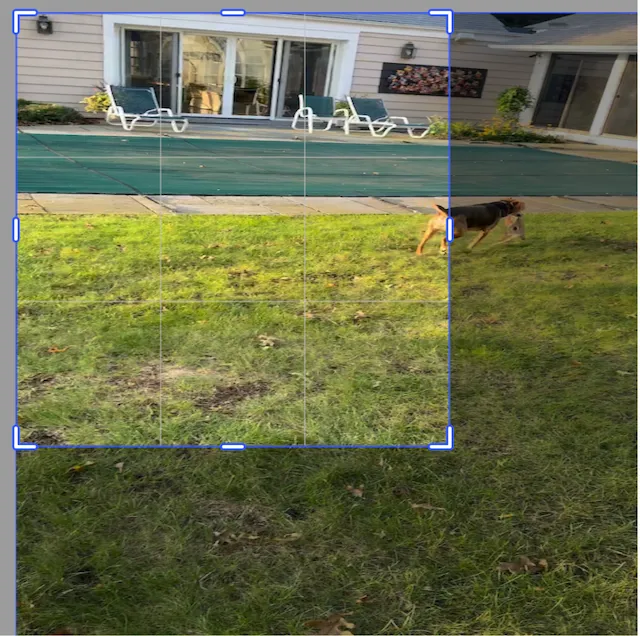
This video has been scaled by 1.5 in the x and y directions, but the origin point has not been translated. So, the center of the video has moved.
engine.block.setCropScaleX(videoBlock, 1.5f)engine.block.setCropScaleY(videoBlock, 1.5f)To read the current crop scale values, use the convenience getters for the x and y values.
val currentX = engine.block.getCropScaleX(videoBlock)val currentY = engine.block.getCropScaleY(videoBlock)Crop rotate#
The same as when rotating blocks, the crop rotation function uses radians. Positive values rotate clockwise and negative values rotate counter clockwise. The video rotates around its center.
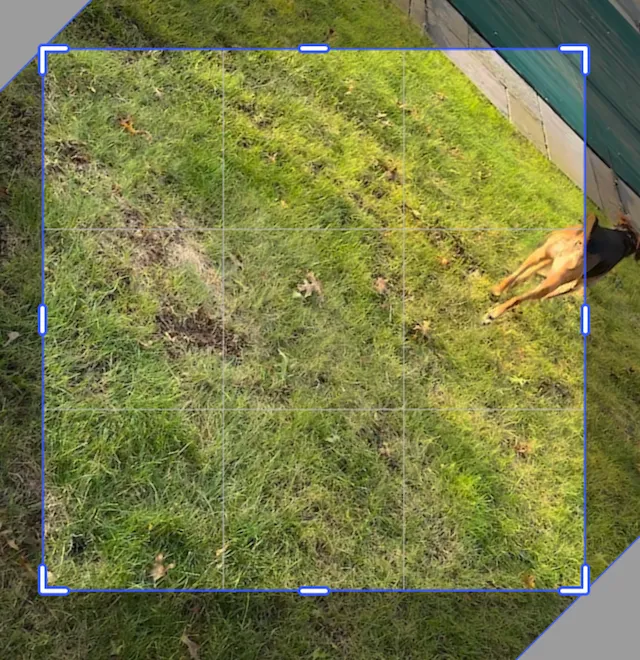
import kotlin.math.PI
engine.block.setCropRotation(videoBlock, (PI / 4.0).toFloat())
For working with radians, Kotlin has a constant defined for pi. It can be used as PI from kotlin.math.PI. Because the setCropRotation function takes a Float for the rotation value, you can use .toFloat() to convert the Double to Float.
Crop to scale ratio#
To center crop a video, you can use the scale ratio. This will adjust the x and y scales of the video evenly, and adjust the translation to keep it centered.
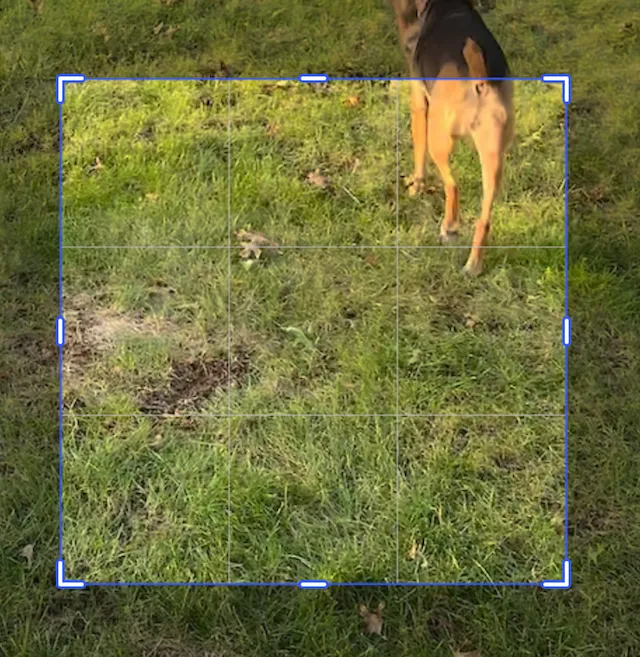
This video has been scaled by 2.0 in the x and y directions. Its translation has been adjusted automatically by -0.5 in the x and y directions to keep the video centered.
engine.block.setCropScaleRatio(videoBlock, 2.0f)Using the crop scale ratio function is the same as calling the translation and scale functions, but in one line.
engine.block.setCropScaleX(videoBlock, 2.0f)engine.block.setCropScaleY(videoBlock, 2.0f)engine.block.setCropTranslationX(videoBlock, -0.5f)engine.block.setCropTranslationY(videoBlock, -0.5f)Chained crops#
Crop operations can be chained together. The order of the chaining impacts the final video.
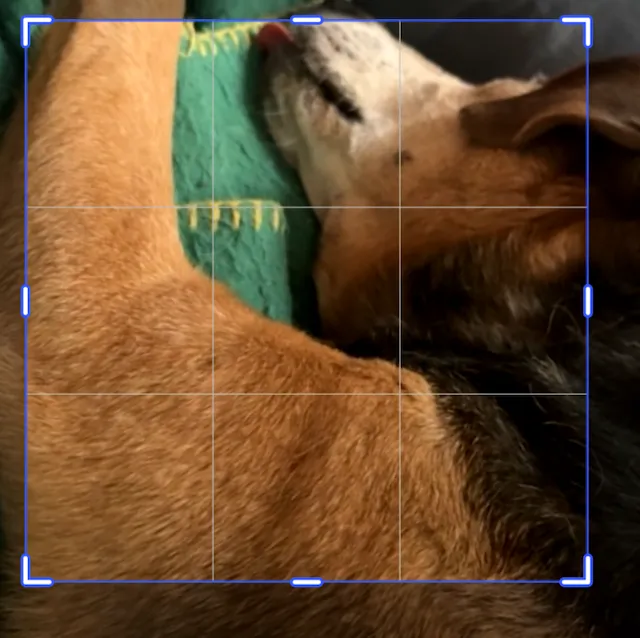
import kotlin.math.PI
engine.block.setCropScaleRatio(videoBlock, 2.0f)engine.block.setCropRotation(videoBlock, (PI / 3.0).toFloat())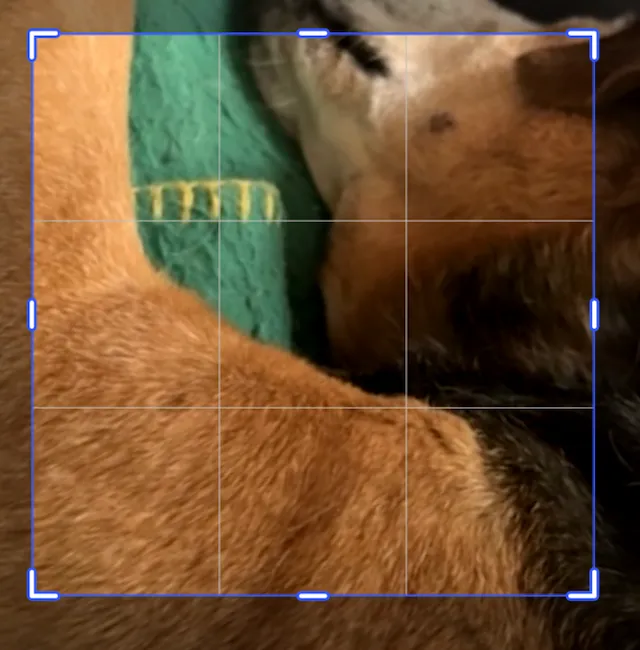
import kotlin.math.PI
engine.block.setCropRotation(videoBlock, (PI / 3.0).toFloat())engine.block.setCropScaleRatio(videoBlock, 2.0f)
Flipping the crop#
There are two functions for crop flipping the video. One for horizontal and one for vertical. They each flip the video along its center.
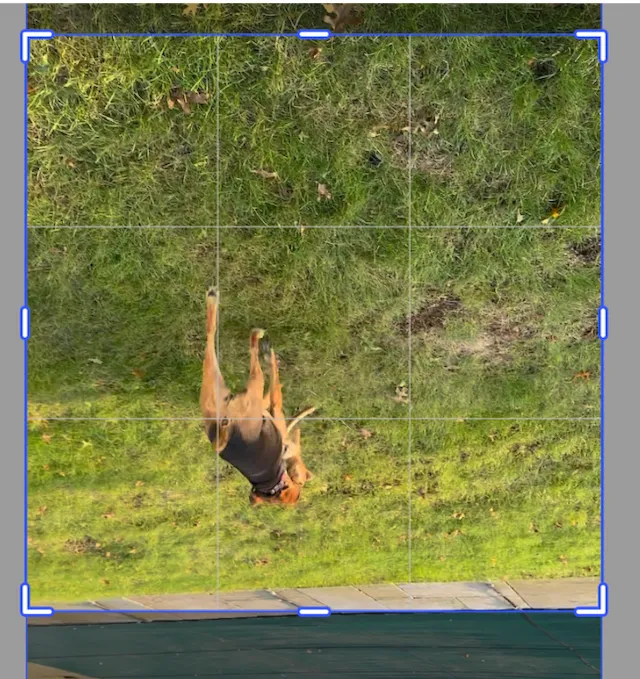
engine.block.flipCropVertical(videoBlock)engine.block.flipCropHorizontal(videoBlock)The video will be crop flipped every time the function gets called. So calling the function an even number of times will return the video to its original orientation.
Filling the frame#
When the various crop operations cause the background of the crop block to be displayed, such as in the Crop Translation example above, the function
engine.block.adjustCropToFillFrame(videoBlock, minScaleRatio = 1.0f)will adjust the translation values and the scale values of the video so that the entire crop block is filled. This is not the same as resetting the crop.