Add text and image watermarks to designs programmatically using CE.SDK’s block API in Android.
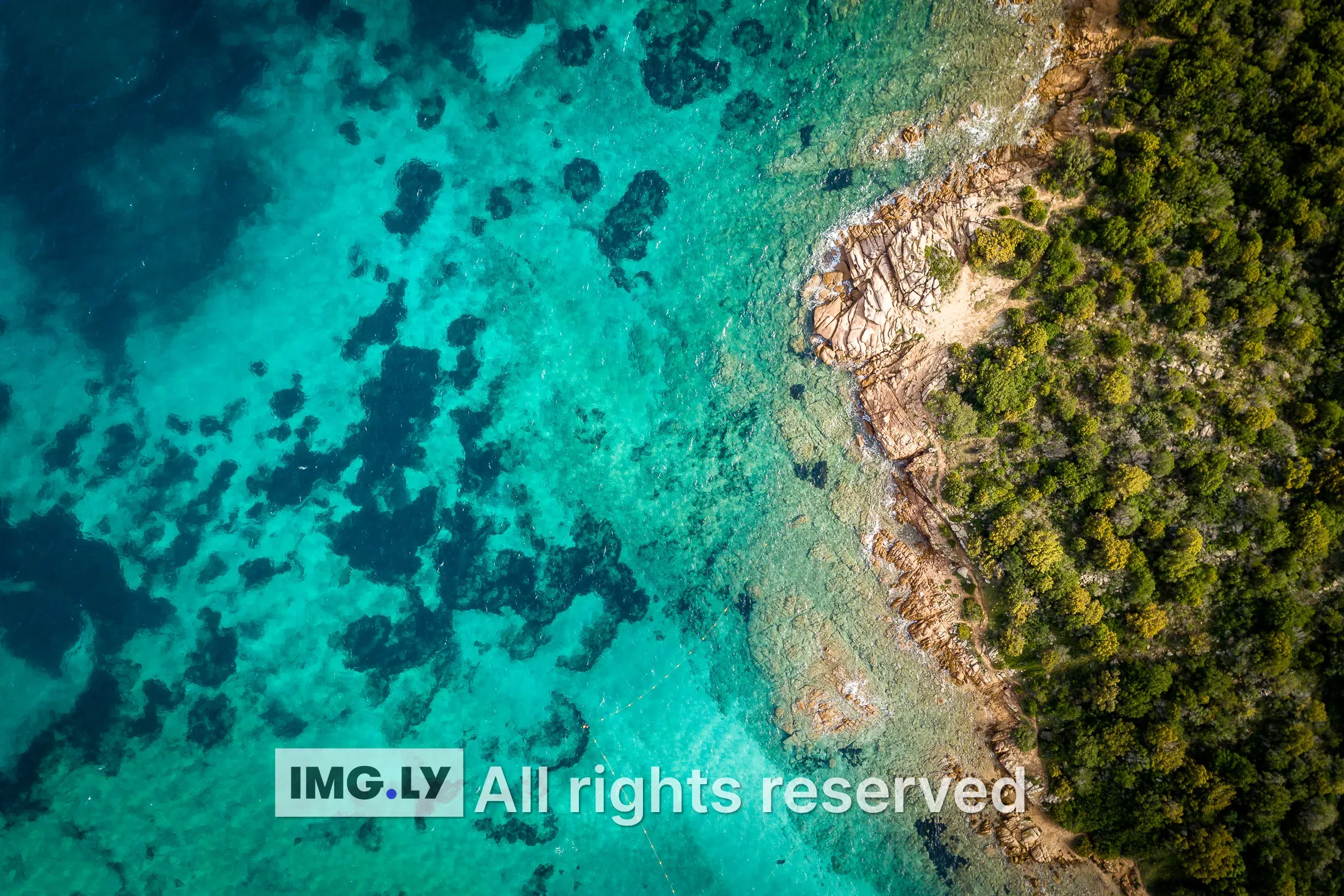
Watermarks protect intellectual property, indicate ownership, add branding, or mark content as drafts. CE.SDK supports two types of watermarks: text watermarks created from text blocks for copyright notices and brand names, and image watermarks created from graphic blocks with image fills for logos and symbols.
This guide covers how to create text and logo watermarks, position them on a design, style them for visibility, and export the watermarked result.
Setup and Prerequisites#
Start from an image scene and read the page dimensions. The page provides the canvas where we add and position watermarks.
val imageUri = Uri.parse("https://img.ly/static/ubq_samples/sample_1.jpg")engine.scene.createFromImage(imageUri)
val page = requireNotNull(engine.scene.getCurrentPage()) {    "Expected createFromImage() to create a page."}val pageWidth = engine.block.getWidth(page)val pageHeight = engine.block.getHeight(page)
createFromImage() creates a scene from the source image. getCurrentPage(), getWidth(), and getHeight() provide the page values used for placement calculations later.
Creating Text Watermarks#
Text watermarks display copyright notices, URLs, or brand names. We create a text block, set its content, and add it to the page.
val textWatermark = engine.block.create(DesignBlockType.Text)
engine.block.setWidthMode(block = textWatermark, mode = SizeMode.AUTO)engine.block.setHeightMode(block = textWatermark, mode = SizeMode.AUTO)engine.block.replaceText(block = textWatermark, text = "All rights reserved")engine.block.appendChild(parent = page, child = textWatermark)
DesignBlockType.Text creates a text block. Auto width and height keep the block frame tied to the rendered text.
Styling the Text#
Configure the font size, color, alignment, and opacity to make the watermark visible without dominating the image.
engine.block.setTextFontSize(block = textWatermark, fontSize = 28F)engine.block.setTextColor(block = textWatermark, color = Color.fromRGBA(1F, 1F, 1F, 1F))engine.block.setTextHorizontalAlignment(block = textWatermark, alignment = HorizontalAlignment.Left)engine.block.setOpacity(block = textWatermark, value = 0.7F)Key styling options:
- Font size - Use a size that remains readable at the target export dimensions.
- Text color - White or black usually works best, depending on the image background.
- Opacity - Values between 0.5 and 0.7 provide a balanced semi-transparent appearance.
Creating Logo Watermarks#
Logo watermarks use graphic blocks with image fills to display brand symbols or company logos.
val logoWatermark = engine.block.create(DesignBlockType.Graphic)val rectShape = engine.block.createShape(ShapeType.Rect)engine.block.setShape(block = logoWatermark, shape = rectShape)
val logoFill = engine.block.createFill(FillType.Image)val logoUri = Uri.parse("https://img.ly/static/ubq_samples/imgly_logo.jpg")engine.block.setUri(    block = logoFill,    property = "fill/image/imageFileURI",    value = logoUri,)engine.block.setFill(block = logoWatermark, fill = logoFill)engine.block.setContentFillMode(block = logoWatermark, mode = ContentFillMode.CONTAIN)engine.block.appendChild(parent = page, child = logoWatermark)
We create a graphic block, assign a rect shape, then create an image fill with the logo URI. ContentFillMode.CONTAIN keeps the logo inside its frame without cropping.
Sizing the Logo#
Set dimensions for the logo and apply opacity to match the text watermark.
val logoSize = pageWidth * 0.14F
engine.block.setWidth(block = logoWatermark, value = logoSize)engine.block.setHeight(block = logoWatermark, value = logoSize)engine.block.setOpacity(block = logoWatermark, value = 0.62F)
A useful rule is to size logos to 10-20% of the page width. This keeps them visible without covering the main image content.
Positioning the Watermarks#
Calculate positions from the current page dimensions. This sample places the logo and text side by side near the bottom center.
val spacing = 18Fval bottomPadding = 36Fval textWidth = engine.block.getFrameWidth(textWatermark)val textHeight = engine.block.getFrameHeight(textWatermark)val totalWatermarkWidth = logoSize + spacing + textWidthval startX = (pageWidth - totalWatermarkWidth) / 2Fval centerY = pageHeight - bottomPadding - maxOf(logoSize, textHeight) / 2F
engine.block.setPositionX(block = logoWatermark, value = startX)engine.block.setPositionY(block = logoWatermark, value = centerY - logoSize / 2F)engine.block.setPositionX(block = textWatermark, value = startX + logoSize + spacing)engine.block.setPositionY(block = textWatermark, value = centerY - textHeight / 2F)
The sample reads the rendered text frame dimensions with getFrameWidth() and getFrameHeight(), combines them with the logo size and spacing, then centers the group horizontally.
Enhancing Visibility with Drop Shadows#
Drop shadows improve watermark readability against varied backgrounds by adding contrast.
listOf(textWatermark, logoWatermark).forEach { watermark -> if (engine.block.supportsDropShadow(watermark)) { engine.block.setDropShadowEnabled(block = watermark, enabled = true) engine.block.setDropShadowColor(block = watermark, color = Color.fromRGBA(0F, 0F, 0F, 0.55F)) engine.block.setDropShadowOffsetX(block = watermark, offsetX = 3F) engine.block.setDropShadowOffsetY(block = watermark, offsetY = 3F) engine.block.setDropShadowBlurRadiusX(block = watermark, blurRadiusX = 6F) engine.block.setDropShadowBlurRadiusY(block = watermark, blurRadiusY = 6F) }}Drop shadow parameters:
- Offset X/Y - Distance from the block; 2-4 px works well for subtle watermarks.
- Blur Radius X/Y - Softness of the shadow; 4-8 px adds contrast without harsh edges.
- Color - Black with partial alpha provides contrast without overpowering the image.
Exporting Watermarked Images#
After adding watermarks, export the complete page as an image file.
val exportedPng = engine.block.export(block = page, mimeType = MimeType.PNG)val exportedJpeg = engine.block.export( block = page, mimeType = MimeType.JPEG, options = ExportOptions(jpegQuality = 0.86F),)engine.block.export() renders the page with all watermarks and returns binary image data. The Android API exposes PNG and JPEG export through MimeType; pass ExportOptions when a format needs extra configuration such as JPEG quality.
Troubleshooting#
Watermark not visible
- Verify the block is within page bounds using position values.
- Check opacity is between 0.3 and 1.0.
- Ensure
appendChild()was called to add the block to the page.
Position appears incorrect
- Recalculate positions using the current page width and height.
- Account for watermark dimensions when calculating corner or centered positions.
- Remember that coordinates start from the top-left corner.
Text not legible
- Increase the font size for the target export dimensions.
- Add a drop shadow for contrast against complex backgrounds.
- Increase opacity if the watermark is too faint.
Logo quality issues
- Use a higher-resolution source image for the logo.
- Avoid scaling the logo beyond its original dimensions.
API Reference#
| Method | Purpose |
|---|---|
engine.scene.createFromImage(imageUri=_) |
Create a scene from an image URI |
engine.scene.getCurrentPage() |
Get the page created for the image scene |
engine.block.getWidth(block=_) |
Read the page width for placement calculations |
engine.block.getHeight(block=_) |
Read the page height for placement calculations |
engine.block.create(blockType=DesignBlockType.Text) |
Create a text watermark block |
engine.block.setWidthMode(block=_, mode=SizeMode.AUTO) |
Let a text block size itself to its content |
engine.block.setHeightMode(block=_, mode=SizeMode.AUTO) |
Let a text block size itself to its content |
engine.block.replaceText(block=_, text=_) |
Set text watermark content |
engine.block.appendChild(parent=_, child=_) |
Add the watermark to the page |
engine.block.setTextFontSize(block=_, fontSize=_) |
Set text size |
engine.block.setTextColor(block=_, color=_) |
Set text color |
engine.block.setTextHorizontalAlignment(block=_, alignment=_) |
Set paragraph alignment |
engine.block.setOpacity(block=_, value=_) |
Set watermark transparency |
engine.block.create(blockType=DesignBlockType.Graphic) |
Create an image watermark block |
engine.block.createShape(type=ShapeType.Rect) |
Create a rectangular graphic shape |
engine.block.setShape(block=_, shape=_) |
Apply the rectangular shape to the graphic block |
engine.block.createFill(fillType=FillType.Image) |
Create an image fill for a logo |
engine.block.setUri(block=_, property="fill/image/imageFileURI", value=_) |
Set the logo image URI |
engine.block.setFill(block=_, fill=_) |
Apply the image fill to the graphic block |
engine.block.setContentFillMode(block=_, mode=ContentFillMode.CONTAIN) |
Fit the logo inside its frame |
engine.block.setWidth(block=_, value=_) |
Set watermark width |
engine.block.setHeight(block=_, value=_) |
Set watermark height |
engine.block.getFrameWidth(block=_) |
Read rendered text width for placement |
engine.block.getFrameHeight(block=_) |
Read rendered text height for placement |
engine.block.setPositionX(block=_, value=_) |
Set horizontal position |
engine.block.setPositionY(block=_, value=_) |
Set vertical position |
engine.block.supportsDropShadow(block=_) |
Check whether a block supports drop shadows |
engine.block.setDropShadowEnabled(block=_, enabled=_) |
Enable or disable drop shadow |
engine.block.setDropShadowColor(block=_, color=_) |
Set shadow color and alpha |
engine.block.setDropShadowOffsetX(block=_, offsetX=_) |
Set horizontal shadow offset |
engine.block.setDropShadowOffsetY(block=_, offsetY=_) |
Set vertical shadow offset |
engine.block.setDropShadowBlurRadiusX(block=_, blurRadiusX=_) |
Set horizontal shadow blur |
engine.block.setDropShadowBlurRadiusY(block=_, blurRadiusY=_) |
Set vertical shadow blur |
engine.block.export(block=_, mimeType=_, options=_) |
Export the watermarked page |
Next Steps#
- Text Styling - Style text blocks with fonts, colors, and effects
- Export Overview - Export options and formats for watermarked images
- Crop Images - Transform images before watermarking