Control how users interact with content on the canvas by switching between edit modes, subscribing to state changes, and reading text cursor and interaction state in the Android bindings.
This guide covers:
- The five built-in edit modes (Transform, Crop, Text, Trim, Playback)
- Switching edit modes programmatically
- Creating custom edit modes that inherit from built-in modes
- Subscribing to state changes for UI synchronization
- Reading text cursor coordinates for custom overlays
- Detecting active user interactions
Setup#
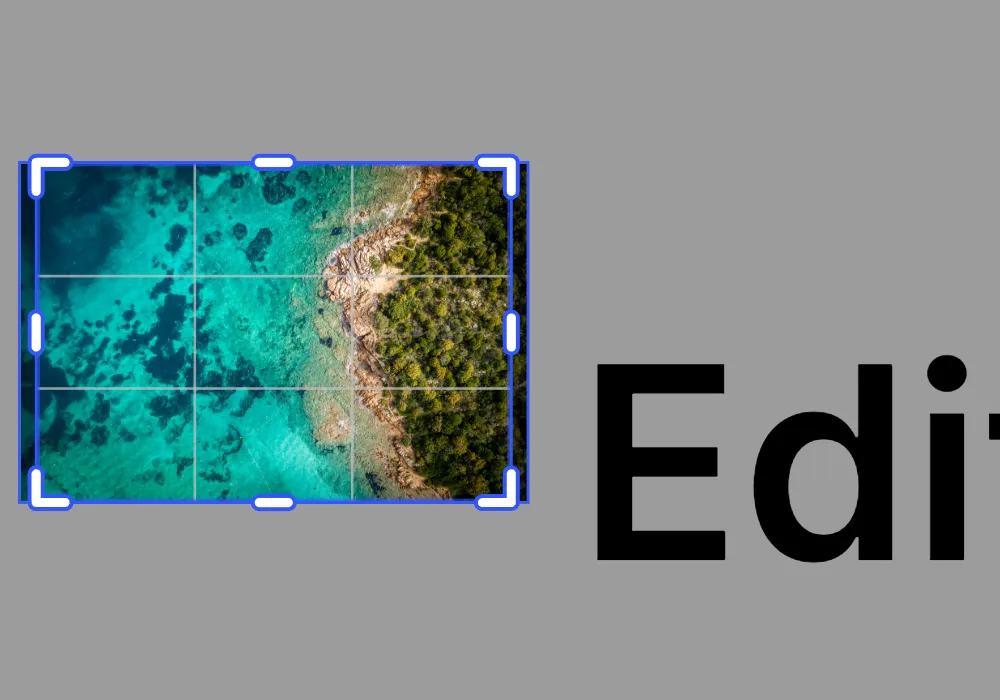
Set up a design editor scene with an image block and a text block. The example also registers the default crop and page preset asset sources before entering Crop mode so the Android crop sheet can open successfully. The demo briefly checks the text-cursor APIs on the text block during startup, then restores a custom mode that inherits from Crop, so the steady visual state remains the dimmed crop grid shown below.
val page = editorContext.engine.block.create(DesignBlockType.Page)editorContext.engine.block.setWidth(page, value = 800F)editorContext.engine.block.setHeight(page, value = 600F)editorContext.engine.block.appendChild(parent = scene, child = page)
// Add an image block to demonstrate Crop modeval imageBlock = editorContext.engine.block.create(DesignBlockType.Graphic)editorContext.engine.block.setName(imageBlock, name = "editor-state-image")editorContext.engine.block.setShape(    imageBlock,    shape = editorContext.engine.block.createShape(ShapeType.Rect),)editorContext.engine.block.setWidth(imageBlock, value = 350F)editorContext.engine.block.setHeight(imageBlock, value = 250F)editorContext.engine.block.setPositionX(imageBlock, value = 50F)editorContext.engine.block.setPositionY(imageBlock, value = 175F)
val imageFill = editorContext.engine.block.createFill(FillType.Image)editorContext.engine.block.setString(    block = imageFill,    property = "fill/image/imageFileURI",    value = "https://img.ly/static/ubq_samples/sample_1.jpg",)editorContext.engine.block.setFill(imageBlock, fill = imageFill)editorContext.engine.block.appendChild(parent = page, child = imageBlock)
// Add a text block to demonstrate Text modeval textBlock = editorContext.engine.block.create(DesignBlockType.Text)editorContext.engine.block.setName(textBlock, name = "editor-state-text")editorContext.engine.block.appendChild(parent = page, child = textBlock)editorContext.engine.block.replaceText(textBlock, text = "Edit this text")editorContext.engine.block.setTextFontSize(textBlock, fontSize = 48F)editorContext.engine.block.setWidthMode(textBlock, mode = SizeMode.AUTO)editorContext.engine.block.setHeightMode(textBlock, mode = SizeMode.AUTO)editorContext.engine.block.setPositionX(textBlock, value = 450F)editorContext.engine.block.setPositionY(textBlock, value = 275F)
Edit Modes#
CE.SDK on Android exposes five built-in edit mode strings.
| Mode | Purpose |
|---|---|
Transform |
Move, resize, and rotate blocks (default) |
Crop |
Adjust media content inside an image or video frame |
Text |
Edit text content inline |
Trim |
Adjust clip start and end points in video scenes |
Playback |
Play video or audio content with limited editing interactions |
The browser guide also demonstrates Vector mode. That mode is not currently surfaced by Android’s EditorApi, so Android integrations typically work with the five modes above plus any custom mode strings you define.
Getting the Current Mode#
Query the current mode with engine.editor.getEditMode(). The initial mode is always Transform.
val initialMode = engine.editor.getEditMode()println("Initial edit mode: $initialMode")Switching Edit Modes#
Use engine.editor.setEditMode() to change the current editing mode. The selected block still needs to support the target mode for the UI to react visibly.
engine.editor.setEditMode("Crop")println( "Edit mode changed to: ${engine.editor.getEditMode()} " + "(requested before entering the crop-based demo state)",)Custom Edit Modes#
You can create custom edit modes that inherit their behavior from one of the built-in modes. This is useful when your app needs to track an app-specific tool state without losing the underlying editor behavior. The demo uses this pattern for its steady state, leaving the editor in a custom mode backed by Crop.
engine.editor.setEditMode( editMode = "MyCustomCropMode", baseMode = "Crop",)println( "Edit mode changed to: ${engine.editor.getEditMode()} " + "(steady state after launch)",)Subscribing to State Changes#
The engine notifies subscribers whenever the editor state changes, including edit mode switches triggered by your code or by the built-in UI.
launch { engine.editor.onStateChanged() .map { engine.editor.getEditMode() } .distinctUntilChanged() .collect { currentMode -> println("Edit mode changed to: $currentMode") }}The example subscribes before it seeds the initial Crop state for the demo and then promotes that into its custom crop-based mode. The collector maps state-change events to the current edit mode and filters duplicate mode values, which keeps toolbar state or analytics logs focused on actual mode transitions.
Common use cases include updating toolbar state, toggling mode-specific controls, or logging edit-mode transitions for analytics.
Cursor State#
The web and Apple bindings expose cursor type and cursor rotation APIs for pointer-based interfaces. The Android bindings currently do not expose equivalent getCursorType() or getCursorRotation() methods on EditorApi.
Reading Cursor Type#
If your Android app supports a mouse or trackpad, handle the pointer icon at the View or Compose layer. Use onStateChanged() and getEditMode() to decide when your surrounding UI should switch between text-editing and transform-oriented pointer affordances.
Reading Cursor Rotation#
Directional cursor rotation is also not exposed on Android. If you render custom resize affordances in your own UI, derive their orientation from your own gesture or layout state instead of the engine.
Text Cursor Position#
When Text mode is active, you can read the text cursor position in screen coordinates to anchor your own overlays near the caret.
Screen Space Coordinates#
The runnable demo briefly selects the text block, switches it into Text mode, reads getTextCursorPositionInScreenSpaceX() and getTextCursorPositionInScreenSpaceY(), and then restores the crop-based steady state shown above. The coordinates remain 0,0 until a live caret is present, which makes this a useful way to detect that inline text editing has not started yet.
val textCursorX = engine.editor.getTextCursorPositionInScreenSpaceX()val textCursorY = engine.editor.getTextCursorPositionInScreenSpaceY()println( "Text cursor position before placing a live caret: " + "($textCursorX, $textCursorY)",)After the user places a live caret inside the inline text editor, these values become useful for positioning floating formatting controls, autocomplete popovers, or other app-specific text UI near the insertion point.
Detecting Active Interactions#
Determine whether the user is currently dragging, resizing, or performing another in-progress editor interaction before you trigger heavier UI updates.
Using isInteractionHappening#
Call engine.editor.isInteractionHappening() to check whether an interaction is currently in progress.
val isInteracting = engine.editor.isInteractionHappening()println("Is interaction happening: $isInteracting")Troubleshooting#
Crop or Text Mode Doesn’t Change Visually#
Make sure the selected block supports the mode you are switching to. Image and video blocks can enter Crop; text blocks can enter Text.
State Change Logs Never Appear#
Verify the subscription is active before the operation that changes state. If you subscribe after the state change occurs, you won’t receive that earlier notification.
Text Cursor Position Stays at 0,0#
Make sure the selected block is a text block and that Text mode is active before you read the screen-space coordinates. The example returns 0,0 until a live caret is present, so a persistent 0,0 result usually indicates the editor never entered inline text editing for that selection.
Next Steps#
- Undo and History — Implement undo/redo functionality and manage history stacks
- Events — Subscribe to block creation, update, and deletion events
- Blocks — Understand block types and the design hierarchy
- Scenes — Learn about scene structure and page management