Give users non-blocking feedback during editing with notifications from CE.SDK’s UI API.
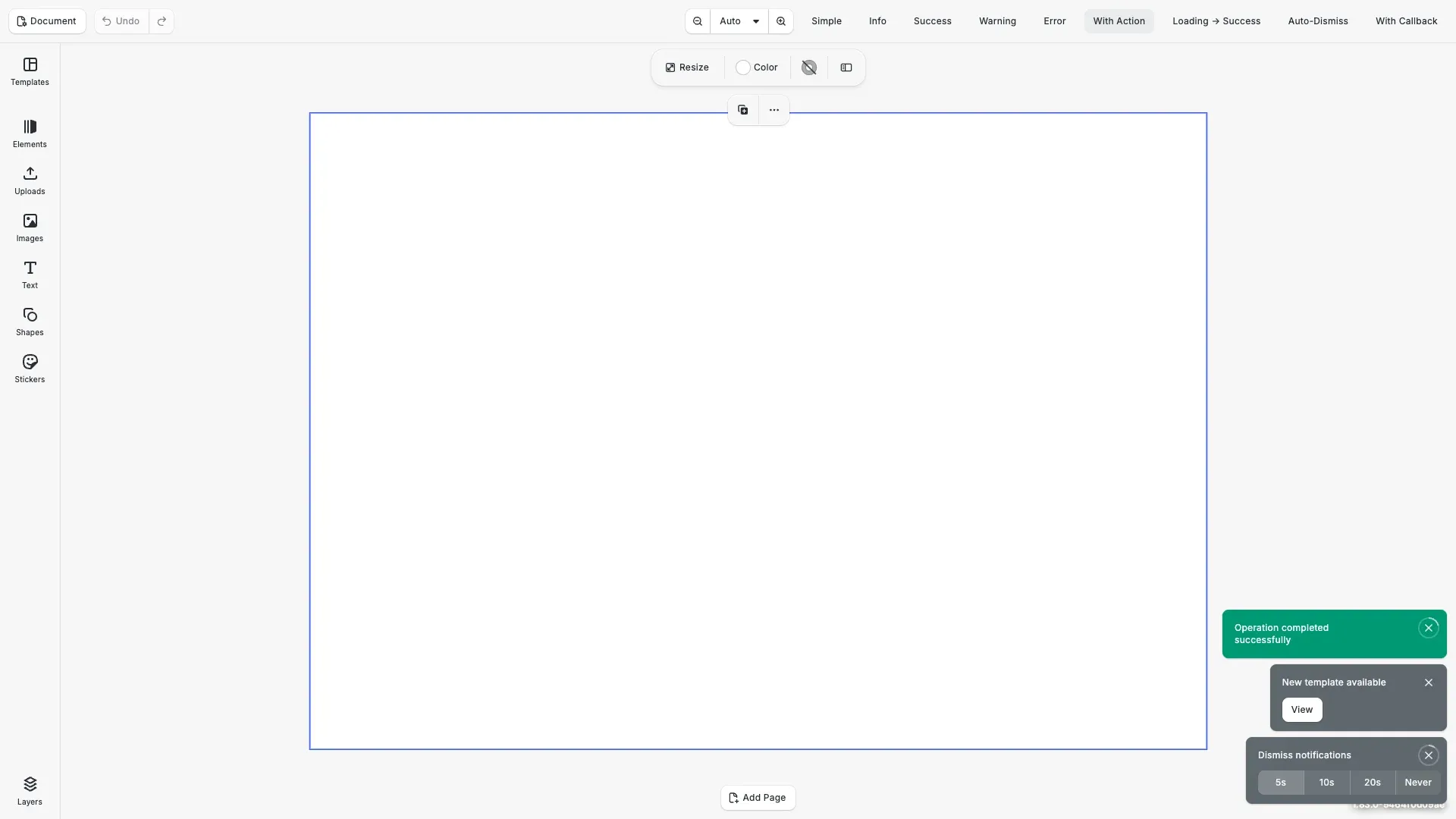
Notifications are temporary messages that appear in the lower right corner of the editor. They report status and results without interrupting the user’s workflow, and most dismiss themselves after the time the user chose. When the user must make a decision before continuing, use a dialog instead.
This guide covers how to create notifications, choose their type and duration, add an action button, and update or dismiss them programmatically.
Creating Notifications#
Use cesdk.ui.showNotification() to display a notification. Pass a string for a simple message or a configuration object for full control. The method returns a unique ID for managing the notification.
cesdk.ui.showNotification('Welcome to CE.SDK!');Notification Types#
Configure the visual appearance with the type property. Available types convey different levels of importance:
info— General information (default)success— Positive confirmationswarning— Cautions requiring attentionerror— Errors or failuresloading— Operations in progress with a spinner
cesdk.ui.showNotification({ message: 'This is an info notification', type: 'info'});Notification Duration#
Every notification stays on screen for the same time: 5 seconds by default. Users change it from the notification itself (5, 10 or 20 seconds, or never), and the editor remembers their choice.
A few notifications stay until the user closes them:
errornotifications- notifications with an
action - notifications with
duration: 'infinite'
Every other duration value uses the chosen time, so updating a notification from 'infinite' to 'medium' lets it dismiss itself again.
Adding Actions to Notifications#
Include an action object to add a clickable button. The action’s onClick callback receives an object with the notification ID, allowing self-dismissal or other operations.
cesdk.ui.showNotification({ message: 'New template available', type: 'info', action: { label: 'View', onClick: ({ id }) => { console.log('Action clicked on notification:', id); cesdk.ui.dismissNotification(id); } }});Loading Notifications#
For operations with unknown completion time, create a loading notification with infinite duration. Update or dismiss it when the operation completes.
const loadingId = cesdk.ui.showNotification({ message: 'Processing your request...', type: 'loading', duration: 'infinite'});Updating Notifications#
Modify an existing notification with cesdk.ui.updateNotification(). Pass the ID and a partial notification object with updated properties. This is useful for changing a loading notification to a success message when an operation completes.
cesdk.ui.updateNotification(loadingId, { type: 'success', message: 'Processing complete!', duration: 'medium'});Dismissing Notifications#
Use cesdk.ui.dismissNotification() with the notification ID to remove it programmatically. This is useful for canceling loading notifications when operations complete or when you need to clear notifications based on user actions.
const notificationId = cesdk.ui.showNotification({  message: 'This will be dismissed in 2 seconds',  type: 'info',  duration: 'infinite'});
setTimeout(() => {  cesdk.ui.dismissNotification(notificationId);}, 2000);
Handling Dismiss Callbacks#
Use the onDismiss callback to run code when a notification closes because its duration ran out or the user closed it. Calling cesdk.ui.dismissNotification() removes the notification without running onDismiss, so run any cleanup yourself when you dismiss programmatically.
cesdk.ui.showNotification({ message: 'Dismiss me to see the callback', type: 'info', onDismiss: () => { console.log('Notification was dismissed'); }});Troubleshooting#
Notification Not Visible#
Check that the ly.img.notifications feature is enabled, because the editor renders no notifications while it is disabled. Verify the duration hasn’t expired before you could observe the notification. Ensure the editor UI is initialized before you call notification methods.
Dismiss Callback Not Firing#
onDismiss runs only when the duration runs out or the user closes the notification. A call to cesdk.ui.dismissNotification() skips it. Check for JavaScript errors in the callback code.
API Reference#
| Method | Description |
|---|---|
cesdk.ui.showNotification() |
Display a non-blocking notification |
cesdk.ui.updateNotification() |
Update notification content or properties |
cesdk.ui.dismissNotification() |
Remove a notification by ID |
Next Steps#
- Dialogs — Show modal dialogs for confirmations, alerts, and progress.
- Register a New Component — Build custom UI components like the notification buttons in this example.