Build a custom AI-powered image generation provider for CE.SDK using the
@imgly/plugin-ai-generation-web package. You’ll implement an AI provider
from scratch using the schema-based approach and integrate it seamlessly with
the editor.
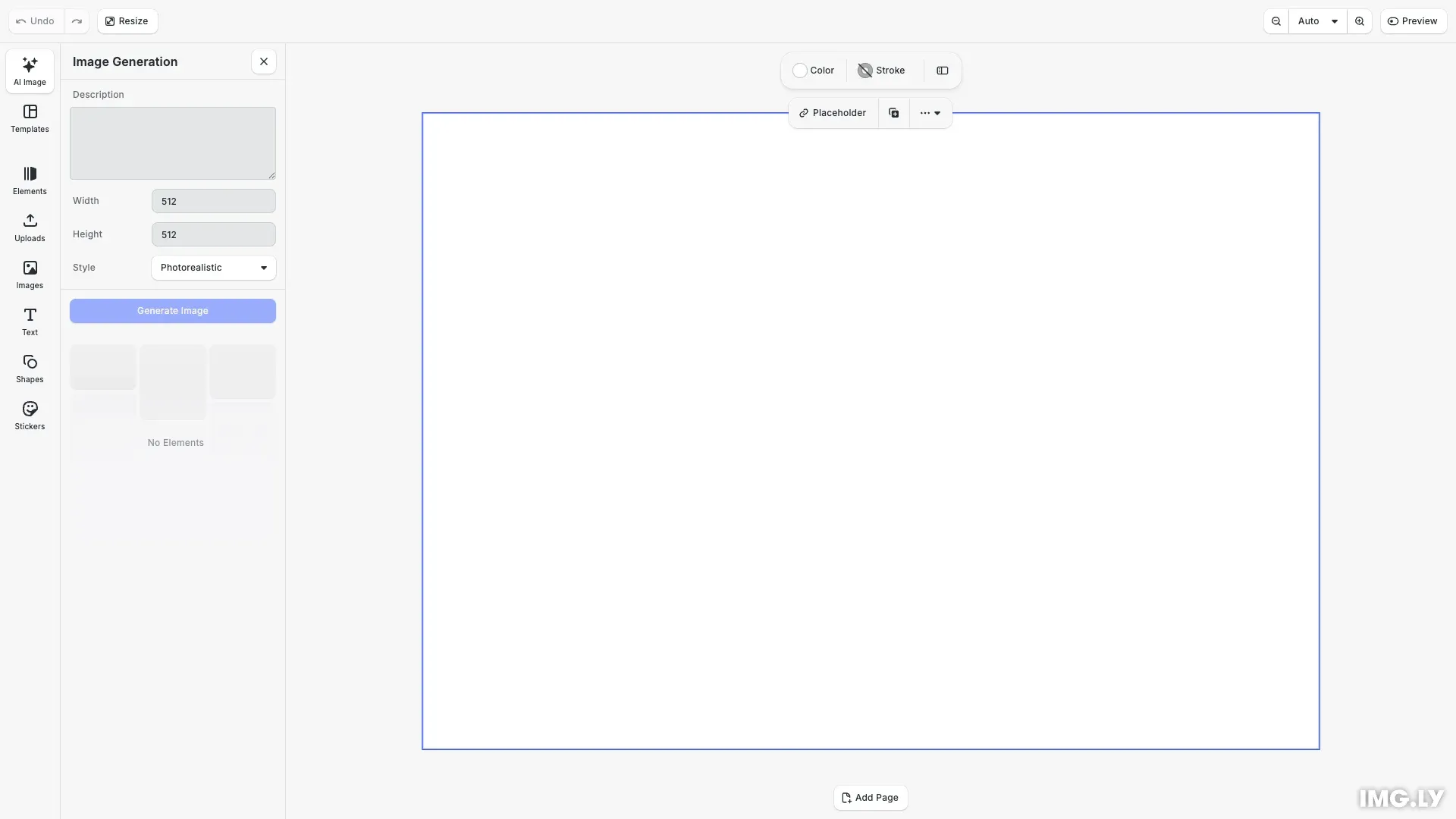
This guide walks you through creating an image generation provider that connects to your own AI service. You’ll learn about the provider interface, OpenAPI schema-based input configuration, quick actions, middleware patterns, and CE.SDK integration.
This guide covers:
- Understanding the Provider interface for image generation
- Creating an OpenAPI schema for input configuration
- Implementing a custom image provider with quick actions
- Building an image-to-image provider with a custom image selector
- Adding middleware for logging, uploads, and error handling
- Integrating the provider with CE.SDK
Prerequisites#
- Basic knowledge of TypeScript and React
- Familiarity with CreativeEditor SDK
- An image generation API to integrate with
Project Setup#
First, set up your project and install the necessary packages:
# Create a new project or use an existing onemkdir my-image-providercd my-image-provider
# Initialize package.jsonnpm init -y
# Install required dependenciesnpm install @imgly/plugin-ai-generation-web@1.85.1-rc.0 @imgly/plugin-ai-image-generation-web@1.85.1-rc.0 @cesdk/cesdk-js@1.85.1-rc.0 typescript
Then import the packages in your TypeScript file:
import { CommonProperties, CommonProviderConfiguration, ImageOutput, PanelInputSchema, Provider, loggingMiddleware, uploadMiddleware} from '@imgly/plugin-ai-generation-web';import ImageGeneration from '@imgly/plugin-ai-image-generation-web';Understanding the Provider Interface#
The core of the AI generation system is the Provider interface. For image generation, we implement this interface with kind: 'image'.
Key components of an image provider:
- id: Unique identifier for your provider
- kind: Always ‘image’ for image generation
- initialize: Setup function for any necessary configuration
- input: Configuration for the input UI panel and parameters
- output: Configuration for generation behavior and result handling
Creating an OpenAPI Schema#
For schema-based input, you need an OpenAPI schema that defines your input parameters. The schema controls what UI components appear in the generation panel:
{ "openapi": "3.0.0", "info": { "title": "My Image Generator API", "version": "1.0.0" }, "paths": {}, "components": { "schemas": { "GenerationInput": { "type": "object", "required": ["prompt"], "properties": { "prompt": { "type": "string", "title": "Description", "description": "Describe the image you want to generate", "x-imgly-builder": { "component": "TextArea" } }, "width": { "type": "integer", "title": "Width", "default": 512, "enum": [256, 512, 768, 1024], "x-imgly-builder": { "component": "Select" } }, "height": { "type": "integer", "title": "Height", "default": 512, "enum": [256, 512, 768, 1024], "x-imgly-builder": { "component": "Select" } }, "style": { "type": "string", "title": "Style", "default": "photorealistic", "enum": ["photorealistic", "cartoon", "sketch", "painting"], "x-imgly-builder": { "component": "Select" } } }, "x-order-properties": ["prompt", "width", "height", "style"] }, "ImageToImageInput": { "type": "object", "required": ["image_url", "prompt"], "properties": { "image_url": { "type": "string", "title": "Source Image", "description": "The image the generation starts from" }, "prompt": { "type": "string", "title": "Description", "description": "Describe how the source image should change" } }, "x-order-properties": ["image_url", "prompt"] } } }}Key concepts in the schema:
- Required vs optional properties: Use the
requiredarray to specify which fields must be filled - x-imgly-builder extension: Specifies the UI component type (TextArea, Select, etc.)
- x-order-properties: Controls the display order of fields in the UI
- enum values: Provides predefined options for Select components
An OpenAPI document requires the paths field. Use an empty object when the document only contains reusable component schemas. Import the schema into your provider:
import apiSchema from './myApiSchema.json';TypeScript widens string literals from imported JSON. Cast the schema to the panel’s document type before assigning it:
// JSON imports widen literal values such as `type: 'object'` to `string`.// Restore the document type expected by the schema-driven panel.const openApiDocument = apiSchema as PanelInputSchema< 'image', MyProviderInput>['document'];Understanding CommonProviderConfiguration#
Before creating your provider, understand the CommonProviderConfiguration interface. This interface provides standardized configuration options that all providers should extend:
// Define provider configuration interface extending CommonProviderConfigurationinterface MyProviderConfiguration extends CommonProviderConfiguration< MyProviderInput, ImageOutput> { // Add any provider-specific configuration here customApiKey?: string;}Configuration Options#
proxyUrl: The URL of your proxy server that forwards requests to your AI API. This is essential for keeping API keys secure on the server side.
headers: Custom headers to include in all API requests. Useful for:
- Adding client identification headers
- Including version information
- Passing through metadata required by your API
- Adding correlation IDs for request tracing
history: Override the provider’s default history storage behavior:
false: Disable history storage entirely'@imgly/local': Use temporary local storage (not persistent across sessions)'@imgly/indexedDB': Use browser IndexedDB storage (persistent across sessions)string: Use your own custom asset source ID
supportedQuickActions: Configure which quick actions are supported:
falseornull: Remove the quick action entirely- Object with
mapInput: Override with custom input mapping
properties: Define default values for any provider property (static values or dynamic functions based on context).
Defining Input Types#
Define TypeScript interfaces for your provider’s input and configuration:
// Define your input type based on your schemainterface MyProviderInput { prompt: string; width: number; height: number; style: string; image_url?: string; // For image-to-image operations}Creating the Provider Factory#
The provider factory function returns a provider instance configured with your settings:
// Create a function that returns your providerexport function MyImageProvider(  _config: MyProviderConfiguration): (context: {  cesdk: CreativeEditorSDK;}) => Promise<Provider<'image', MyProviderInput, ImageOutput>> {  // Return a function that returns the provider  return async ({ cesdk: _cesdk }) => {    // Create and return the provider    const provider: Provider<'image', MyProviderInput, ImageOutput> = {      // Unique identifier for your provider      id: 'my-image-provider',
      // Define output type as 'image'      kind: 'image',
      // Initialize your provider      initialize: async () => {        console.log('Initializing my image provider');        // Any setup needed (e.g., API client initialization)      },
Configuring the Input Panel#
The input panel configuration uses your OpenAPI schema to automatically generate the UI:
// Define input panel and UI using schemainput: {  panel: {    type: 'schema',    document: openApiDocument, // Your OpenAPI schema    inputReference: '#/components/schemas/GenerationInput', // Reference to your input schema    userFlow: 'placeholder', // Creates a block first, then updates it with the generated content    orderExtensionKeyword: 'x-order-properties', // Used to control property display order
    // Convert API input to block parameters    getBlockInput: async (input) => ({      image: {        width: input.width || 512,        height: input.height || 512,        label: `AI: ${input.prompt?.substring(0, 20)}...`      }    })  },
Configuration properties:
- type: Set to
'schema'for OpenAPI-driven UI - document: Your OpenAPI schema object
- inputReference: JSON pointer to the input schema definition
- userFlow: Either
'placeholder'(creates a placeholder block right away and fills it in once the asset is generated) or'generation-only'(generates the asset without creating a block) - getBlockInput: Transforms API input to block parameters (dimensions, label)
Adding Quick Actions#
Quick actions appear in the canvas context menu for supported block types. Map quick action IDs to your provider’s input format:
// Add quick actions for canvas menuquickActions: { supported: { // Map quick action IDs to provider input transformations 'ly.img.editImage': { mapInput: (quickActionInput) => ({ prompt: quickActionInput.prompt, image_url: quickActionInput.uri, width: 512, height: 512, style: 'photorealistic' }) }, 'ly.img.swapBackground': { mapInput: (quickActionInput) => ({ prompt: quickActionInput.prompt, image_url: quickActionInput.uri, width: 512, height: 512, style: 'photorealistic' }) }, 'ly.img.createVariant': { mapInput: (quickActionInput) => ({ prompt: quickActionInput.prompt, image_url: quickActionInput.uri, width: 512, height: 512, style: 'photorealistic' }) }, 'ly.img.styleTransfer': { mapInput: (quickActionInput) => ({ prompt: quickActionInput.style, image_url: quickActionInput.uri, width: 512, height: 512, style: 'photorealistic' }) } }}Available quick action IDs:
'ly.img.editImage': Edit the selected image. Input:{ prompt, uri }.'ly.img.swapBackground': Replace the background of the selected image. Input:{ prompt, uri }.'ly.img.createVariant': Generate a variation of the selected image. Input:{ prompt, uri }.'ly.img.createImage': Open the image generation panel on your provider with the selected image attached to the prompt. It generates nothing itself, so enable it withtrue.'ly.img.styleTransfer': Apply an art style to the selected image. Input:{ style, uri }.'ly.img.artistTransfer': Apply a famous artist’s style to the selected image. Input:{ artist, uri }.'ly.img.combineImages': Combine two or more selected images. Input:{ prompt, uris }.'ly.img.remixPage': Turn the current page into an image. Input:{ prompt, uri }.'ly.img.remixPageWithPrompt': Remix the current page with a prompt. Input:{ prompt, uri }.
A video provider maps 'ly.img.createVideo', which opens the video generation panel with the selected image attached, and 'ly.img.animateBetweenImages', which takes { firstFrameUri, lastFrameUri } from two selected images.
Configuring Output Behavior#
The output configuration defines how generation works and handles results:
// Define output generation behavioroutput: {  // Allow cancellation of generation  abortable: true,
  // Store generated assets in browser's IndexedDB  history: '@imgly/indexedDB',
Adding Middleware#
Middleware functions process requests and responses in the generation pipeline:
// Add middleware for logging and uploadingmiddleware: [  loggingMiddleware({ enable: true }),  // Example of upload middleware that stores generated images on your server  uploadMiddleware(async (output: ImageOutput) => {    // In production, upload the image to your server    // For this example, we just return the output as-is    console.log('Upload middleware: Processing output', output.url);    return output;  }),  // Custom error handling middleware  async (input, options, next) => {    try {      return await next(input, options);    } catch (error: any) {      // Prevent default error notification      options.preventDefault();
      // Show custom error notification      options.cesdk?.ui.showNotification({        type: 'error',        message: `Image generation failed: ${error.message}`      });
      throw error;    }  }],
Available Middleware#
loggingMiddleware(): Debug logging for development.
uploadMiddleware(): Store generated images on your server before adding to design.
Custom middleware: Create your own for error handling, rate limiting, or request transformation.
Custom Error Handling with preventDefault()#
Middleware can suppress default UI feedback using options.preventDefault(). This is useful when you want complete control over how errors are presented:
What gets prevented:
- Error/success notifications (toast messages)
- Block error state (error icon)
- Console error logging
What is NOT prevented:
- Pending → Ready transition (loading spinner always stops)
Configuring Notifications#
Configure success and error notifications shown to users:
// Configure success/error notificationsnotification: { success: { show: true, message: 'Image generated successfully!' }, error: { show: true, message: (context) => `Generation failed: ${context.error}` }},Implementing the Generate Function#
The generate function is the core of your provider—it calls your AI API and returns the result:
// The core generation functiongenerate: async (input, { abortSignal }) => {  try {    // Use mock API for demonstration    // In production, replace with actual API call:    // const response = await fetch(config.proxyUrl, { ... });    const data = await mockGenerateImage(input, abortSignal);
    // Return the image URL    return {      kind: 'image',      url: data.imageUrl    };  } catch (error) {    console.error('Image generation failed:', error);    throw error;  }}
In production, replace the mock API call with actual requests to your image generation service.
Integrating with CE.SDK#
Register your providers with CE.SDK using the image generation plugin. The image-to-image provider is built in the next section:
// Add your image generation providersawait cesdk.addPlugin( ImageGeneration({ providers: { text2image: MyImageProvider({ proxyUrl: 'https://your-proxy-server.com/api/proxy', headers: { 'x-client-version': '1.0.0', 'x-request-source': 'cesdk-tutorial' } }), image2image: MyImageToImageProvider({ proxyUrl: 'https://your-proxy-server.com/api/proxy' }) }, debug: true }));Add the dock component to make the panel accessible:
// Add the dock component to open the AI image generation panelcesdk.ui.setComponentOrder({ in: 'ly.img.dock' }, [ 'ly.img.ai.image-generation.dock', ...cesdk.ui.getComponentOrder({ in: 'ly.img.dock' })]);Building an Image-to-Image Provider#
An image-to-image provider starts from an image the user picks rather than from a prompt alone. The schema cannot express that on its own: a property of type string renders as a plain text field, so users would have to paste an image URL by hand.
Use renderCustomProperty to replace the components for one or more properties. It maps property ids to your own render functions, and those take precedence over the schema-driven rendering for the properties they name.
CommonProperties.ImageUrl(providerId, { cesdk }) from @imgly/plugin-ai-generation-web is the ready-made image selector, so you don’t have to write those render functions yourself. It returns renderers for two properties:
prompt: Renders the prompt field with a row for the source image. The “Add image” button in that row opens the image library. The library accepts images only and rejects SVG files. When an image is selected on the canvas, the row offers it as a suggestion.image_url: Renders no control of its own. It passes the image from the prompt row to your provider and marks the property as required, so the Generate button stays disabled until the user adds an image.
Pass propertyKey or promptPropertyKey when your schema uses other names for these two properties.
The provider below points inputReference at the ImageToImageInput definition from the schema, wires the image selector into renderCustomProperty, and derives the block dimensions from the selected image in getBlockInput instead of using fixed values:
// The image-to-image schema takes a source image instead of a size and styleinterface MyImageToImageInput {  prompt: string;  image_url?: string;}
// Read the size of the selected image, so the generated block matches it.// An asset source can hand out a `buffer://` URI for a resource the engine// holds in memory, which the browser cannot load, so resolve those first.async function getImageDimensions(  url: string,  cesdk: CreativeEditorSDK): Promise<{ width: number; height: number }> {  let objectURL: string | undefined;
  if (url.startsWith('buffer:')) {    const mimeType = await cesdk.engine.editor.getMimeType(url);    const length = cesdk.engine.editor.getBufferLength(url);    const data = cesdk.engine.editor.getBufferData(url, 0, length);    const bytes = new Uint8Array(data.byteLength);    bytes.set(data);    objectURL = URL.createObjectURL(new Blob([bytes], { type: mimeType }));  }
  try {    return await new Promise<{ width: number; height: number }>(      (resolve, reject) => {        const image = new Image();        image.onload = () =>          resolve({ width: image.naturalWidth, height: image.naturalHeight });        image.onerror = () => reject(new Error(`Could not load image: ${url}`));        image.src = objectURL ?? url;      }    );  } finally {    if (objectURL != null) {      URL.revokeObjectURL(objectURL);    }  }}
// An image-to-image provider starts from an image the user picksexport function MyImageToImageProvider(  _config: CommonProviderConfiguration<MyImageToImageInput, ImageOutput>): (context: {  cesdk: CreativeEditorSDK;}) => Promise<Provider<'image', MyImageToImageInput, ImageOutput>> {  const providerId = 'my-image-to-image-provider';
  return async ({ cesdk }) => {    const provider: Provider<'image', MyImageToImageInput, ImageOutput> = {      id: providerId,      kind: 'image',
      input: {        panel: {          type: 'schema',          document: openApiDocument,          inputReference: '#/components/schemas/ImageToImageInput',          userFlow: 'placeholder',          orderExtensionKeyword: 'x-order-properties',
          // Render `prompt` with a row for the source image, and `image_url`          // from that row. Custom renderers take precedence over the schema.          renderCustomProperty: CommonProperties.ImageUrl(providerId, {            cesdk          }),
          // Derive the block size from the selected image          getBlockInput: async (input) => {            // The selector reports no image as an empty string, not undefined.            const imageUrl = input.image_url;            if (!imageUrl) {              throw new Error('Select a source image before generating.');            }
            const { width, height } = await getImageDimensions(imageUrl, cesdk);            return { image: { width, height, label: `AI: ${input.prompt}` } };          }        }      },
      output: {        abortable: true,        history: '@imgly/indexedDB',        generate: async (input, { abortSignal }) => {          const data = await mockGenerateImage(input, abortSignal);          return { kind: 'image', url: data.imageUrl };        }      }    };
    return provider;  };}
An asset source can hand out a buffer:// URI for a resource the engine holds in memory. The browser cannot load that URI directly, so read the bytes with getBufferData() and wrap them in an object URL before you measure the image.
Declare both properties in the schema definition you reference. Because the panel sets orderExtensionKeyword: 'x-order-properties', the property list comes from that array, so a property missing from it never appears in the panel. Without prompt in that list, the panel shows neither the prompt field nor the image row.
The example returns a demo image from mockGenerateImage(). In production, send the prompt and source image to your AI service. Convert or upload local buffer:// and blob: resources first; a remote service cannot read those browser-local URIs.
Register the provider under providers.image2image, as shown in the integration snippet above.
Controlling Features with Feature API#
Control which UI elements and features are available to users:
// Hide the provider dropdown if you only have one providercesdk.feature.set( 'ly.img.plugin-ai-image-generation-web.providerSelect', () => false);// Enable text-to-image generationcesdk.feature.set( 'ly.img.plugin-ai-image-generation-web.fromText', () => true);// Disable image-to-image generationcesdk.feature.set( 'ly.img.plugin-ai-image-generation-web.fromImage', () => false);Available feature flags:
ly.img.plugin-ai-image-generation-web.providerSelect: Show/hide provider dropdownly.img.plugin-ai-image-generation-web.fromText: Enable text-to-image inputly.img.plugin-ai-image-generation-web.fromImage: Enable image-to-image input
Troubleshooting#
Common issues and solutions:
- API errors: Check proxy URL configuration and headers. Ensure your proxy server is correctly forwarding requests to your AI API.
- Generation not starting: Verify the license key is valid. Check browser console for initialization errors.
- Quick actions not appearing: Ensure quick action IDs are mapped correctly in the
supportedobject. Verify the block type supports quick actions. - UI not updating: Check that
generate()returns the correct output format withkind: 'image'and a validurl.
Next Steps#
- Explore the AI Image Generation Overview for built-in provider options
- Learn about AI Text Generation for text-based AI providers
- Understand the Plugin System for extending CE.SDK