Present information and collect user decisions during editing with modal dialogs from CE.SDK’s UI API.
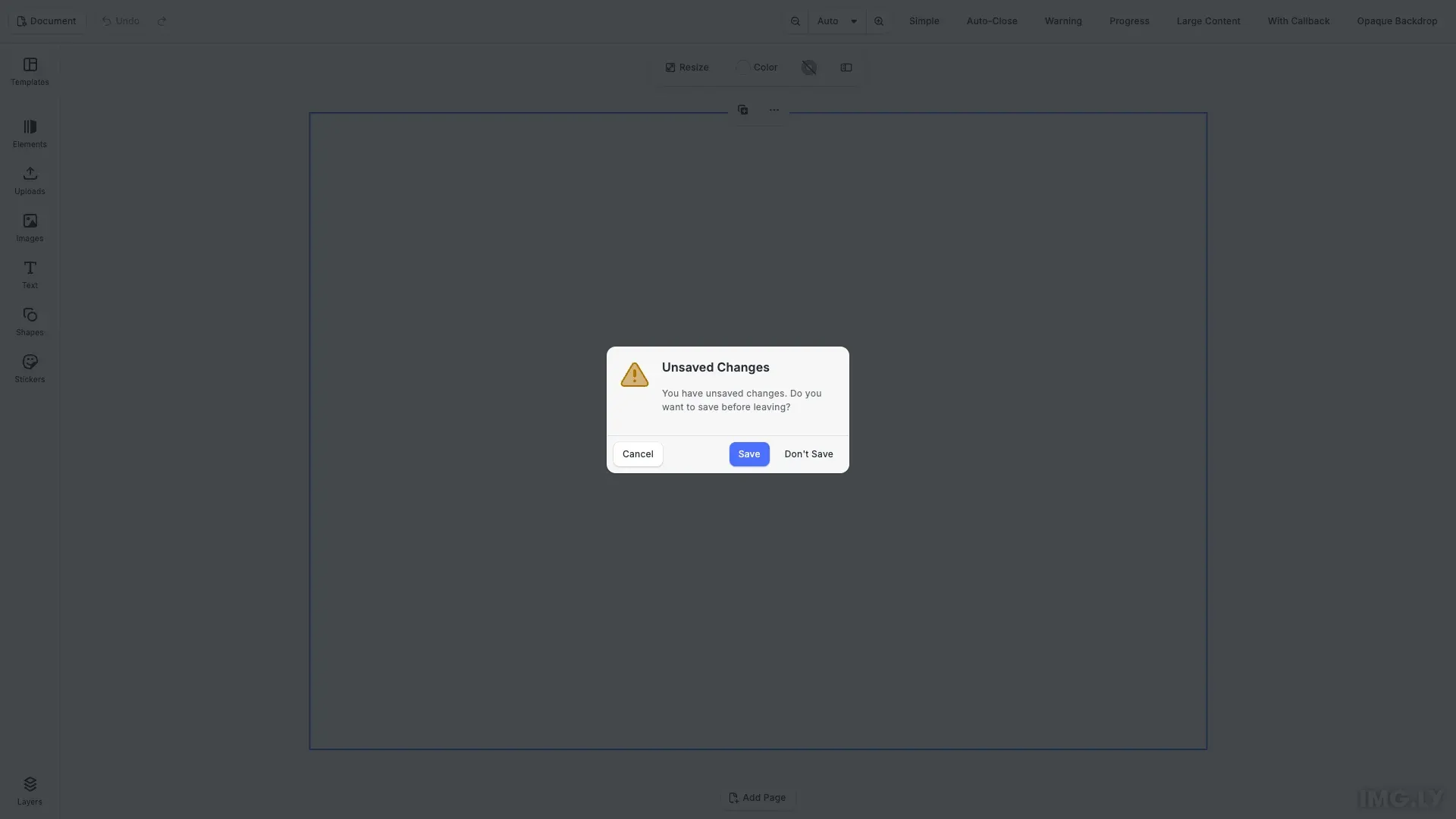
Dialogs are modal overlays that block interaction with the editor until the user responds or the dialog closes. Use them for confirmations, important alerts, and long-running operations that the user has to wait for. For feedback that doesn’t need a decision, use a notification instead.
This guide covers how to create and close dialogs, configure their type, actions, content, size, and backdrop, show progress, and react when a dialog closes.
Creating Dialogs#
Use cesdk.ui.showDialog() to display a dialog. Pass a string for a simple message or a configuration object for full control. The method returns a unique ID for managing the dialog. Without an actions property, the dialog shows a single Close button.
cesdk.ui.showDialog('This is a simple dialog message');The editor shows one dialog at a time. When you call showDialog() while another dialog is open, the new dialog appears after the open one closes.
Closing Dialogs#
Use cesdk.ui.closeDialog() with the dialog ID to close it programmatically.
const dialogId = cesdk.ui.showDialog( 'This dialog will close in 2 seconds');setTimeout(() => { cesdk.ui.closeDialog(dialogId);}, 2000);Dialog Types and Actions#
Configure the visual style with the type property. Available types are regular (default), info, success, warning, error, and loading. Add action buttons with the actions property, which takes a single action or an array, and a cancel button with the cancel property.
cesdk.ui.showDialog({ type: 'warning', content: { title: 'Unsaved Changes', message: 'You have unsaved changes. Do you want to save before leaving?' }, actions: [ { label: 'Save', color: 'accent', onClick: ({ id }) => { console.log('Save clicked'); cesdk.ui.closeDialog(id); } }, { label: "Don't Save", variant: 'plain', onClick: ({ id }) => { console.log('Discard clicked'); cesdk.ui.closeDialog(id); } } ], cancel: { label: 'Cancel', onClick: ({ id }) => cesdk.ui.closeDialog(id) }});Each action object includes:
label— Button textvariant—regular(default) orplainfor a text-only buttoncolor—accentfor primary actions ordangerfor destructive actionsonClick— Callback receiving the dialog ID for closing or other operations
Action buttons don’t close the dialog on their own. Call cesdk.ui.closeDialog() in the onClick callback when the action is done.
Progress Indicators#
Display progress in loading dialogs with the progress property:
indeterminate— For unknown duration- A number (0-100) — For percentage progress
- An object with
valueandmax— For custom progress ranges
const progressDialogId = cesdk.ui.showDialog({ type: 'loading', content: { title: 'Exporting', message: 'Preparing your export...' }, progress: 'indeterminate', actions: [], clickOutsideToClose: false});Updating Dialogs#
Modify an existing dialog with cesdk.ui.updateDialog(). Pass the ID and a partial dialog object, or a function that receives the current dialog and returns the properties to change. This is useful for updating progress indicators or changing dialog content during operations.
cesdk.ui.updateDialog(progressDialogId, { progress: { value: progress, max: 100 }, content: { title: 'Exporting', message: `Processing... ${progress}%` }});Dialog Content#
Set content as a string for simple messages or an object with title and message properties. The message can be a string or an array of strings for multiple paragraphs. Use the size property to control dialog dimensions (regular or large).
cesdk.ui.showDialog({ type: 'info', size: 'large', content: { title: 'About This Feature', message: [ "Dialogs ask for the user's attention before they continue editing.", 'Use a large dialog when the content needs more room.' ] }, actions: [ { label: 'Got It', color: 'accent', onClick: ({ id }) => cesdk.ui.closeDialog(id) } ]});Handling Close Callbacks#
Use the onClose callback to run cleanup code when a dialog closes. It runs on every call to cesdk.ui.closeDialog(), which also covers clicking outside the dialog, pressing Escape, and the default Close button.
cesdk.ui.showDialog({ type: 'info', content: 'Close this dialog to see the callback', onClose: () => { console.log('Dialog was closed'); }});Click Outside Behavior#
Control whether clicking outside the dialog closes it with the clickOutsideToClose property. It defaults to true. Set it to false for dialogs the user shouldn’t dismiss by accident, like loading dialogs. Pressing Escape still closes the dialog. To show no buttons at all, pass actions: [], because a dialog without actions gets the default Close button.
Backdrop#
Control what the user sees behind the dialog with the backdrop property. The default, transparent, dims the editor but keeps it visible. Set it to opaque to hide the editor completely while the dialog is open.
cesdk.ui.showDialog({ type: 'info', backdrop: 'opaque', content: { title: 'Opaque Backdrop', message: 'The editor stays hidden until this dialog closes.' }});Troubleshooting#
Dialog Not Closing#
Confirm you’re calling cesdk.ui.closeDialog() with the correct dialog ID. Check that action callbacks close the dialog, because clicking an action button doesn’t close it automatically. If clickOutsideToClose is false, ensure an action or cancel button is provided.
Dialog Not Appearing#
Check whether another dialog is still open. The editor shows one dialog at a time, and the new dialog appears only after the open one closes.
Close Callback Not Firing#
Ensure the onClose callback is defined in the dialog configuration. onClose runs when the dialog closes through cesdk.ui.closeDialog(), so an action that never calls it leaves the dialog open and the callback unused.
Progress Not Updating#
Confirm you’re using cesdk.ui.updateDialog() with the correct dialog ID. Verify the progress value is in the expected format (number, indeterminate, or object with value and max).
API Reference#
| Method | Description |
|---|---|
cesdk.ui.showDialog() |
Display a modal dialog |
cesdk.ui.updateDialog() |
Update dialog content or properties |
cesdk.ui.closeDialog() |
Close a dialog by ID |
Next Steps#
- Notifications — Show short, non-blocking status messages at the edge of the editor.
- Register a New Component — Build custom UI components like the dialog buttons in this example.