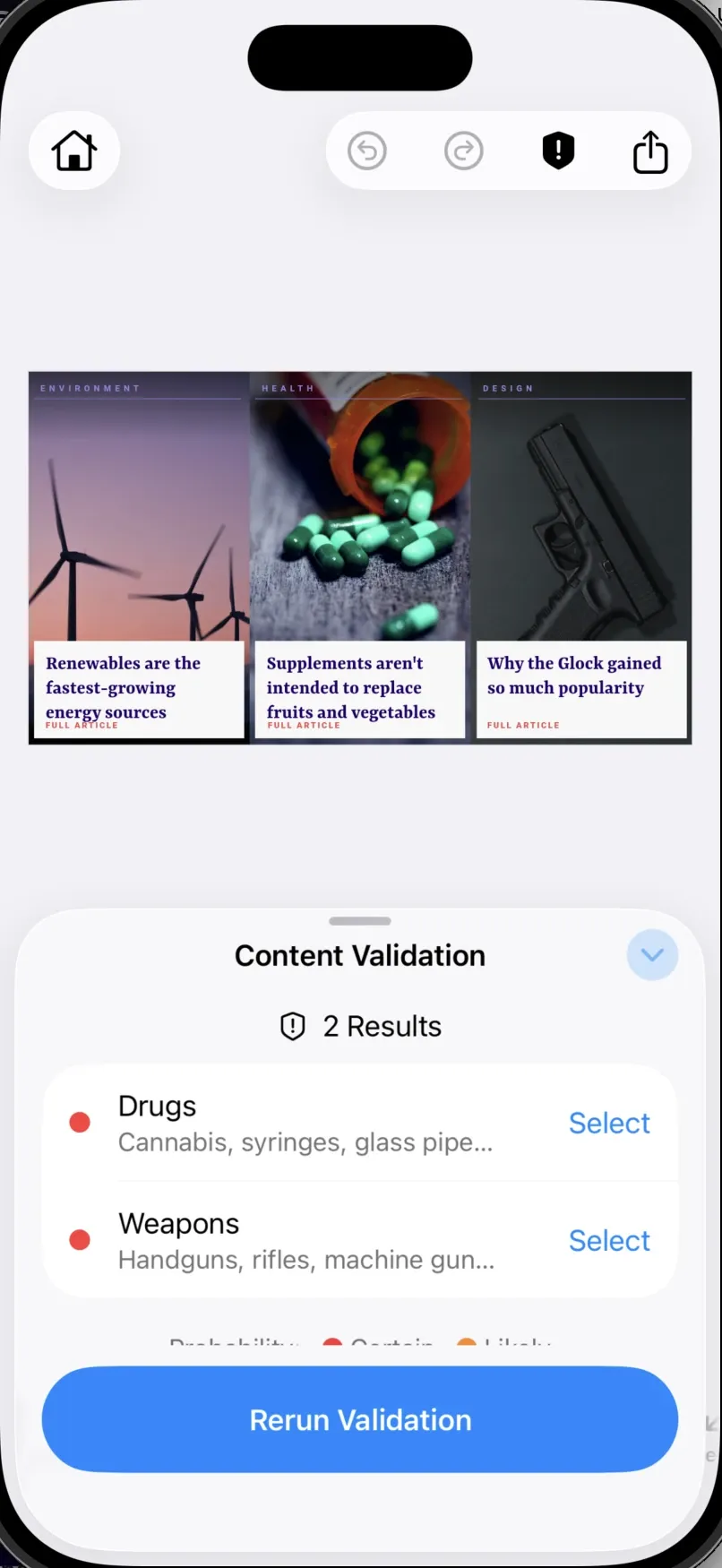
Decide what type of content to restrict and flag anything that may violate your guidelines. The editor checks a design’s images and text against a content moderation service and blocks export until violations are resolved.
Pre-Requisites#
This guide assumes basic familiarity with iOS and Swift. You will need:
- Xcode 26.4.1 or later
- Swift 6.3.1 or later
- iOS 16.0+
- An IMG.LY API key (
sk_…) from the IMG.LY Dashboard. The starter kit moderates through the IMG.LY AI Gateway, so no separate moderation provider account is needed — see Configure the Moderation Service.
Get Started#
Start with a complete, runnable iOS starter kit project.
Step 1: Clone the Repository#
git clone -b v1.85.1-rc.0 https://github.com/imgly/starterkit-content-moderation-ios.gitcd starterkit-content-moderation-iosStep 2: Open and Run#
Open the project in Xcode and run on a simulator or connected device:
- Open
StarterKit-ContentModerationEditor.xcodeprojin Xcode - Select your target device or simulator
- Press ⌘R to build and run
The editor opens with an example scene whose images are hosted remotely and whose captions include wording the text categories flag, so a validation run returns both image and text results immediately:
var body: some View { Editor(settings) .imgly.configuration { ContentModerationEditorConfiguration(moderation: moderation) }}Get Started#
Integrate the starter kit files into your existing iOS app.
Step 1: Add the IMG.LY Swift Package#
Add the CE.SDK dependency via Swift Package Manager:
- In Xcode, go to File → Add Package Dependencies…
- Enter the repository URL:
https://github.com/imgly/IMGLYUI-swift
- Select version
1.85.1-rc.0and add theIMGLYEditorproduct to your target
Step 2: Copy the Starter Kit Files#
Download and extract the starter kit files into your project:
repo="starterkit-content-moderation-ios"version="1.85.1-rc.0"curl -L "https://codeload.github.com/imgly/${repo}/tar.gz/refs/heads/v${version}" | tar -xz --strip-components=1 "${repo}-v${version}/StarterKit"Step 3: Add Files to Your Xcode Project#
Drag the StarterKit/ folder into your Xcode project. Make sure “Copy items if needed” is checked and the files are added to your app target. The bundled content-moderation-example.scene is only needed if you want the example scene — remove it and load your own scene instead, updating defaultCreateScene, which force-unwraps the bundled resource URL.
Step 4: Launch the Editor From Your UI#
Present the editor from any SwiftUI view:
Editor(settings) .imgly.configuration { ContentModerationEditorConfiguration(moderation: moderation) }The full implementation of the starter kit lives in the StarterKit/ folder:
StarterKit/├── ContentModerationEditorStarterKit.swift # SwiftUI view that launches the editor├── ContentModerationEditorConfiguration.swift # Editor configuration (callbacks + UI components)├── callbacks/│ ├── OnCreate+ContentModeration.swift # Editor initialization logic│ └── OnExport+ContentModeration.swift # Export flow, gated on the moderation result├── components/│ ├── CanvasMenu+ContentModeration.swift # Canvas menu configuration│ ├── Dock+ContentModeration.swift # Dock configuration│ ├── InspectorBar+ContentModeration.swift # Inspector bar configuration│ └── NavigationBar+ContentModeration.swift # Navigation bar, incl. the validate button├── moderation/│ ├── ModerationTypes.swift # Result types and threshold mapping│ ├── ModerationService.swift # Service protocol + default implementation│ ├── ModerationScanner.swift # Scene scan and block selection│ ├── ModerationStore.swift # Shared validation state│ └── ui/ # Results panel, result row, status icon, export alert├── examples/│ └── ExampleCustomThresholds.swift # Stricter and more relaxed presets└── content-moderation-example.scene # Bundled demo sceneHow Moderation Works#
The starter kit adds validation at two points in the editing flow.
A validate button in the navigation bar opens the Content Validation sheet. Opening the sheet does not start a check — the user runs it explicitly with the button at the bottom, so no request is made until they ask for one:
NavigationBar.Button(id: "my.app.navigationBar.button.validateContent") { context in guard let engine = context.engine else { return } context.eventHandler.send(.openSheet(style: .default(), content: { ModerationResultsPanel( store: moderation, engine: engine, eventHandler: context.eventHandler, ) }))} label: { _ in ModerationStatusLabel(store: moderation)} isEnabled: { context in context.engine != nil}The export handler refuses to export unvalidated content. If the design was never validated, or its content changed since the last run, an alert offers to validate first — or to export anyway. Remove the Export Anyway button in ModerationExportAlert.swift if unvalidated export must be impossible. If a validated design still contains violations, or any block could not be checked at all, the results panel opens instead of exporting:
// `refreshNeedsValidation` recomputes rather than reading the cached flag: a// missed history update may leave the icon stale, but it must never open this// gate on a design the store has not just compared.if moderation.refreshNeedsValidation(engine: engine) {  let reason: ModerationExportAlert.Reason = moderation.hasValidated ? .contentChanged : .neverValidated  eventHandler.send(.openSheet(style: .default(), content: {    ModerationExportAlert(      store: moderation,      reason: reason,      engine: engine,      eventHandler: eventHandler,      // `existing` is non-escaping, so the override path exports directly      // instead of chaining. With no other export handler registered in      // this kit the two are equivalent.      onExportAnyway: {        Task {          do {            try await exportScene(engine: engine, eventHandler: eventHandler)          } catch {            eventHandler.send(.showErrorAlert(error))          }        }      },    )  }))  return}
if let outcome = moderation.outcome, !outcome.isCertifiablyClean {  eventHandler.send(.openSheet(style: .default(), content: {    ModerationResultsPanel(      store: moderation,      engine: engine,      eventHandler: eventHandler,      isExportBlocked: true,    )  }))  return}
A run finds every graphic block whose fill is an image and every text block that is not blank, then checks them concurrently — uploading any image that lives on the device first, so a photo the user just added is checked like any other. Text needs no upload; the string travels in the request body.
The panel groups findings under the block they came from: the block’s name heads the group, with its flagged categories listed beneath and one Select action that moves the canvas selection to it. Grouping matters most for text, where the categories overlap heavily — an insulting sentence is usually scored as toxic and often as violent too, and three rows offering three routes to the same caption would be three ways of saying one thing. Text blocks are named by a short excerpt of their content, so a group is recognizable before selecting it. Groups are sorted by severity, most severe first. The navigation bar icon shows a checkmark shield for one state only: a completed run that found nothing and left nothing unchecked. A design that was never validated, one that changed since its last run, one with findings, and one where a block could not be checked all show the same warning shield — in none of them does anything vouch for what is on the canvas, and a checkmark would claim otherwise. The checkmark is earned by a run rather than assumed. A run in flight shows a spinner, and the accessibility label distinguishes all five states.
Only failed results (red, Certain) block export. warning results (orange, Likely) are listed in the panel but do not stop an export. The count beside the icon counts blocks with findings rather than categories, matching what the user actually has to fix. A block that could not be checked does block export — it is unknown, not clean, so it cannot certify a design.
Results are cached per checked item — an image URL or a string of text — for the lifetime of the service, so re-running validation on an unchanged design issues no request and costs no credits. The cache is per item, so an edit only costs a fresh check for the block that changed — but validation itself is all-or-nothing: any edit marks the whole design as needing another run. Installing a different service with setService(_:) discards both the cache and the previous outcome, and disowns any run still in flight.
Content Categories#
The default service scores images and text against separate category sets, mapping confidence scores to a severity with the same thresholds for both. It reports only the categories the model actually returned a score for — a category the provider omits is treated as unknown and left out rather than shown as passing, so a missing row is not an all-clear. If a response carries no known category at all, the run fails rather than reporting the content as clean.
Images#
| Category | Description | Threshold |
|---|---|---|
| Weapons | Handguns, rifles, machine guns, threatening knives | >80% = failed, >40% = warning |
| Alcohol | Wine, beer, cocktails, champagne | >80% = failed, >40% = warning |
| Drugs | Cannabis, syringes, glass pipes, bongs, pills | >80% = failed, >40% = warning |
| Nudity | Raw or partial nudity | >80% = failed, >40% = warning |
| Offensive symbols | Nazi symbols, swastikas, confederate flags, offensive gestures | >80% = failed, >40% = warning |
| Gore | Blood, wounds, serious injuries, corpses, skulls | >80% = failed, >40% = warning |
Drugs spans two provider models: recreational_drug (cannabis and street drugs) and medical (pills, blisters, syringes). The category reports whichever scores higher.
Text#
| Category | Description | Threshold |
|---|---|---|
| Toxic Language | Language likely to make someone leave the conversation | >80% = failed, >40% = warning |
| Insulting Language | Insults, name-calling, and demeaning remarks | >80% = failed, >40% = warning |
| Discriminatory Language | Language that demeans a group or protected characteristic | >80% = failed, >40% = warning |
| Violent Language | Threats of violence and calls to harm someone | >80% = failed, >40% = warning |
| Sexual Language | Sexually explicit or suggestive wording | >80% = failed, >40% = warning |
| Self-Harm | References to suicide, self-injury, or eating disorders | >80% = failed, >40% = warning |
A text check costs fewer provider operations than an image check.
Thresholds live in ModerationThresholds. The kit ships strict, moderate (the default) and relaxed presets, and you can define your own:
/// Example: Adjust moderation thresholds based on your platform's needs.////// Pass one of these to `ModerationStore(service:)` in place of the/// service `ContentModerationEditorStarterKit` installs by default, or define your/// own `ModerationThresholds`.enum ExampleCustomThresholds {  /// Family-friendly platforms flag content earlier.  static func strictService(apiKey: String) -> ModerationService {    GatewayModerationService(apiKey: apiKey, thresholds: .strict)  }
  /// Adult-only platforms flag content later.  static func relaxedService(apiKey: String) -> ModerationService {    GatewayModerationService(apiKey: apiKey, thresholds: .relaxed)  }
  /// Custom thresholds for platform-specific rules.  static func customService(apiKey: String) -> ModerationService {    GatewayModerationService(      apiKey: apiKey,      thresholds: ModerationThresholds(failed: 0.7, warning: 0.3),    )  }}
Configure the Moderation Service#
The default GatewayModerationService runs the imgly/detection model through the IMG.LY AI Gateway. The gateway handles provider routing, credentials and billing, so the only thing you supply is your IMG.LY API key in Secrets.swift:
let secrets = Secrets( // ... gatewayApiKey: "sk_live_your_key_here",)An API key shipped inside an app binary can be extracted, so keep it out of source control. For production, consider calling the gateway from your own backend instead.
Connect Your Own Service#
ModerationService has one required method and one that ships with a default, so swapping in your own backend — or an entirely different provider — usually means implementing just check(_:). It takes a ModerationContent, the unit of work: one image or one string.
struct MyModerationService: ModerationService { func check(_ content: ModerationContent) async throws -> [ModerationCheckResult] { switch content { case let .image(url): try await checkImage(url) // Your backend, mapped to ModerationCheckResult values. case let .text(text): try await checkText(text) } }}canCheck(_:) comes with a default implementation that accepts http(s) image URLs and non-empty text. Override it to decline whatever your backend cannot handle — a declined block is reported as unchecked and blocks export, rather than passing silently.
Install it with ContentModerationEditorConfiguration(moderation: ModerationStore(service: MyModerationService())), and apply rate limiting and authentication in your backend. The store belongs to one editor and is reachable as configuration.moderation, so a host that collects an API key at runtime can call setService(_:) on it once the user supplies one. Created without a service it holds one with no API key, which fails every check with a missing-key error rather than reporting content as clean.
Set Up a Scene#
The scene setup logic is located in OnCreate+ContentModeration.swift as part of the defaultCreateScene callback, and defaultOnCreate(…) is stateless like the other starter kits’:
#if SWIFT_PACKAGE let bundle = Bundle.module#else let bundle = Bundle(for: ContentModerationEditorConfiguration.self)#endiflet sceneURL = bundle.url(forResource: "content-moderation-example", withExtension: "scene")!try await engine.scene.load(from: sceneURL)Resetting the verdict and tracking edits happen in OnLoaded+ContentModeration.swift instead, because onLoaded runs once the engine and the scene exist. The subscription is registered through context.task, which the editor cancels when it closes.
Do not set onLoaded on the kit’s own configuration to add your own setup. configure(_:) resolves builder.onLoaded ?? onLoaded, so a builder handler replaces the kit’s outright, existing() chains to nothing, and the status icon stops noticing edits. Add a second configuration after the kit’s instead — configurations are applied in order, and each handler’s existing() runs the one registered before it:
.imgly.configuration { ContentModerationEditorConfiguration() EditorConfiguration { builder in builder.onLoaded { context, existing in try await existing() // keeps the kit's reset and change tracking // your own setup } }}Customize Assets#
The asset source setup is located in OnCreate+ContentModeration.swift as part of the defaultLoadAssetSources callback. Enable or disable individual sources:
let basePath = try engine.editor.getSettingString("basePath")guard let baseURL = URL(string: basePath) else { return }let sourceIDs = [  "ly.img.sticker", "ly.img.vector.shape", "ly.img.filter", "ly.img.color.palette",  "ly.img.effect", "ly.img.blur", "ly.img.typeface", "ly.img.crop.presets",  "ly.img.page.presets", "ly.img.text", "ly.img.text.styles", "ly.img.text.curves", "ly.img.text.components",  "ly.img.image",]try await withThrowingTaskGroup(of: String.self) { group in  for id in sourceIDs {    group.addTask {      try await engine.asset.addLocalAssetSourceFromJSON(        baseURL.appendingPathComponent(id).appendingPathComponent("content.json"),      )    }  }  for try await _ in group {}}
try engine.asset.addLocalSource(  sourceID: "ly.img.image.upload",  supportedMimeTypes: ["image/jpeg", "image/png", "image/svg+xml", "image/gif", "image/apng", "image/bmp"],)
// Required even though the dock's photo roll button is omitted: the asset// library still shows a Photo Roll section, and `InspectorBar.Buttons.replace()`// offers it, so the source has to exist. Images added this way have local URIs// and are uploaded to the gateway before being checked, like any other image.try engine.asset.addSource(PhotoRollAssetSource(engine: engine))For production deployments, self-hosting assets is required—the IMG.LY CDN is intended for development only. See Serve Assets for downloading assets, configuring baseURL and excluding unused sources to optimize load times.
Customize Export Functionality#
Export handling logic is located in OnExport+ContentModeration.swift. Once validation passes, the default implementation exports the scene as PDF and opens the system share sheet:
guard let scene = try engine.scene.get() else { throw EditorError("No scene was found.")}let data = try await engine.block.export(scene, mimeType: .pdf) { engine in try engine.scene.getPages().forEach { try engine.block.setScopeEnabled($0, key: "layer/visibility", enabled: true) try engine.block.setVisible($0, visible: true) }}let url = FileManager.default.temporaryDirectory.appendingPathComponent("Export", conformingTo: .pdf)try data.write(to: url, options: [.atomic])eventHandler.send(.shareFile(url))Remove the validation gate if your workflow moderates content at a different integration point — on upload, or in a review queue.
Customize (Optional)#
Color Scheme#
CE.SDK supports light and dark modes out of the box, plus automatic system preference detection. Apply SwiftUI’s .preferredColorScheme modifier to the Editor view to switch themes.
See Theming for more details.
Localization#
See Localization for supported languages, adding support for new languages, and replacing existing keys.
UI Layout#
All configurable components are located in the components/ folder:
CanvasMenu+ContentModeration.swift— see Canvas Menu for full configuration optionsDock+ContentModeration.swift— see Dock for full configuration optionsInspectorBar+ContentModeration.swift— see Inspector Bar for full configuration optionsNavigationBar+ContentModeration.swift— see Navigation Bar for full configuration options
The validation sheet itself is plain SwiftUI in moderation/ui/, so you can restyle it or replace it entirely.
Troubleshooting#
Validation returns no results#
- Check for moderatable blocks: Only graphic blocks with an image fill and non-empty text blocks are moderated — a page-level image fill is not
- Check the image URLs: An image whose URL no longer resolves is listed as “not checkable” rather than clean
- Check Xcode console: Look for errors in the Xcode debug console
The moderation request fails#
- Check network connectivity: The device or simulator must reach your moderation endpoint
- Verify the API key: A missing or invalid
gatewayApiKeyinSecrets.swiftsurfaces as an authentication error - Check your credit balance: Each moderated image and each moderated text block consumes gateway credits — a depleted balance fails the request
Export does nothing#
- Validate first: Export is gated — an unvalidated or changed design opens the validation alert instead
- Resolve violations: A validated design opens the results panel instead of exporting when it has violations, or when any block could not be checked
Watermark appears in production#
- Add your license key: set
licenseKeyinSecrets.swift— the same file that holdsgatewayApiKey.ContentModerationEditorStarterKitpasses it toEngineSettings - Get a license: Contact us at img.ly/forms/contact-sales/
Next Steps#
- Moderate Content – Engine APIs for extracting images and text for moderation
- Configuration – Complete list of initialization options
- Serve Assets – Self-host engine assets for production
- Theming – Customize colors and appearance
- Localization – Add translations and language support