Add automatic content moderation to your Android editor—check the images and the text in a scene against a moderation service and flag content that might violate your guidelines, right on the mobile device.
Pre-Requisites#
This guide assumes basic familiarity with Android and Kotlin. You will need:
- Latest Android Studio
- Kotlin: 1.9.10 or later
- Gradle: 8.4 or later
- Android: 7.0+ (API level 24+)
- An IMG.LY Gateway API key, used to moderate the images and text in the scene
Set Your Gateway API Key#
The kit moderates images and text with the imgly/detection model on the IMG.LY Gateway. Keys use the sk_ prefix, and model access and credit budgets are configured per key in the Dashboard, so the key you use must have access to imgly/detection and a credit balance to spend.
Paste the key into GATEWAY_API_KEY:
const val GATEWAY_API_KEY = "sk_live_..."Every screen in the kit reads the key from this one constant. The Gateway API key is separate from your CE.SDK license key, so set both. Until the key is set, running a check reports a missing-key error instead of results, and the moderation sheet surfaces a rejected key or an empty balance there too.
Get Started#
Start with a complete, runnable Android starter kit project.
Step 1: Clone the Repository#
git clone -b v1.85.1-rc.0 https://github.com/imgly/starterkit-content-moderation-editor-android.gitcd starterkit-content-moderation-editor-androidStep 2: Open and Run#
Create and launch a new android emulator or use an existing one or connect a physical device with USB Debugging on.
Open the project in Android Studio, sync gradle via File -> Sync Project With Gradle Files and run the app module from UI, or use:
./gradlew app:installDebugThe sample app launches MainActivity that has “Launch Editor” button. Clicking it launches EditorActivity:
package ly.img.editor.configuration.contentmoderation
import android.os.Bundleimport androidx.activity.ComponentActivityimport androidx.activity.compose.setContentimport androidx.activity.enableEdgeToEdgeimport ly.img.editor.Editorimport ly.img.editor.configuration.contentmoderation.moderation.GATEWAY_API_KEYimport ly.img.editor.configuration.contentmoderation.moderation.GatewayModerationProviderimport ly.img.editor.core.configuration.EditorConfigurationimport ly.img.editor.core.configuration.remember
/** * Encapsulated editor to be used in legacy activity navigation. * Delete this file if you are using jetpack compose navigation. */class EditorActivity : ComponentActivity() { override fun onCreate(savedInstanceState: Bundle?) { super.onCreate(savedInstanceState) // This is required to remove the default action bar on top. setTheme(android.R.style.Theme_Material_Light_NoActionBar) // This is required, so that the editor is displayed full screen on relatively older devices. enableEdgeToEdge() setContent { Editor( license = null, // pass null or empty for evaluation mode with watermark configuration = { EditorConfiguration.remember( builderFactory = { // The content moderation backend lives behind the [ContentModerationProvider] // interface. Replace [GatewayModerationProvider] with your own // implementation to plug in a different moderation service. ContentModerationConfigurationBuilder( moderationProvider = GatewayModerationProvider(apiKey = GATEWAY_API_KEY), ) }, ) }, onClose = { // Finish the activity, potentially handle errors. finish() }, ) } }}Get Started#
Integrate only the starter-kit library module into your existing Android app.
Step 1: Run the Extraction Script From Your App Root#
Run this from your application root directory:
repo="starterkit-content-moderation-editor-android"version="1.85.1-rc.0"curl -0 "https://codeload.github.com/imgly/${repo}/tar.gz/refs/heads/v${version}" | tar -xz --strip-components=1 "${repo}-${version}/starter-kit"This extracts the starter-kit/ library module into your android project.
Step 2: Include the Module#
Declare the newly added android library module in your project:
include(":starter-kit")Step 3: Add Dependency in Your App Module#
Include the starter kit module dependency in your app module:
dependencies { implementation(project(":starter-kit"))}Step 4: Include missing plugins#
Include plugins that may be missing in your project’s root build.gradle.kts file:
plugins { // Existing plugins here id("org.jetbrains.kotlin.plugin.compose") version "2.1.10" apply false}Step 5: Add the IMG.LY Maven Repository#
Add IMG.LY maven repository path in your project:
dependencyResolutionManagement { repositoriesMode.set(RepositoriesMode.FAIL_ON_PROJECT_REPOS) repositories { google() mavenCentral() maven { name = "IMG.LY Artifactory" url = uri("https://maven.img.ly/maven") mavenContent { includeGroup("ly.img") } } }}If the project is open in Android Studio, sync gradle via File -> Sync Project With Gradle Files in order to make all dependencies available.
Step 6: Launch the Editor From Your UI#
If you use jetpack compose navigation in your app, simply add a new navigation destination and invoke the following composable:
import androidx.compose.runtime.Composableimport ly.img.editor.Editorimport ly.img.editor.configuration.contentmoderation.ContentModerationConfigurationBuilderimport ly.img.editor.configuration.contentmoderation.moderation.GATEWAY_API_KEYimport ly.img.editor.configuration.contentmoderation.moderation.GatewayModerationProviderimport ly.img.editor.core.configuration.EditorConfigurationimport ly.img.editor.core.configuration.remember
// onClose should pop screen from the backstack of jetpack compose navigation@Composablefun EditorScreen(onClose: (Throwable?) -> Unit) { Editor( license = null, // pass null or empty for evaluation mode with watermark configuration = { EditorConfiguration.remember( builderFactory = { ContentModerationConfigurationBuilder( moderationProvider = GatewayModerationProvider(apiKey = GATEWAY_API_KEY), ) }, ) }, onClose = onClose, )}If you do not use jetpack compose navigation and use legacy android navigation, the starter kit has a special EditorActivity class with full encapsulated logic:
package ly.img.editor.configuration.contentmoderation
import android.os.Bundleimport androidx.activity.ComponentActivityimport androidx.activity.compose.setContentimport androidx.activity.enableEdgeToEdgeimport ly.img.editor.Editorimport ly.img.editor.configuration.contentmoderation.moderation.GATEWAY_API_KEYimport ly.img.editor.configuration.contentmoderation.moderation.GatewayModerationProviderimport ly.img.editor.core.configuration.EditorConfigurationimport ly.img.editor.core.configuration.remember
/** * Encapsulated editor to be used in legacy activity navigation. * Delete this file if you are using jetpack compose navigation. */class EditorActivity : ComponentActivity() { override fun onCreate(savedInstanceState: Bundle?) { super.onCreate(savedInstanceState) // This is required to remove the default action bar on top. setTheme(android.R.style.Theme_Material_Light_NoActionBar) // This is required, so that the editor is displayed full screen on relatively older devices. enableEdgeToEdge() setContent { Editor( license = null, // pass null or empty for evaluation mode with watermark configuration = { EditorConfiguration.remember( builderFactory = { // The content moderation backend lives behind the [ContentModerationProvider] // interface. Replace [GatewayModerationProvider] with your own // implementation to plug in a different moderation service. ContentModerationConfigurationBuilder( moderationProvider = GatewayModerationProvider(apiKey = GATEWAY_API_KEY), ) }, ) }, onClose = { // Finish the activity, potentially handle errors. finish() }, ) } }}Simply launch the activity from the activity of your app. Optionally, you can pass parameters to the editor:
import android.content.Intentimport ly.img.editor.configuration.contentmoderation.EditorActivity
fun launchEditor() {    // "this" is the current activity    val intent = Intent(this, EditorActivity::class.java).also {        // Optionally pass parameters for EditorActivity to consume, i.e. your image/video/scene uri        it.putExtra("my_param", "my_param_value")    }    startActivity(intent)}
In case you want to consume the parameter in EditorActivity:
class EditorActivity : ComponentActivity() { override fun onCreate(savedInstanceState: Bundle?) { super.onCreate(savedInstanceState) val param = intent.getStringExtra("my_param") ?: "default" ... }}The full implementation of the starter kit lives in the starter-kit/ folder:
starter-kit/├── build.gradle.kts # Starter kit library module config, includes ly.img:editor dependency└── src/main/ ├── AndroidManifest.xml # Starter kit manifest file, may contain permissions ├── assets/ │ └── scene/ │ └── content-moderation.scene # Default scene with remote images that should be loaded └── kotlin/ly/img/editor/configuration/contentmoderation/ ├── ContentModerationConfigurationBuilder.kt # Editor configuration logic encapsulated in 1 place ├── EditorActivity.kt # Encapsulated editor for legacy navigation. Delete if you use jetpack compose navigation ├── callback/ │ ├── OnCreate.kt # Editor initialization logic │ ├── OnExport.kt # Export flow, including the moderation warning │ └── OnLoaded.kt # Post onCreate logic ├── component/ │ ├── CanvasMenu.kt # Canvas Menu component configuration │ ├── Dock.kt # Dock component configuration │ ├── InspectorBar.kt # Inspector Bar component configuration │ ├── ModerationSheet.kt # Bottom sheet that lists the moderation results │ ├── NavigationBar.kt # Navigation Bar component configuration, including the moderation button │ └── Overlay.kt # Overlay component configuration, including the export warning dialog ├── iconPack/ │ ├── IconPack.kt # Icon pack accessor for the starter kit │ ├── ShieldCheck.kt # Moderation button (clean) and moderation sheet shield │ ├── ShieldCheckFilled.kt # Moderation button (clean) while the sheet is open │ ├── ShieldAlert.kt # Moderation button when content is flagged │ ├── ShieldAlertFilled.kt # Moderation button (flagged) while the sheet is open │ └── WarningTriangle.kt # Export warning dialog icon └── moderation/ ├── ContentModerationProvider.kt # Swappable interface for the moderation backend ├── ModerationEngine.kt # Scans image and text blocks and runs them through the provider ├── ModerationModels.kt # Category, state and result data types └── GatewayModerationProvider.kt # Default provider talking to the IMG.LY gatewayStarter Kit as a Dynamic Feature#
Since starter-kit folder is an android library module, it is possible to turn it into a dynamic feature. This can be helpful if you want to lazy load the editor in order to reduce the download size of your app.
See Bundle Size for more details.
Configuring the Starter Kit#
The starter kit that we provide contains a very generic structure and behavior, however we understand that every customer wants to configure it according to their needs. The good thing is that the starter kit implementation is part of your codebase and you can configure, add/remove/modify functionality as you wish. In addition, you may want to configure the editor based on your business logic, i.e. restore the scene file from previous edits, display different dock items for different users etc.
This example demonstrates on how to pass, store and use external parameters in the starter kit. First, declare a new property to the builder class:
...import android.net.Uri
@Stableclass ContentModerationConfigurationBuilder(    val moderationProvider: ContentModerationProvider,) : BasicConfigurationBuilder() {    /**     * The scene uri that should be loaded in onCreate if not null.     * Note that editorContext.mutableStateOf is used to store mutable objects in the editor scope that survive configuration changes.     */    var sceneUri: Uri? by editorContext.mutableStateOf(        key = "your.package.name.state.sceneUri",        initial = null,    )    ...}
Next, read your external parameter from activity intent extras (or jetpack compose screen arguments) and assign to the property of the builder:
import androidx.core.net.toUri
class EditorActivity : ComponentActivity() {    override fun onCreate(savedInstanceState: Bundle?) {        super.onCreate(savedInstanceState)        ...        val sceneUri = intent.getStringExtra("sceneUri")?.toUri()        Editor(            license = null, // pass null or empty for evaluation mode with watermark            configuration = {                EditorConfiguration.remember(                    builderFactory = {                        ContentModerationConfigurationBuilder(                            moderationProvider = GatewayModerationProvider(apiKey = GATEWAY_API_KEY),                        )                    },                ) {                    this.sceneUri = sceneUri                }            },            onClose = {                // Finish the activity, ignore any errors.                finish()            },        )    }}
Finally, make use of the property. The scene loading logic is located at OnCreate.kt file, as part of onCreate implementation (see next section for more details). We modify this function to load the sceneUri instead if the value is not null:
suspend fun ContentModerationConfigurationBuilder.onCreateScene() { sceneUri?.let { safeSceneUri -> // Load the sceneUri if it's not null getOrLoadScene(sceneUri = safeSceneUri) } ?: run { // Otherwise stick to the default behavior of the starter kit getOrLoadScene(sceneUri = "file:///android_asset/scene/content-moderation.scene".toUri()) }}Set Up a Scene#
The scene setup logic is located at OnCreate.kt file, as part of onCreate implementation:
suspend fun ContentModerationConfigurationBuilder.onCreateScene() { getOrLoadScene(sceneUri = "file:///android_asset/scene/content-moderation.scene".toUri())}getOrLoadScene is a helper that loads an existing scene if available, or initializes one from file:///android_asset/scene/content-moderation.scene when no scene is active. The bundled scene references remote images so the moderation service, which fetches images by URL, has content it can check out of the box.
CE.SDK offers multiple ways to load scene into the editor. Choose the method that matches your use case:
// Load from an image uri - creates a new scene with the imageeditorContext.engine.scene.createFromImage(imageUri = "https://example.com/photo.jpg".toUri())
// Load from a template archive - restores a previously saved projecteditorContext.engine.scene.load(sceneUri = "https://example.com/template.zip".toUri())
// Create a blank canvas - starts with an empty design sceneeditorContext.engine.scene.create()
// Load from a scene file - restores a scene from .scene fileeditorContext.engine.scene.load(sceneUri = "https://example.com/saved.scene".toUri())Customize Assets#
The asset source setup is located in OnCreate.kt as part of onCreate implementation. Enable or disable individual sources:
suspend fun ContentModerationConfigurationBuilder.onLoadAssetSources() {    // Load asset sources in parallel from content.json files    coroutineScope {        val baseUri = editorContext.baseUri        val sourceIds = listOf(            "ly.img.sticker",            "ly.img.vector.shape",            "ly.img.filter",            "ly.img.color.palette",            "ly.img.effect",            "ly.img.blur",            "ly.img.typeface",            "ly.img.crop.presets",            "ly.img.page.presets",            "ly.img.text",            "ly.img.text.styles",            "ly.img.text.curves",            "ly.img.text.components",            "ly.img.image",        )        sourceIds.forEach { id ->            launch {                editorContext.engine.asset.addLocalSourceFromJSON(                    contentUri = "$baseUri/$id/content.json".toUri(),                )            }        }    }
    // Load local asset sources    editorContext.engine.asset.addLocalSource(        sourceId = "ly.img.image.upload",        supportedMimeTypes = listOf(            "image/jpeg",            "image/png",            "image/heic",            "image/heif",            "image/svg+xml",            "image/gif",            "image/apng",            "image/bmp",        ),    )
// Register gallery asset sources listOf( AssetSourceType.GalleryAllVisuals, AssetSourceType.GalleryImage, AssetSourceType.GalleryVideo, ).forEach { type -> editorContext.engine.asset.addSource( source = SystemGalleryAssetSource( context = editorContext.engine.applicationContext, type = type, ), ) } SystemGalleryPermission.setMode(systemGalleryConfiguration)}For production deployments, self-hosting assets is required—the IMG.LY CDN is intended for development only. See Serve Assets for downloading assets, configuring baseUri and excluding unused sources to optimize load times.
Customize Export Functionality#
Export handling logic is located in OnExport.kt as part of onExport callback.
onExportByteBuffer controls what should be exported from the scene. It can be a scene or set of design blocks.
For this editor, it makes sense to export the scene to a PDF content. export is a helper function that calls editorContext.engine.block.export under the hood:
suspend fun ContentModerationConfigurationBuilder.onExportByteBuffer(): ByteBuffer = export( block = requireNotNull(editorContext.engine.scene.get()), mimeType = MimeType.PDF,)onPostExport controls what should happen to the exported ByteBuffer content. You can upload the result to your server, save it to the device gallery
or simply close the editor via editorContext.eventHandler.send(EditorEvent.CloseEditor()). Check writeToFile, shareFile and shareUri helper functions for potential implementations:
suspend fun ContentModerationConfigurationBuilder.onPostExport(byteBuffer: ByteBuffer) { val file = writeToFile(byteBuffer = byteBuffer, mimeType = MimeType.PDF) shareFile(file = file, mimeType = MimeType.PDF)}Content Moderation#
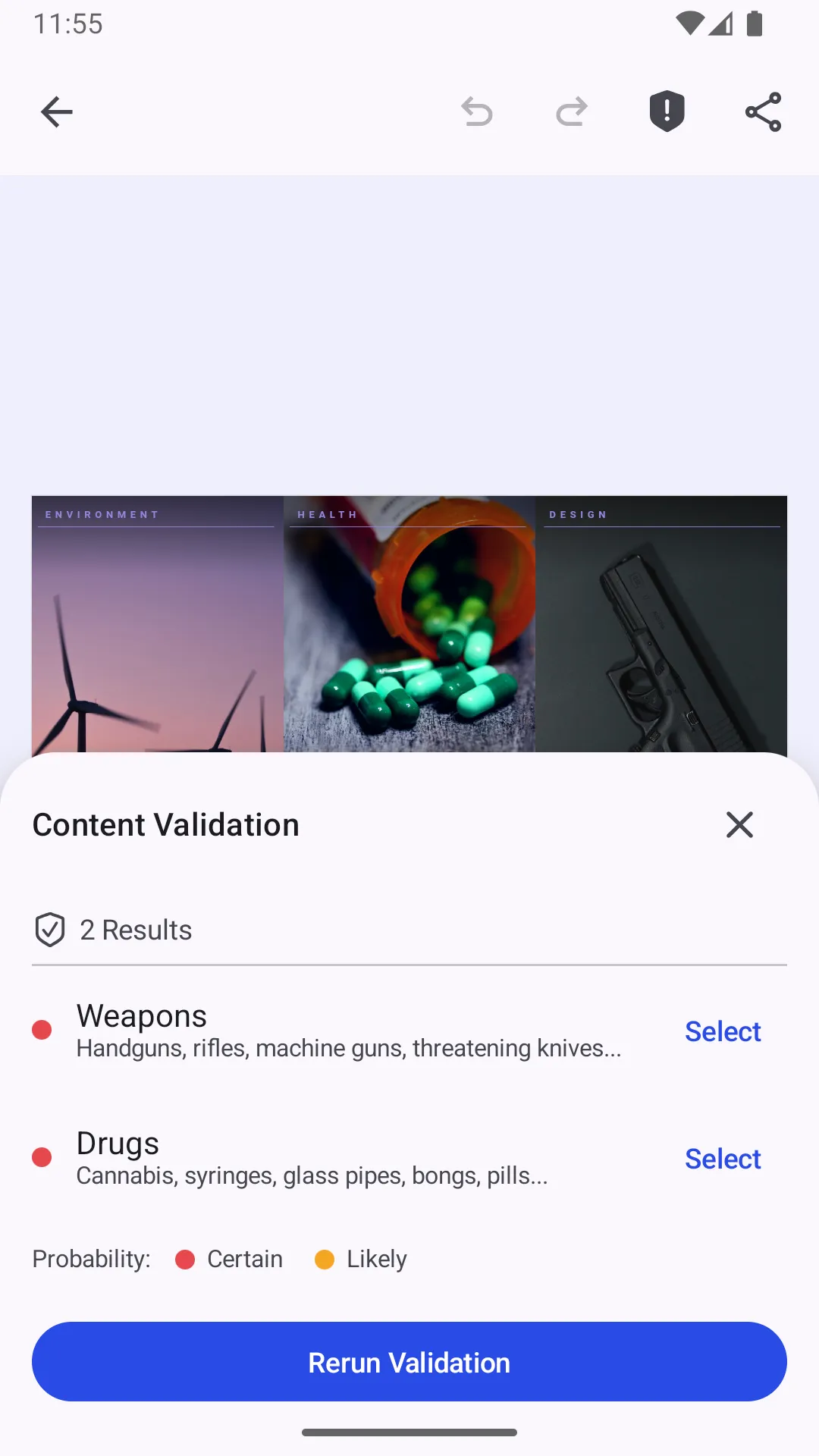
The kit adds a Content Moderation button to the navigation bar — a shield-check that becomes a shield-alert once a check flags content, and stays an alert across edits until a later check comes back clean. The icon fills while the sheet is open, and tapping it again closes the sheet. Tapping it opens a bottom sheet that first prompts the user to Run Moderation; the sheet then shows a loading state and finally the flagged categories. When nothing is flagged, the sheet says so and the user is good to go. Results are grouped by block: each flagged block gets one heading and one “Select” action that jumps to it on the canvas, with its categories listed underneath, each carrying a severity dot — red for Certain, orange for Likely. A block that violates several categories at once therefore takes one row, not several. The header counts both, for example 6 issues · 4 blocks. Exporting is gated too: the export warning is skipped only when a fresh check of the unchanged scene found nothing; otherwise a confirmation dialog asks whether to export anyway — because the last check flagged content, or because the scene has unchecked changes (a freshly loaded scene is never assumed to be safe).
The navigation bar button is configured in NavigationBar.kt and sends an event that opens the moderation sheet:
/** * A navigation bar button that runs content moderation on the scene and opens the results bottom sheet. * * @param builder the configuration builder, used to reach the [ContentModerationProvider]. */@Composablefun NavigationBar.Button.rememberModerate(builder: ContentModerationConfigurationBuilder): Button<NavigationBar.ItemScope> = NavigationBar.Button.remember { id = { EditorComponentId("ly.img.contentmoderation.navigationBar.button.moderate") } // Reflect the last completed check (a warning persists across edits until a clean // re-check), and fill the icon while the moderation sheet is open. vectorIcon = { val flagged = builder.lastModerationHadIssues val open = builder.isModerationSheetOpen when { flagged && open -> IconPack.ShieldAlertFilled flagged -> IconPack.ShieldAlert open -> IconPack.ShieldCheckFilled else -> IconPack.ShieldCheck } } contentDescription = { "Content moderation" } onClick = { // Toggle: tapping the icon while the sheet is open closes it. if (builder.isModerationSheetOpen) { editorContext.eventHandler.send(EditorEvent.Sheet.Close(animate = true)) } else { editorContext.eventHandler.send(createModerationSheetOpenEvent(builder = builder)) } } }Every image block and every text block in the scene is checked. A fill that already points at a public http(s) URL is handed to the service as that URL, so it fetches the image itself. Every other fill—a gallery upload, a bundled asset—is rendered by the engine and uploaded first, so user-added photos are covered too. Text blocks are sent as their text; blank ones are skipped.
Rendered images are capped at a 1024-pixel target, because the classifier does not need the full resolution of a 12-megapixel gallery photo and the upload runs over a phone connection. If you would rather send the image as-is, drop targetWidth/targetHeight from the ExportOptions in ModerationEngine.kt. Note that the engine renders the block large enough to fill the target, so a small block is scaled up to it rather than down. When a check cannot run—for example the service is unavailable or no API key is set—the sheet shows a clear error state instead of any results.
A text result is labelled with a short quote of the offending text rather than the block name, because a text block’s name defaults to “Text” and would not tell the user which caption was flagged. The bundled demo scene ships two captions written to trip the text categories, so the feature is exercisable out of the box.
Content Categories#
The imgly/detection model scores images and text against two separate category sets. The kit maps each score to a severity with the same two thresholds, both constructor parameters on GatewayModerationProvider: above 80% is reported as Certain, above 40% as Likely.
Images:
| Category | Covers |
|---|---|
| Nudity | Raw or partial nudity, sexual acts, and suggestive content |
| Weapons | Handguns, rifles, machine guns, threatening knives |
| Recreational Drugs | Cannabis and other recreational drugs |
| Medical | Pills, syringes, medical devices, and other medical imagery |
| Alcohol | Wine, beer, cocktails, champagne |
| Offensive Symbols | Hate symbols, extremist imagery, and offensive gestures |
| Gore | Blood, wounds, corpses, and other graphic imagery |
Text:
| Category | Covers |
|---|---|
| Toxic Language | Language likely to make someone leave the conversation |
| Insulting Language | Insults, name-calling, and demeaning remarks |
| Discriminatory Language | Language that demeans a group or protected characteristic |
| Violent Language | Threats of violence and calls to harm someone |
| Sexual Language | Sexually explicit or suggestive wording |
| Self-Harm | References to suicide, self-injury, or eating disorders |
The two sets are disjoint, so one lookup table in the provider covers both. A category the model scores that the provider has no copy for is still reported, named from its id, so a category added to the model later is never silently dropped.
To save on API usage, the results are cached: running it again without editing the scene reuses the previous results instead of calling the service, and exporting an unchanged scene that a fresh check found clean skips the warning. Any undo, redo or edit invalidates the cache, so the next check reflects the current content and export warns again until it is re-checked.
A block whose request fails is reported as unchecked instead of being dropped, so a partial run shows as Incomplete check and names how many blocks could not be checked. An incomplete check is never cached, so the export warning is never skipped until a run covers the whole scene.
A check keeps at most four requests in flight at a time, otherwise a scene with many text blocks opens one connection per block at once and the service rate-limits it.
Use Your Own Moderation Service#
The moderation backend sits behind a single ContentModerationProvider interface. The default GatewayModerationProvider calls the imgly/detection model on the IMG.LY gateway, which scores images and text against separate category sets (see Content Categories). A category the model scores but the provider has no copy for is still reported, named from its id, so a category added to the model later is never silently dropped. To use a different service, plug in your own implementation:
fun interface ContentModerationProvider { /** * Classifies a single image or piece of text into moderation categories. * * The content arrives as a [ModerationContent.ImageUrl] the service can fetch itself, as * [ModerationContent.ImageBytes] when the fill is local, or as [ModerationContent.Text] for a * text block. Implementations decide their own categories, descriptions and thresholds. * * @param content the image or text to classify. * @return the list of categories with the [ModerationState] assigned to each. */ suspend fun moderate(content: ModerationContent): List<ModerationCategory>}Implement the interface with your backend and pass it to the builder in EditorActivity—nothing else needs to change, since the scene scan and every UI component depend only on the interface:
import ly.img.editor.configuration.contentmoderation.moderation.ContentModerationProviderimport ly.img.editor.configuration.contentmoderation.moderation.ModerationCategoryimport ly.img.editor.configuration.contentmoderation.moderation.ModerationContentimport ly.img.editor.configuration.contentmoderation.moderation.ModerationState
class MyModerationProvider : ContentModerationProvider {    override suspend fun moderate(content: ModerationContent): List<ModerationCategory> {        // Call your own moderation service and map the response to categories.        val response = when (content) {            is ModerationContent.ImageUrl -> myBackend.classifyUrl(content.url)            is ModerationContent.ImageBytes -> myBackend.classifyBytes(content.bytes, content.mimeType)            is ModerationContent.Text -> myBackend.classifyText(content.text)        }        return listOf(            ModerationCategory(                id = "weapon",                displayName = "Weapons",                description = "Handguns, rifles, machine guns, threatening knives...",                state = if (response.weapon > 0.8) ModerationState.FAILED else ModerationState.SUCCESS,            ),            // ... your remaining categories        )    }}
// In EditorActivity:EditorConfiguration.remember(    builderFactory = { ContentModerationConfigurationBuilder(moderationProvider = MyModerationProvider()) },)
A custom provider fully controls its own categories, descriptions and thresholds—the results sheet simply renders whatever it returns. The content it receives is a ModerationContent.ImageUrl the service can fetch itself, ModerationContent.ImageBytes for a fill with no public URL, or ModerationContent.Text for a text block.
Customize (Optional)#
Base Uri#
The starter kit does not make any baseUri configuration, which means it points to https://cdn.img.ly/packages/imgly/cesdk-engine/1.85.1-rc.0/assets. If you want to store them in your own CDN or locally, assets can be accessed via zip file. For example, if you want to store them locally, unzip the content and place at starter-kit/src/main/assets:
import androidx.compose.runtime.Composableimport androidx.core.net.toUriimport ly.img.editor.Editorimport ly.img.editor.configuration.contentmoderation.ContentModerationConfigurationBuilderimport ly.img.editor.configuration.contentmoderation.moderation.GATEWAY_API_KEYimport ly.img.editor.configuration.contentmoderation.moderation.GatewayModerationProviderimport ly.img.editor.core.configuration.EditorConfigurationimport ly.img.editor.core.configuration.remember
@Composablefun EditorBaseUriScreen(onClose: (error: Throwable?) -> Unit) {    Editor(        license = null, // pass null or empty for evaluation mode with watermark        baseUri = "file:///android_asset".toUri(), // this points to android assets        configuration = {            EditorConfiguration.remember(                builderFactory = {                    ContentModerationConfigurationBuilder(                        moderationProvider = GatewayModerationProvider(apiKey = GATEWAY_API_KEY),                    )                },            )        },        onClose = onClose,    )}
UI Mode#
CE.SDK supports light and dark ui modes out of the box, plus automatic system preference detection. Switch between themes programmatically:
import androidx.compose.runtime.Composableimport ly.img.editor.Editorimport ly.img.editor.EditorUiModeimport ly.img.editor.configuration.contentmoderation.ContentModerationConfigurationBuilderimport ly.img.editor.configuration.contentmoderation.moderation.GATEWAY_API_KEYimport ly.img.editor.configuration.contentmoderation.moderation.GatewayModerationProviderimport ly.img.editor.core.configuration.EditorConfigurationimport ly.img.editor.core.configuration.remember
@Composablefun EditorUiModeScreen(onClose: (error: Throwable?) -> Unit) {    Editor(        license = null, // pass null or empty for evaluation mode with watermark        uiMode = EditorUiMode.SYSTEM, // EditorUiMode.SYSTEM, EditorUiMode.LIGHT, EditorUiMode.DARK        configuration = {            EditorConfiguration.remember(                builderFactory = {                    ContentModerationConfigurationBuilder(                        moderationProvider = GatewayModerationProvider(apiKey = GATEWAY_API_KEY),                    )                },            )        },        onClose = onClose,    )}
See Theming for more details.
Native Android Canvas#
CE.SDK supports rendering on two of the most popular native android views that allow GPU rendering: TextureView and SurfaceView:
import androidx.compose.runtime.Composableimport ly.img.editor.Editorimport ly.img.editor.configuration.contentmoderation.ContentModerationConfigurationBuilderimport ly.img.editor.configuration.contentmoderation.moderation.GATEWAY_API_KEYimport ly.img.editor.configuration.contentmoderation.moderation.GatewayModerationProviderimport ly.img.editor.core.configuration.EditorConfigurationimport ly.img.editor.core.configuration.rememberimport ly.img.editor.core.engine.EngineRenderTarget
@Composablefun EditorRenderTargetScreen(onClose: (error: Throwable?) -> Unit) { Editor( license = null, // pass null or empty for evaluation mode with watermark engineRenderTarget = EngineRenderTarget.SURFACE_VIEW, // EngineRenderTarget.SURFACE_VIEW, EngineRenderTarget.TEXTURE_VIEW configuration = { EditorConfiguration.remember( builderFactory = { ContentModerationConfigurationBuilder( moderationProvider = GatewayModerationProvider(apiKey = GATEWAY_API_KEY), ) }, ) }, onClose = onClose, )}Localization#
See Localization for supported languages, adding support to new languages and replacing existing keys.
UI Layout#
All the configurable components are located at starter-kit/src/main/kotlin/ly/img/editor/configuration/contentmoderation/component:
CanvasMenu.kt- see Canvas Menu for full configuration options.Dock.kt- see Dock for full configuration options.InspectorBar.kt- see Inspector Bar for full configuration options.NavigationBar.kt- see Navigation Bar for full configuration options.Overlay.kt- see Overlay for full configuration options.
Troubleshooting#
Editor doesn’t load#
- Check onCreate: Ensure
onCreatecallback loads a scene and no coroutine is stuck infinitly - Verify the baseURL: Assets must be accessible from the CDN or your self-hosted location
- Check logcat errors: Look for error in Android logcat
Moderation results don’t appear#
- Set your API key: Paste your IMG.LY Gateway key into
GATEWAY_API_KEYinGatewayModerationProvider.kt; without it every check reports a missing-key error - Credit the balance:
Insufficient creditsmeans the key is valid but the account has no Gateway balance—top up at img.ly/dashboard/credit-balance - Read the sheet’s error state: A rejected key, an empty balance or an unreachable service is reported there rather than as empty results
- Check logcat errors: Look for error in Android logcat
Export fails or produces blank images#
- Wait for content to load: Ensure images are fully loaded before exporting
- Check logcat errors: Look for error in Android logcat
Watermark appears in production#
- Add your license key: Set the
licenseproperty in your configuration - Get a license: Contact us at img.ly/forms/contact-sales/
Next Steps#
- Configuration – Complete list of initialization options
- Serve Assets – Self-host engine assets for production
- Theming – Customize colors and appearance
- Localization – Add translations and language support