

Inspector Bar
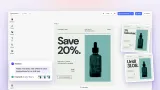
The Inspector Bar is the contextual toolbar that appears above the canvas when a block is selected. It carries the property edits for the selected block: fill color, opacity, font settings, filters, effects, crop controls, trim controls, blend mode, and any custom properties added by a plugin. Anything that involves tweaking a specific property on a block belongs here.
When no block is selected, the Inspector Bar either disappears or shows document-level properties depending on the view mode.
The dividing line between the Inspector Bar and the Canvas Menu is intent: property editing happens in the Inspector Bar; single-tap actions (duplicate, delete, replace, flip, background remove) happen in the Canvas Menu.
Standard versus Advanced view
CE.SDK supports two Inspector Bar layouts, each tuned for a different user persona.
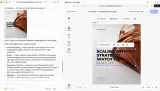
Standard view. The Inspector Bar shows up as a compact toolbar above the canvas when a block is selected. The most-used controls appear inline, and an inspector panel is available alongside it but only opens when needed. This is the layout most Starter Kits use. It keeps the canvas as the focus and reveals controls progressively.
Advanced view. A persistent inspector panel sits beside the canvas at all times, showing the full property set for the selected block. This is the layout used in the Design Editor (Advanced) and Video Editor (Advanced) Starter Kits, intended for Creator-role users who benefit from continuous visibility of every property they might want to set.
The view choice is product-stage. Adopter-facing surfaces use Standard view because the user is doing focused, guided editing with limited controls. Creator-facing surfaces use Advanced view because the user is building a template and wants every knob within reach.
Block-type adaptation
The Inspector Bar shows different components depending on what is selected.
- Image block surfaces adjustments, filters, effects, and crop controls.
- Text block surfaces font family, size, weight, alignment, letter spacing, color, and text effects.
- Shape block surfaces fill color, stroke, opacity, and blend mode.
- Video and audio blocks surface volume, speed, trim handles, and clip-level effects.
Components that do not apply to the selected block do not render, even if they are in the configured order. Each component carries its own block-type awareness and self-hides when inapplicable. The integration configures one order; the Inspector Bar handles the per-selection filtering.
Edit-mode contexts
Like the Dock and Canvas Menu, the Inspector Bar is edit-mode-aware. Its contents change based on the active mode (Transform, Text, Crop, Trim, or any custom mode).
The Inspector Bar Order API accepts an orderContext parameter that lets the configuration target a specific mode. Crop mode surfaces crop-specific controls not present in Transform; Trim mode surfaces video trimming controls that only matter while the clip is being trimmed.
Adding custom components
Plugin-registered components can be inserted into the Inspector Bar alongside built-in ones. This is how integrations surface plugin-specific controls (AI enhancement, brand color enforcement, custom property panels) in the context where they are most useful: right after the user selects the block they want to apply them to.
The Feature API can conditionally show or hide specific Inspector Bar components based on block type, role, or any custom check, without removing them from the order.
See canvas-menu for the single-tap action surface that complements the Inspector Bar, dock for the content-adding surface, and scope for the per-block permissions that govern which properties an Adopter can actually change.
Links
Documentation and references for this concept.
Related Terms
Canvas
The primary workspace in the CE.SDK editor where users view, interact with, and compose their design, rendering the curr…
Scope
A named permission that controls whether a specific editing operation is allowed, operating at two levels: global (edito…
Role
A user type in CE.SDK that determines the default set of editing permissions and the UI experience presented when the ed…