

Dock
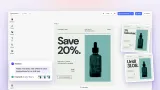
The Dock is the vertical sidebar on the left of the editor that holds entry points to asset libraries and panel-based tools. Each button opens a panel where users browse and insert content into the scene: images, stickers, templates, shapes, audio clips, video clips, fonts, and filters. It is the surface dedicated to adding content, distinct from the surfaces dedicated to editing content already on the canvas.
When users add new content to a design, they do so through the Dock. When they modify content already on the canvas, they use the Inspector Bar or Canvas Menu instead.
The entry chain
The dock is the visible end of a three-component chain: dock button → library entry → asset source. The dock button does not reference the asset source directly. It references a library entry, which is the thing that wraps an asset source and configures how its contents are displayed (grid columns, thumbnail height, icon, label).
This chain is what lets a single asset source appear in multiple places, or multiple sources appear in a single panel. A “Brand Assets” panel might combine a corporate DAM source, the IMG.LY Premium Templates source, and a custom font source into one entry, shown under a single dock button. Or the same source can appear in two entries: as a dedicated panel and alongside other content in a more general entry.
When the dock button references an entry that does not exist, the button does not appear. This is intentional: entries can be registered at initialization but shown conditionally depending on the role, scene mode, or any other context.
How Starter Kits configure the Dock
The default dock layout is a starting point. Each Starter Kit trims, reorders, or extends it based on what its target use case needs.
- Design Editor typically carries images, stickers, shapes, text elements, templates, and any custom asset sources the integration registers. The widest default selection.
- Photo Editor runs a narrower dock, often just images and stickers. The user is editing one photo, not composing from many elements, so most of the asset categories are irrelevant.
- Video Editor includes video clips, audio tracks, overlays, effects, stickers, and text elements relevant to timeline composition.
The dock order is configured through the Dock Order API, which supports adding, removing, updating, and reordering components programmatically. Most integrations call this once at initialization to set up the dock for their use case, then leave it unchanged.
Edit-mode contexts
The dock layout can also change based on the active edit mode (Transform, Text, Crop, Trim, or any custom mode). Dock Order API methods accept an orderContext parameter that lets the configuration target a specific mode. The dock shown while a user is in text editing mode can be different from the dock shown while they are in transform mode, which lets the integration surface only the tools relevant to the current edit step.
Customization beyond asset libraries
Custom plugins can register their own dock components beyond the standard asset library buttons. This is how integrations add items such as settings panels, AI generation panels, or any bespoke tool that needs to live in the same surface as the asset libraries.
The Feature API can also hide specific dock components conditionally based on the context (block type, user role, custom logic) without removing them from the order. This is the right approach when an asset entry should be globally registered but only shown to certain roles or in certain scenes.
Icon size (large 24px or normal 16px) and label visibility are also configurable through editor settings. Separators (ly.img.separator) and spacers (ly.img.spacer) are available for visually grouping components or pushing later items to the bottom of the sidebar.
See asset-library for how panels display content, asset-source for the content layer beneath, and inspector-bar for the editing-side surface that complements the dock.
Links
Documentation and references for this concept.
Related Terms
Canvas
The primary workspace in the CE.SDK editor where users view, interact with, and compose their design, rendering the curr…
Asset Library
The browsable, searchable collection of assets available to users inside the CE.SDK editor, populated from one or more A…
Inspector Bar
The contextual properties panel that appears when a block is selected, adapting dynamically based on the selected block'…